In This Guide:
Related Guides:
Menu
eContracting and Deal Review
Electronic Contracting
Electronic contracting (eContracting) is an optional, self-contained step within Menu which allows the user to validate deal information and execute contracts with eSignatures or Wet Signatures before finalizing them.
This option is only available to dealers who have access to eSigning through their Product Provider.
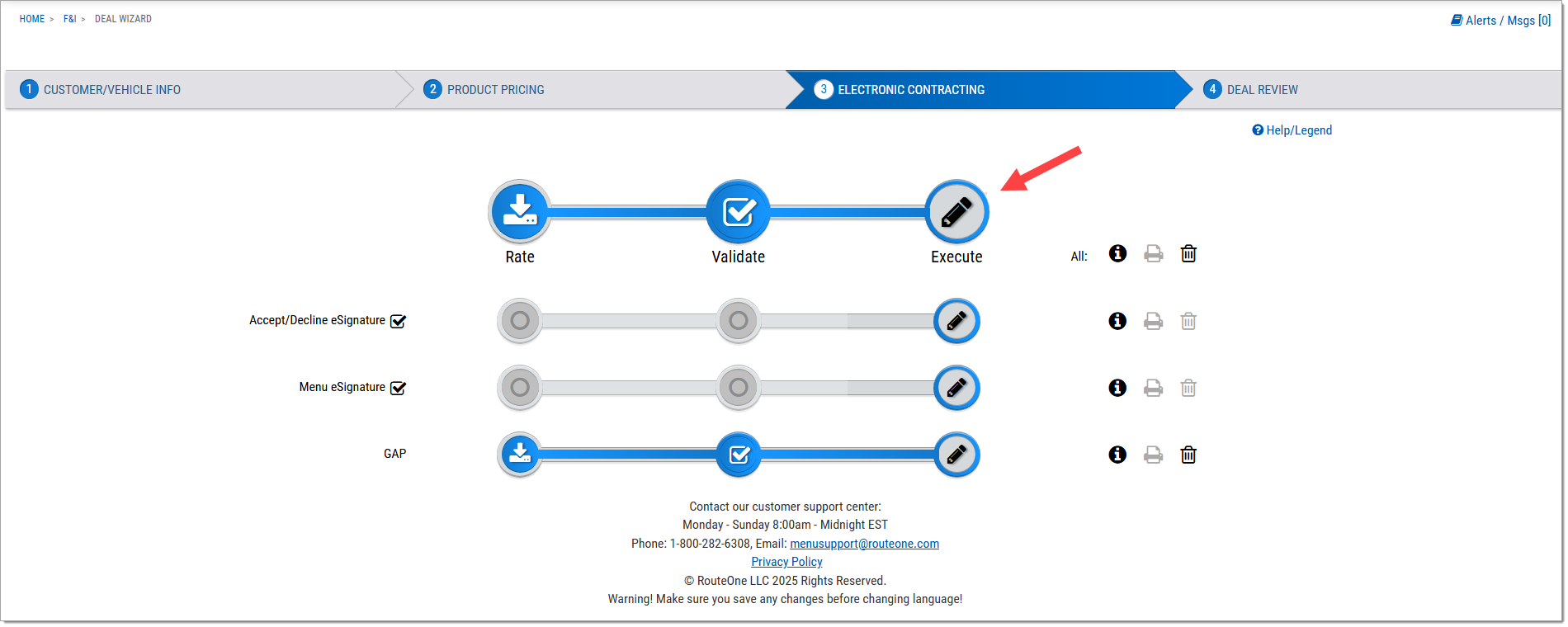
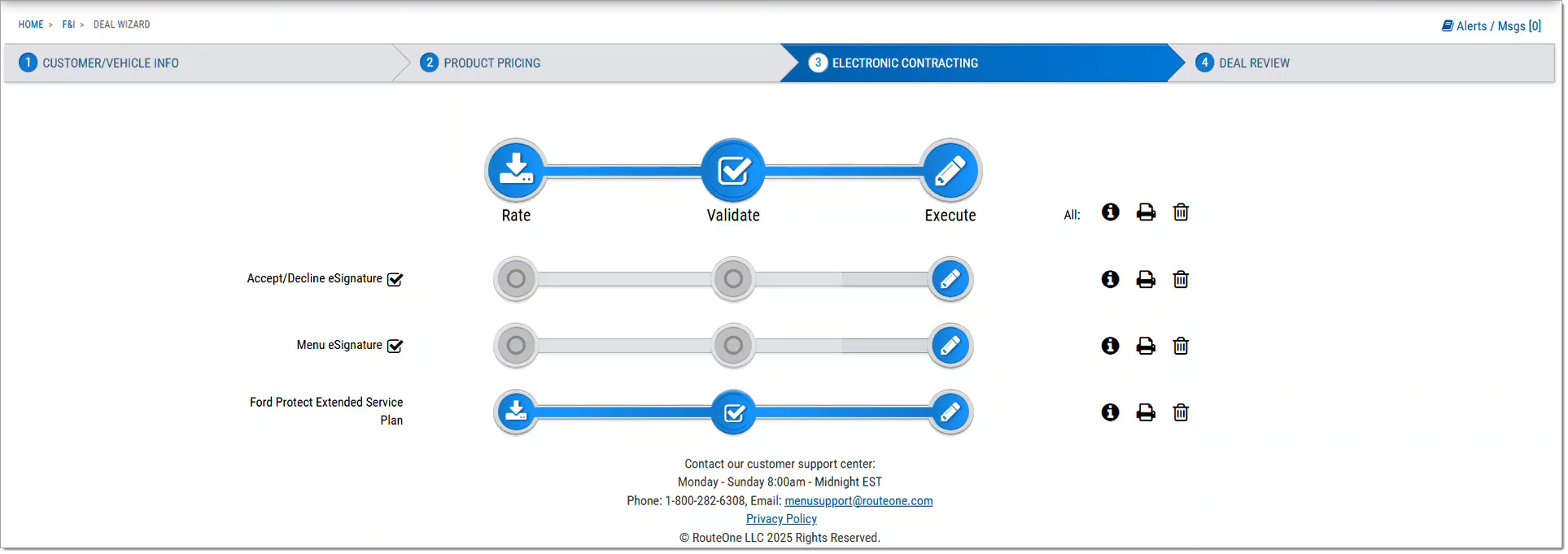
The workflow of the electronic contracting page allows the user to complete the steps for each product independently or all at once using the larger icons at the top of the screen.
If the product was rated on the Product Pricing screen, that status will appear on the eContracting page, and the user can proceed to the ‘Validate’ step. If not, click a ‘Rate’ icon to return to the Product Rating screen. For more information on rating products, see the Rate Products section of Step Two – Product Pricing.
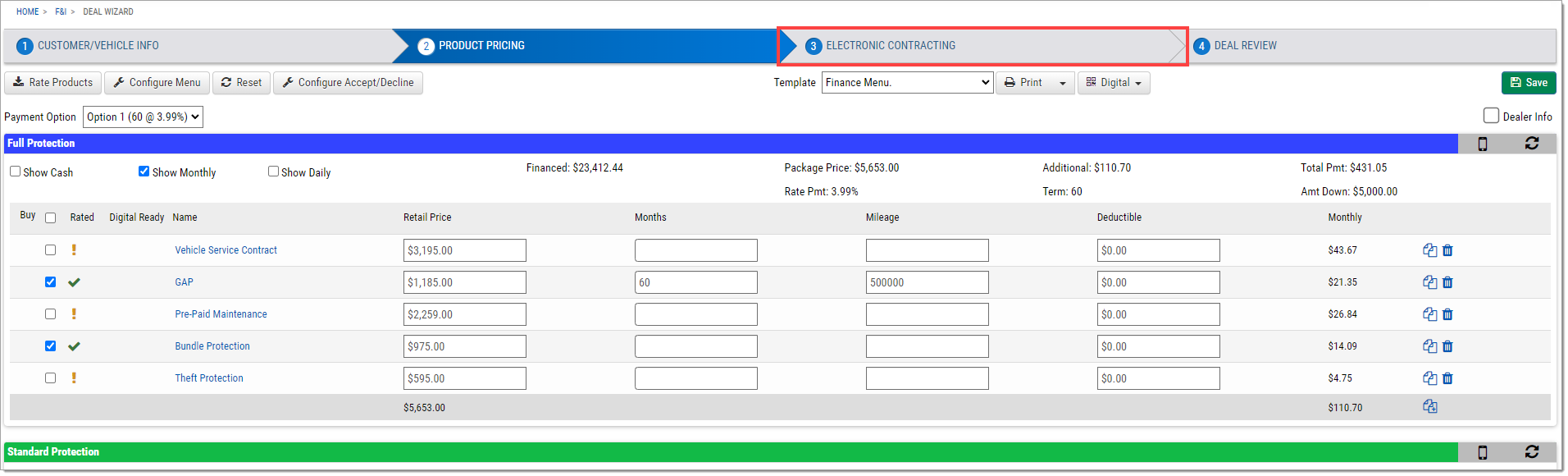
To access eContracting, click the Step Three – Electronic Contracting bar on the Deal Wizard.
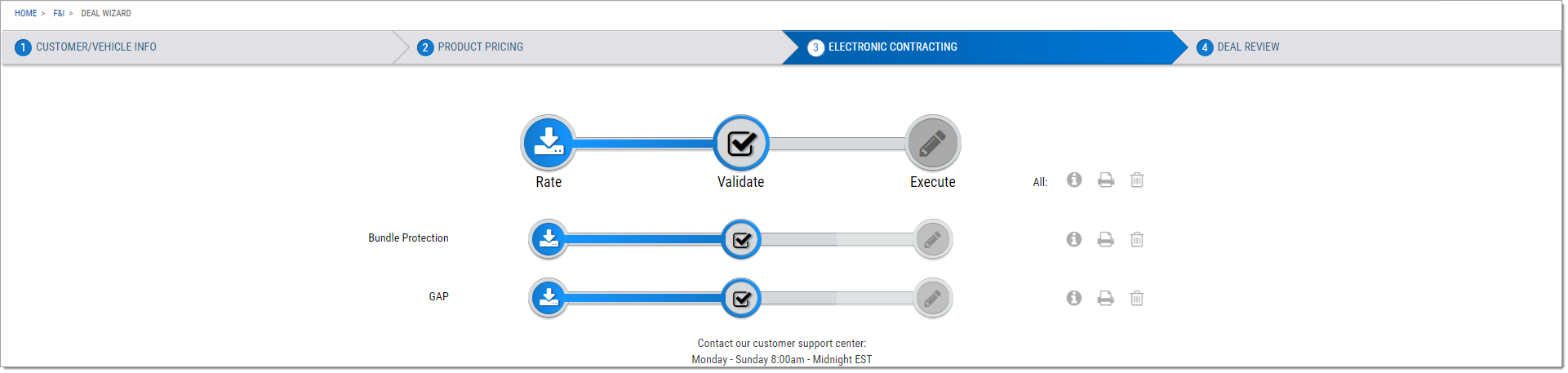
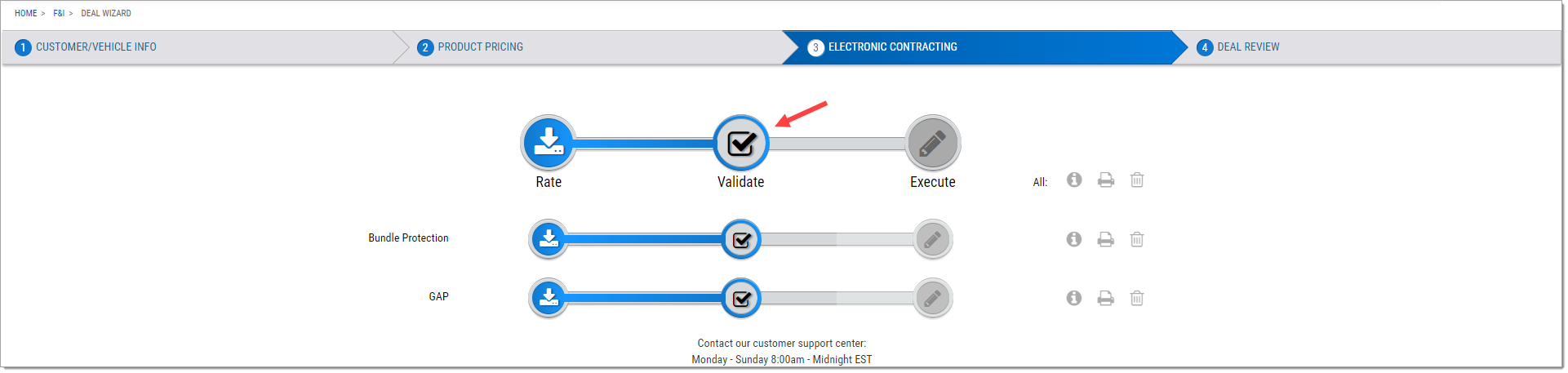
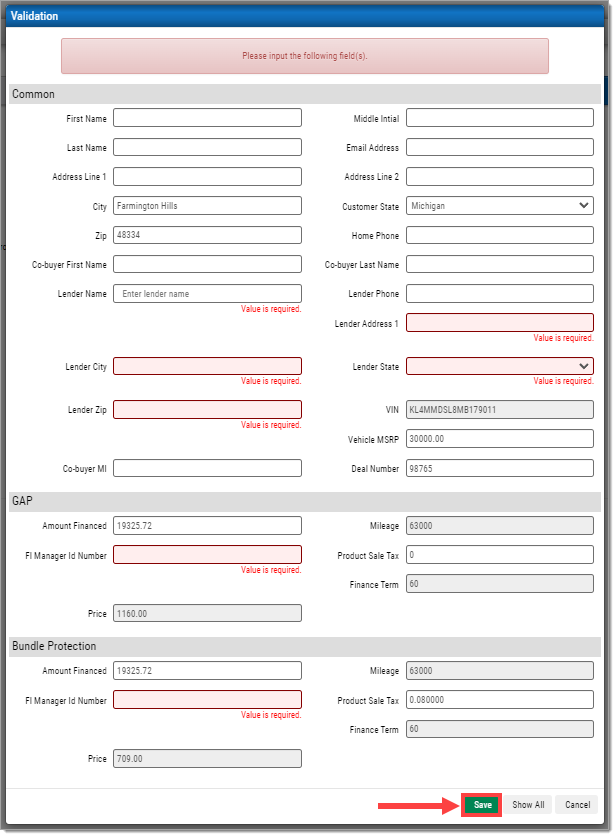
Click the ‘Validate’ icons to review and edit any required fields that are highlighted in red. Clicking the ‘Validate’ icon at the top will allow you to validate all forms at once.
Click ‘Show All’ and double-check spelling and the details of the deal. If the contract is saved with errors, it will need to be voided and recontracted with the corrections.
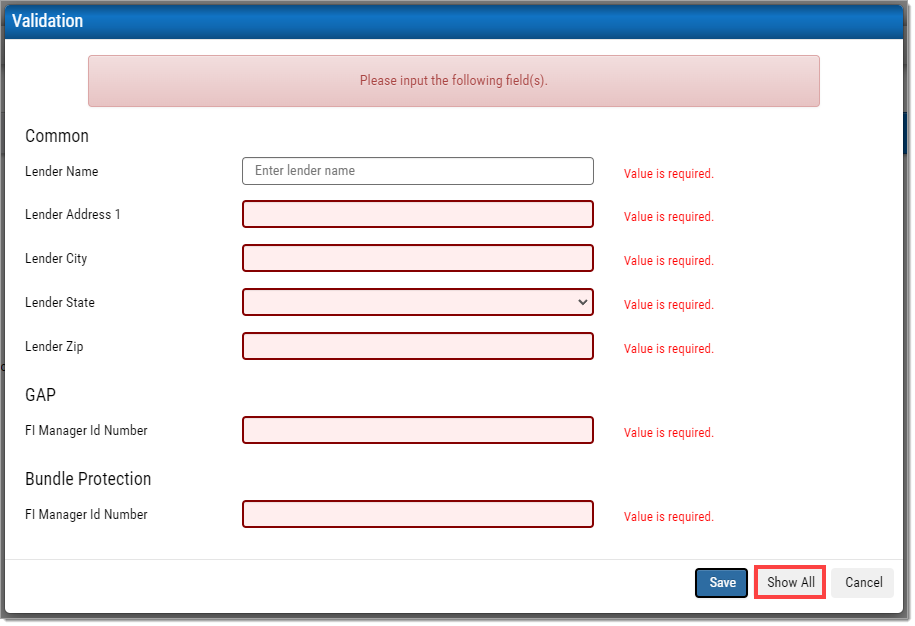
Once confirmed, click ‘Save.’
Some providers allow the user to generate a draft of the contract before it is executed. To view this draft, click ‘Generate.’ Otherwise, this step can be skipped.
To sign the contract, click the ‘Execute’ icon.
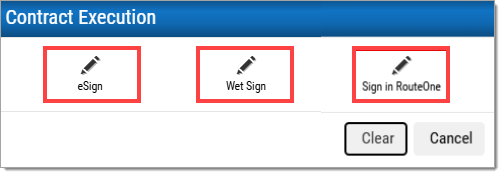
To sign using a tablet, signature pad, or remotely, click the ‘eSign’ box to launch the signing room. If those devices are not available, click ‘Wet Sign’ for a printable version of the contract.
For information on eContracting product forms through RouteOne, click here.
eSigning a Contract
Once you click the ‘eSign’ icon, you will be navigated to a signing room.
For each signer, select their preferred ‘Signing Method’ from the dropdown boxes:
- In Person - if the customer(s) are signing at the dealership via tablet or signature pad.
- Email – if the customer(s) are signing remotely.
Click ‘Initiate eSign’ to make the contract package available for eSign.
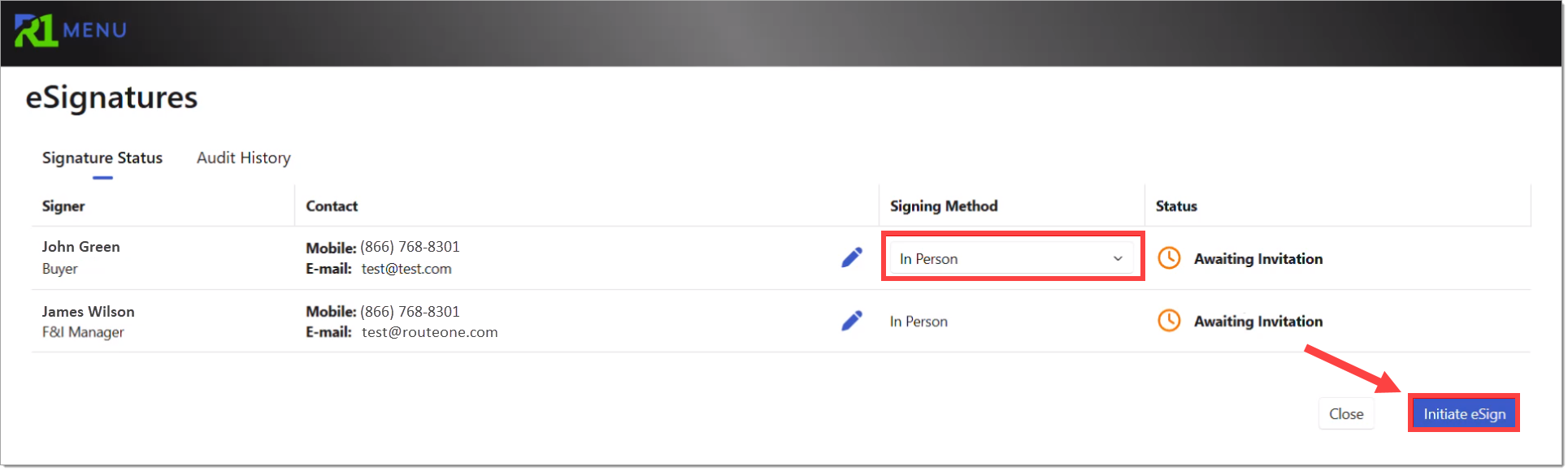
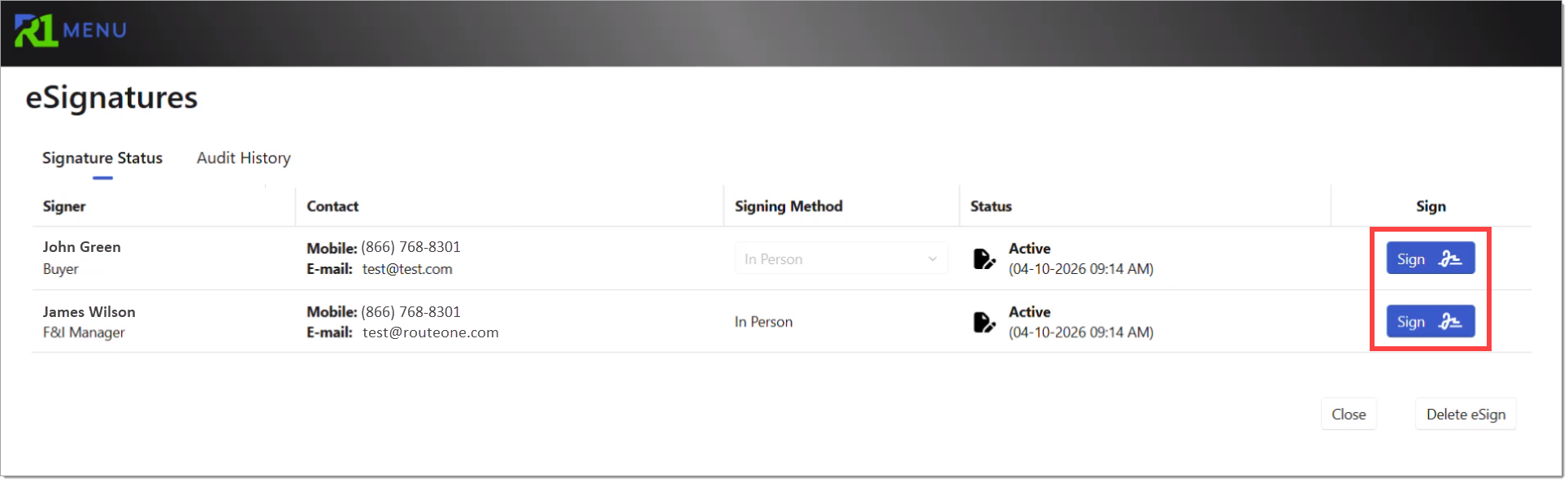
Once eSign has been initiated, 'Sign' buttons will appear under the ‘Sign’ column for signers who selected “In Person.” Signers who selected “Email,” will receive an email with a link to sign the contract.
For those signing in person, click on the 'Sign' button for the signer that you want to sign first.
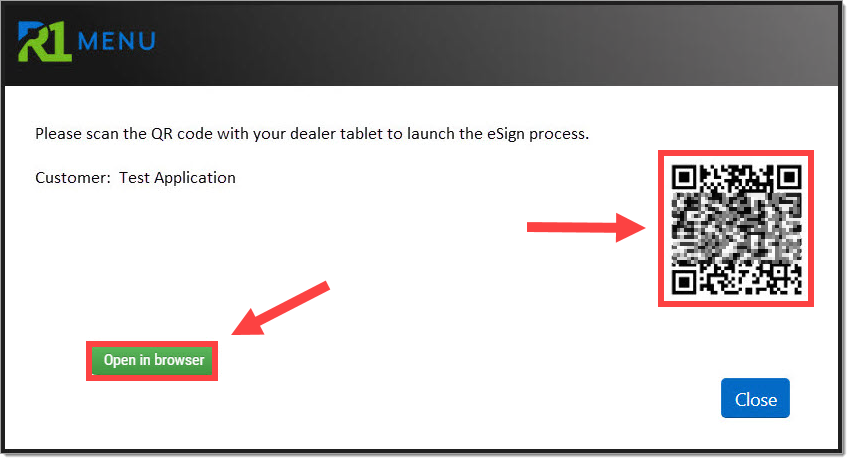
A new page will open. Scan the QR code to launch signing for that signer on the dealer tablet, or click the ‘Open in browser’ button to launch signing for that signer on the signature pad.
Once all signatures are collected for a signer in person or remotely, their ‘Status’ will update to “Completed.” If they signed in person, their 'Sign' button will no longer be selectable.
If you are utilizing remote eSigning (the “Email” option for a signer’s ‘Signing Method’), you will receive an email when a signer finishes signing their forms. You can also return to the Signing Room to check on the status of signers by clicking on the ‘eSign Status’ button on the eContracting page.
If one of the forms changes, or a new form is added, you can click ‘Delete eSign’ in the signing room or click on the trash can icon on the eContracting screen to start over and make corrections or add new forms.
Click ‘Close’ to return to the eContracting page.
Each form will not appear as ‘Executed’ on the eContracting page until all signatures have been collected and the 'Status’ of all signers is marked as “Completed.”
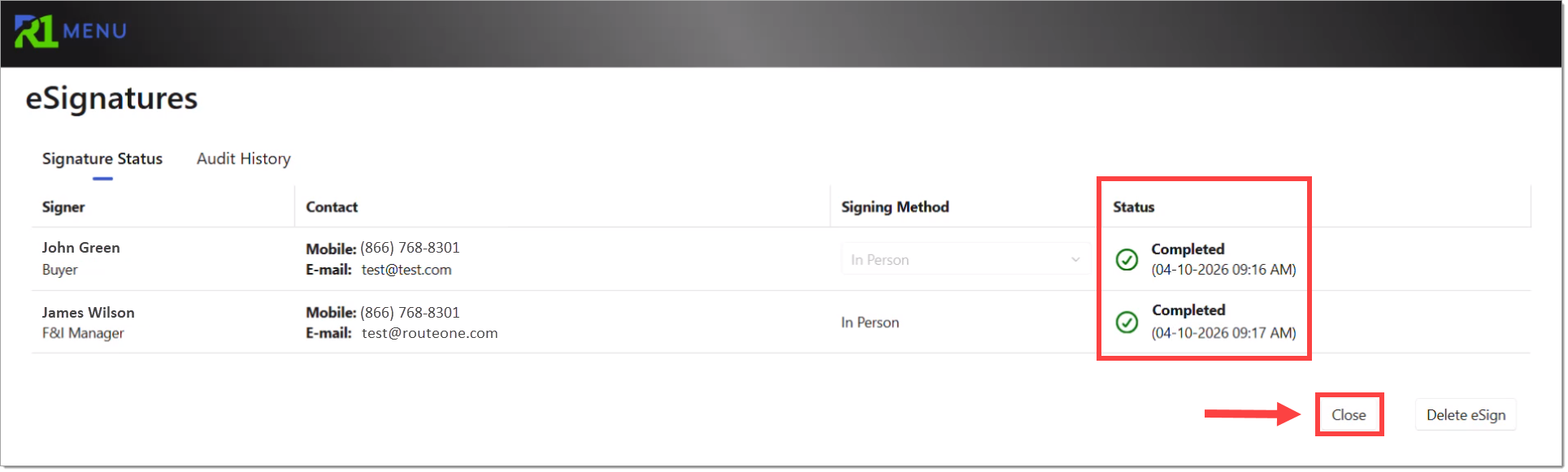
Once the ‘Status’ of all signers is marked as “Completed,” the signature process is completed. The ‘Execute’ buttons on the eContracting page will be disabled, and you can now view and print the signed forms.
Deal Review
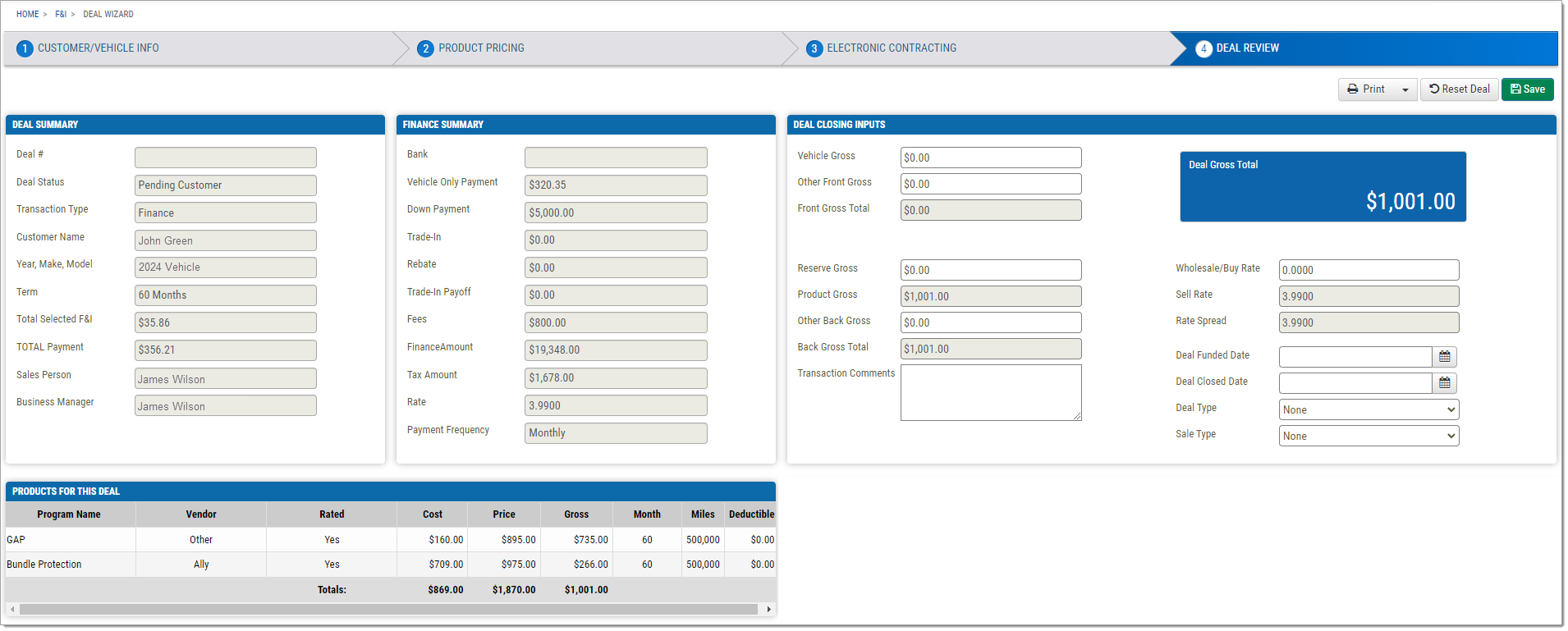
The Deal Review screen allows the user to review and update the costs and selling prices of the products, front gross, buy rate, and reserve gross, as well as print the customer’s menu and disclosure.
Printing the Deal Review
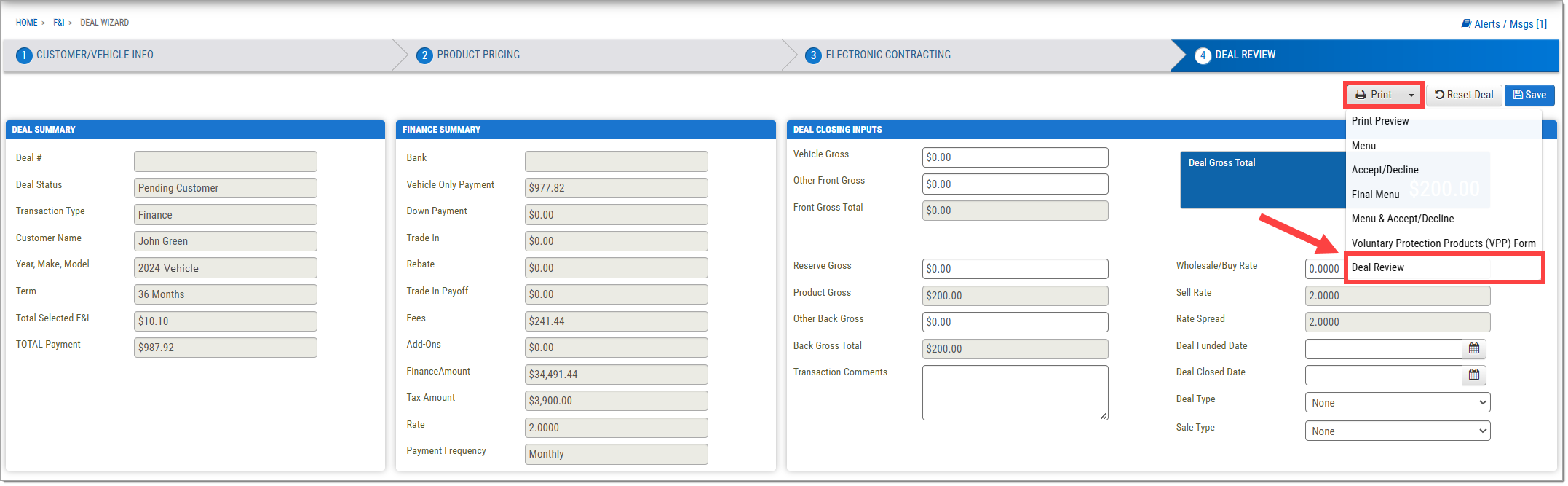
To print the Deal Review, click the ‘Print’ dropdown arrow and select ‘Deal Review.’ A PDF of the Deal Review page will be generated for you to print.
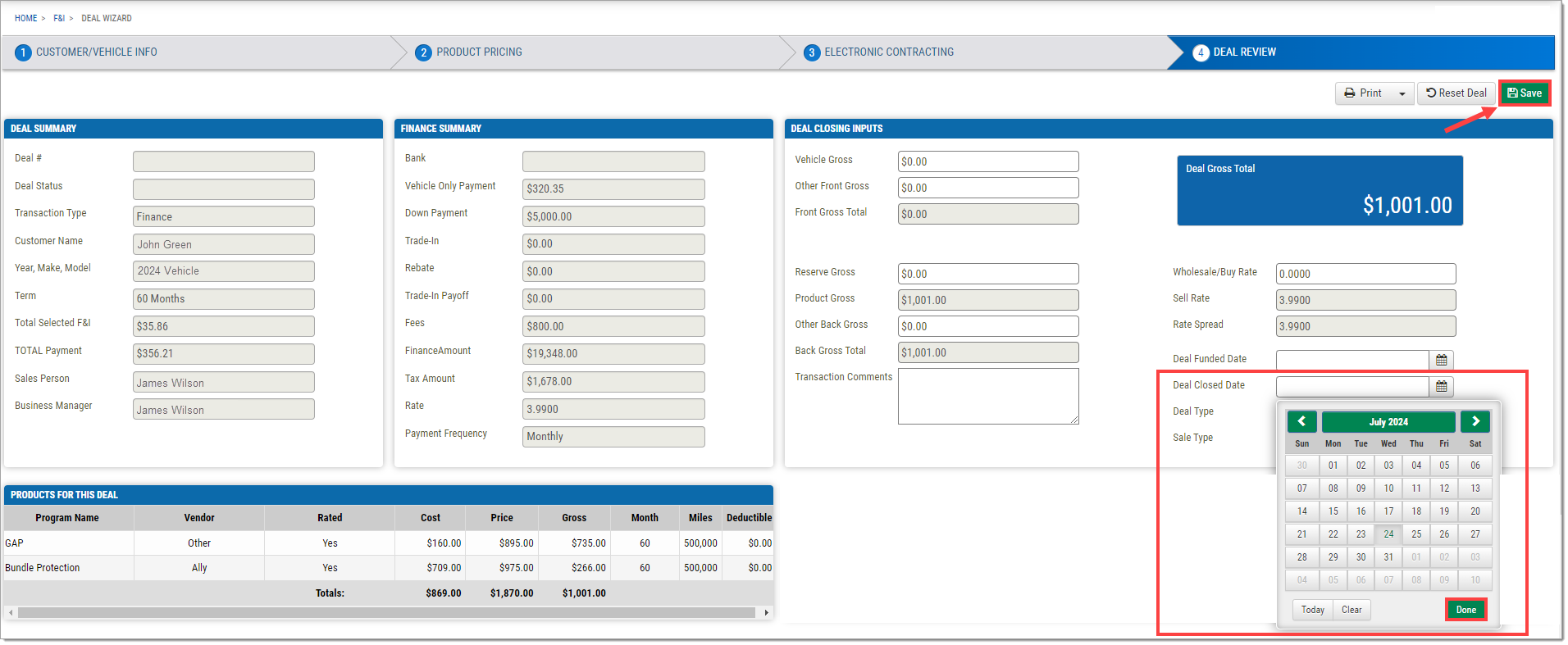
Once the user is satisfied with the deal, it can be closed.
To close the deal, enter a ‘Deal Closed Date’ and click ‘Save.’
The deal will then be marked as closed, and the results will be uploaded to RouteOne Menu Insights.
ROUTEONE SUPPORT
Hours (EST)
Monday - Friday: 6:00am – Midnight
Saturday: 9am – 9pm
Can’t find what you need?
Try our search
