In This Guide:
Related Guides:
Menu
Remote Menu
What is Remote Menu?
Remote Menu is a remote aftermarket retail application, with which dealers can send product offerings directly to customers via SMS and email, including sales tools to help explain the product’s features & benefits.
Selections will be visible in RouteOne Menu upon completion of the process.
Sending the Package
When Remote Menu is enabled, you can send a single column Menu Package or a multi-package 2-4 column Menu.
To send a single column Menu Package, click on the phone icon in the second step of the menu process (Product Pricing Page) next to the package you want to send.
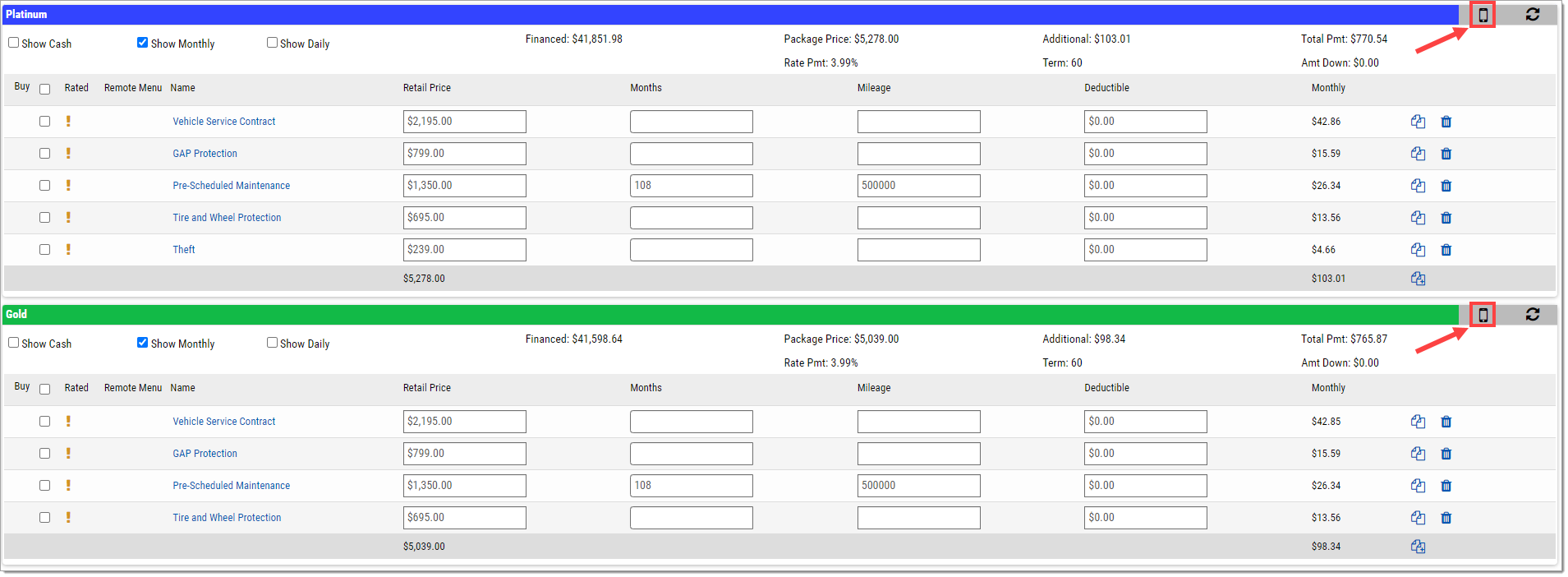
To enable multi-package for Remote Menu, click the ‘Admin’ dropdown and select ‘Remote Menu.’ In the ‘Remote Menu’ tab, select the ‘Multi-Package’ checkbox. You will now be able to send multi-package Menus using the instructions below.
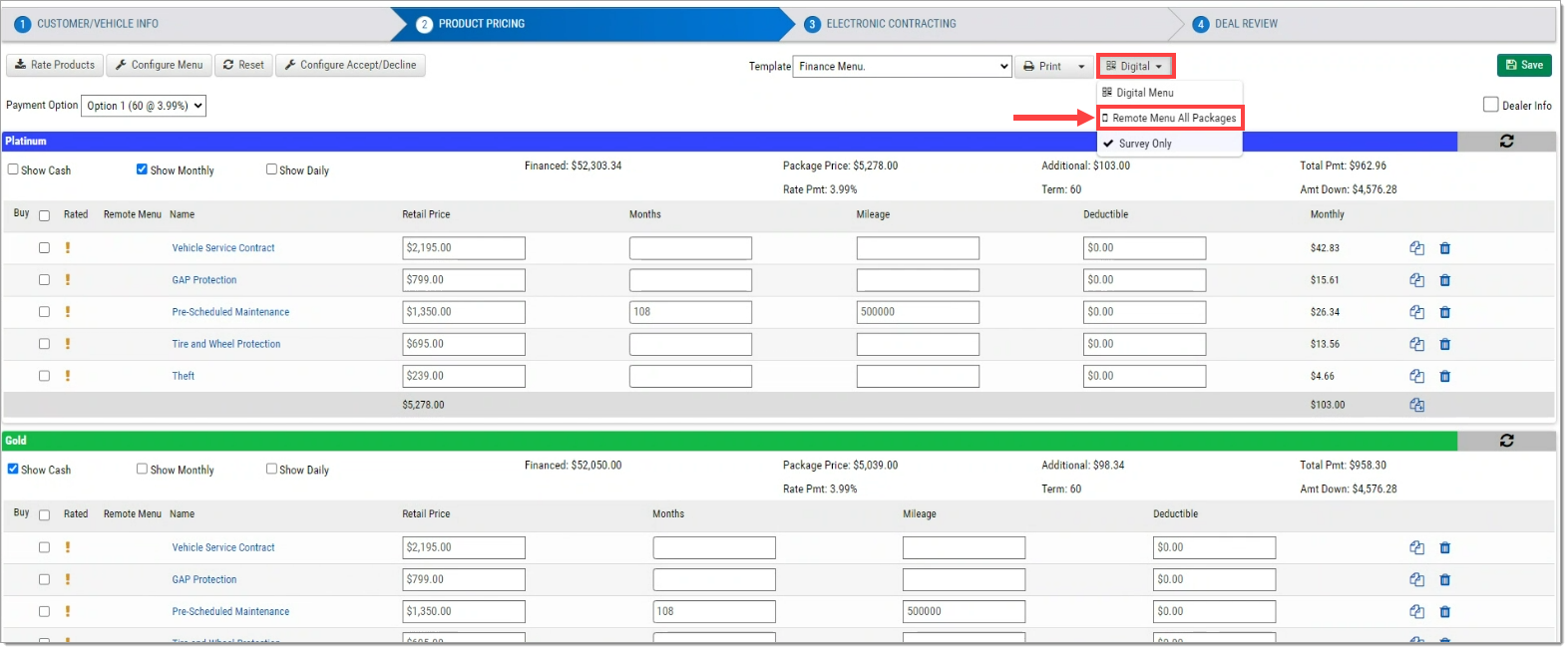
To send a multi-package 2-4 column Menu, navigate to the ‘Digital’ dropdown located to the right of the ‘Print’ drop-down, then select ‘Remote Menu All Packages.’
For both options, a ‘Send Menu Confirmation’ pop-up will appear.
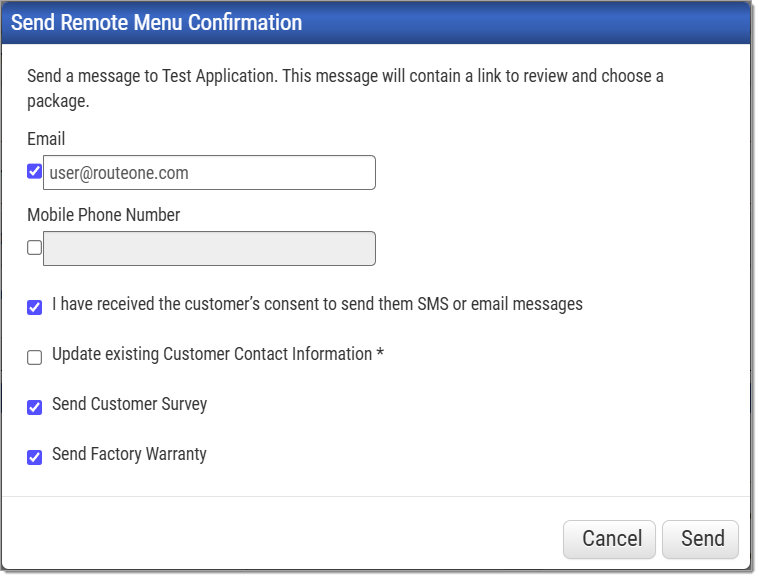
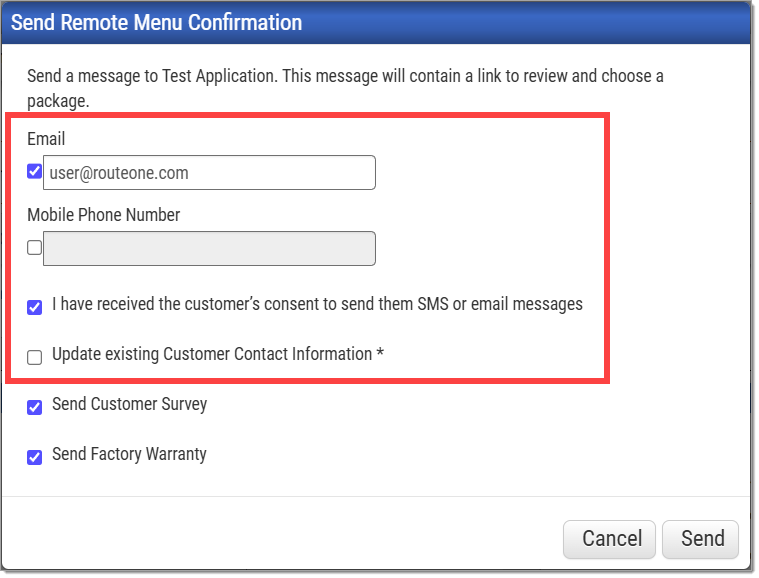
Enter the customer email and/or mobile phone number.
Click the checkbox next to each method with which you want to send the package to the customer.
- If this information already exists in the deal, the fields will be pre-populated.
- If the information entered differs from that which exists in the deal, you can check the ‘Update existing Customer Contact Information’ box to update the information in the deal.
Click the checkbox next to the consent statement to confirm that you have obtained the customer’s consent to send them SMS or email messages.
To send a survey to the customer along with the package, click the checkbox next to ‘Send Customer Survey.’
The Customer Survey is part of the Premium Menu subscription.
To send a factory warranty presentation to the customer along with the package, click the checkbox next to ‘Send Factory Warranty.’
Factory Warranty Review is part of the Premium Menu subscription. Click here to navigate to the Factory Warranty Review section for more information.
Once ready, click ‘Send.’
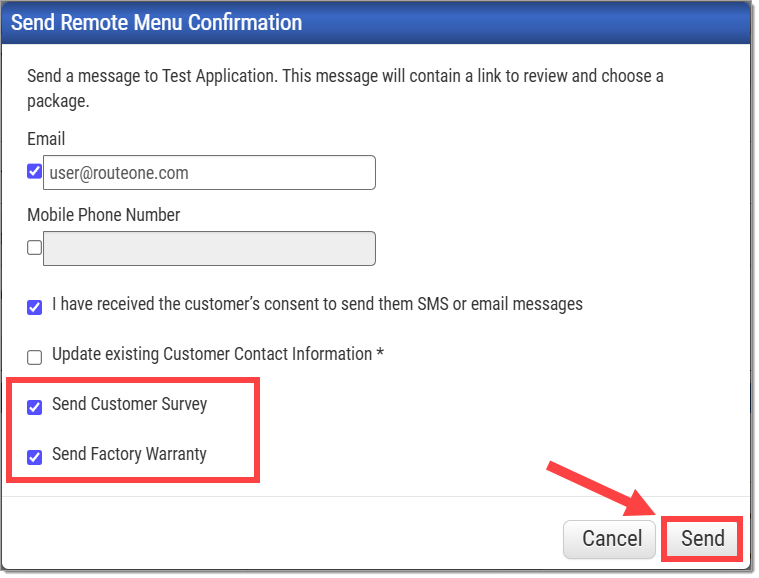
If the survey is selected, the factory warranty will be presented after the survey and prior to product selection.
If the survey is not selected, the factory warranty will be presented before product selection.
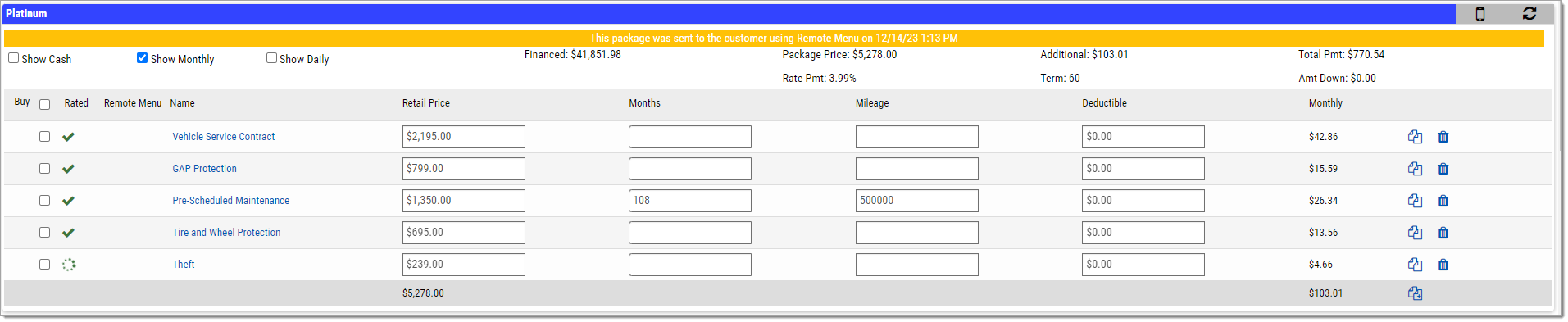
Once a package has been sent, the menu will be updated with a yellow bar reflecting that the package has been sent and is pending customer action.
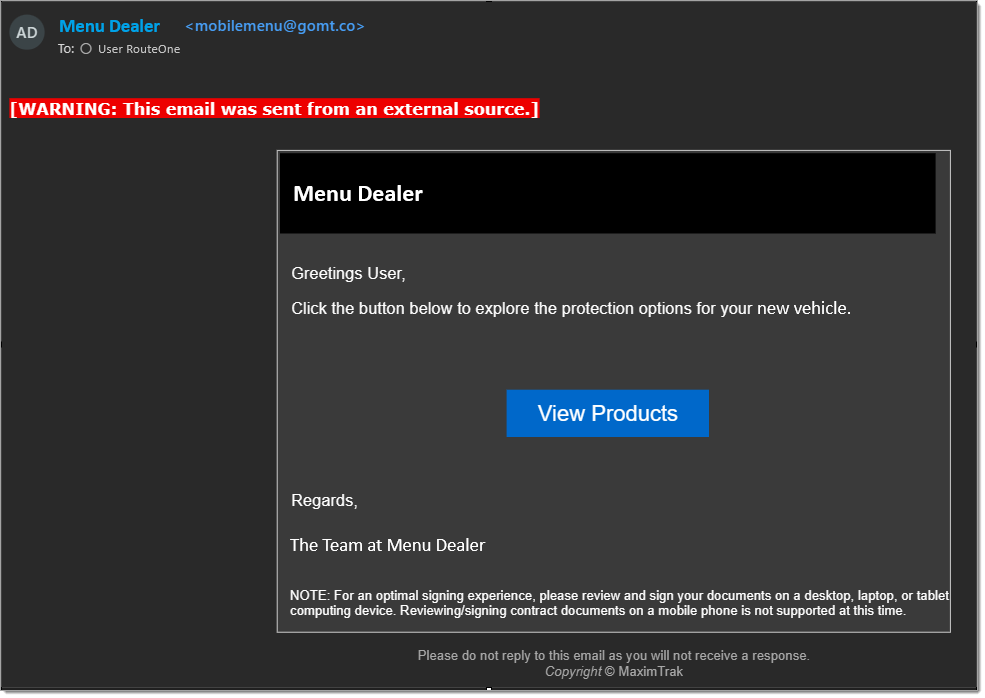
At the same time, the customer will receive an email and/or text message with the link to Remote Menu.
The link is only available for 48 hours. After that time, the link will need to be re-sent. The customer will only ever have access to the most recent link generated.
Once the customer has reviewed and confirmed their product selections , the Menu will update and a red bar will appear, indicating that selections have been made. The selected products will also appear in the Menu.

- If the customer does not confirm their selections, the bar will remain red, but the message will state that the link has expired.
During the product selection process, the customer will have the option to select In-Line Rating, which enables the customer to change the coverage term, coverage deductible, and coverage distance for an eligible product.
As part of Remote Menu, the customer can eSign the Accept/Decline Disclosure, Menu form, and the Product Contracts remotely or at the dealership. For more information, click here to view our eContracting and Deal Review user guide
Factory Warranty Review
Factory Warranty Review (FWR) is an optional, premium feature that helps F&I Managers explain factory warranty coverage, highlight coverage gaps, and present protection options. The FWR can be sent as part of the Remote Menu package using the steps outlined in the ‘Sending the Package’ section of this page.
Factory Warranty Review is part of the Premium Menu subscription.
The FWR will open after the survey (if the survey is selected) and before product selection, showing the Summary page with an overview of the vehicle and its current factory and powertrain warranty coverage.
The Factory Warranty Review Summary page for an example vehicle.
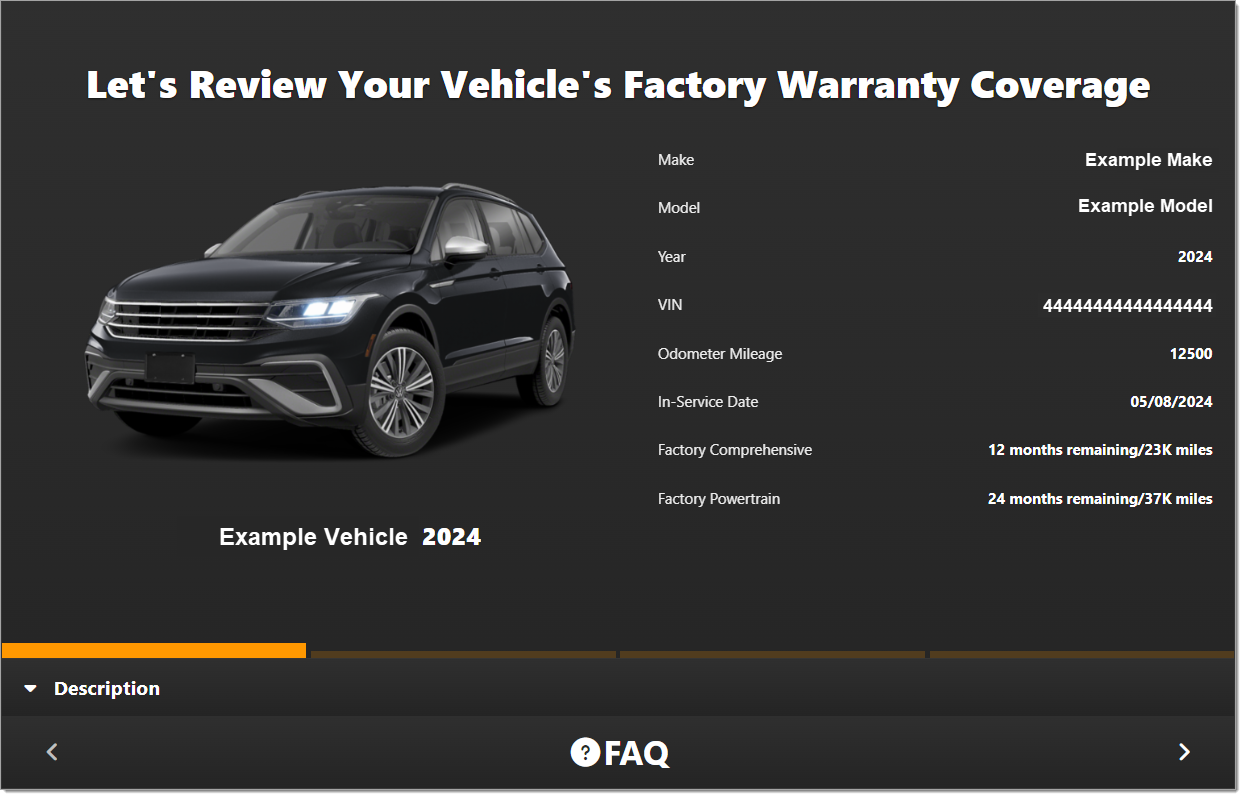
The customer can navigate through the sections of the FWR using the arrows at the bottom of the screen.
The Factory and Powertrain Warranty pages provide detailed information about each warranty. The Outlook page offers a comprehensive view of current coverage and highlights the customer’s potential exposure to future repair costs.
For more information, click the ‘FAQ’ at the bottom of the page to review frequently asked questions.
Once this step is completed, the customer can navigate to the package selection and product selection. The customer can navigate back to the survey or factory warranty selection from the product selection page.
Post-Sale Follow-Up
The Post-Sale process provides a customer with a second opportunity to purchase eligible products that were previously declined during the vehicle sale once a designated amount of time has passed since the completion of the deal.
The Post-Sale process uses Remote Menu, regardless of whether it was used for the initial sale.
The Post-Sale process runs at 12:00 PM and 6:00 PM EST each day. This cannot be changed by the individual dealership, as it is configured at a global level. An email and/or an SMS message will be sent, based on what was consented to in the Vehicle Sale record. Once the customer opens the link, a new ‘Post-Sale Walk-In’ sale record will be created. This new deal type will include a modified ‘Product Pricing’ step, which allows the dealership to see the products selected through Remote Menu. In addition, the ‘Vehicle Info’ page will only display the vehicle image, not any financial information associated with the deal.
The product package is dynamically built using products marked as ‘Post Vehicle Sale’ and products from the vehicle sale’s Menu template. If a product exists in multiple packages, the highest price for the product is used.
GAP Products will not be included.
Post-Sale Eligibility
If no products are eligible, no Post-Sale messages will be sent to the customer.
A vehicle sale must meet the following criteria to be eligible for Post-Sale:
- The sale’s ‘purchase date’ was set in the warehouse.
- The customer has consented to receive emails, SMS, or both.
Configuring Post-Sale
To enable Post-Sale, the ‘Post-Sale Follow-Up’ client feature must be enabled at the dealership.
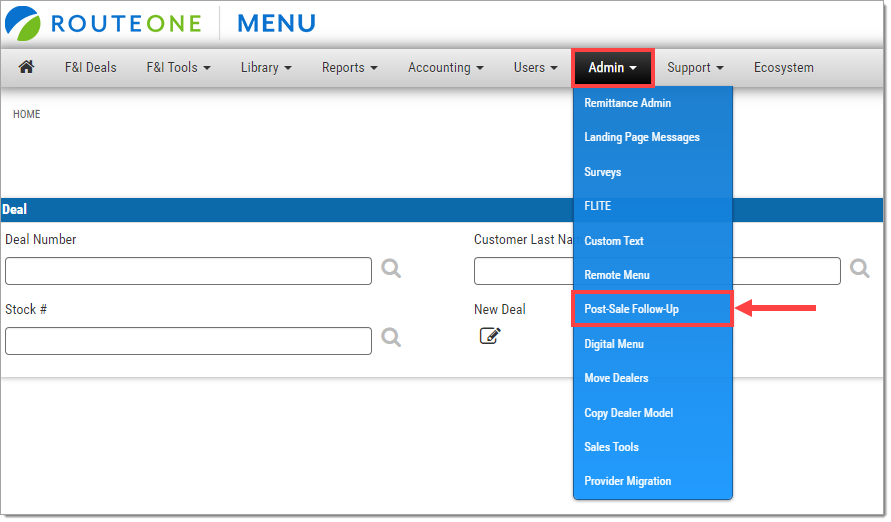
In Menu, click the ‘Admin’ tab to expand the drop-down menu, and select the ‘Post-Sale Follow-Up’ option.
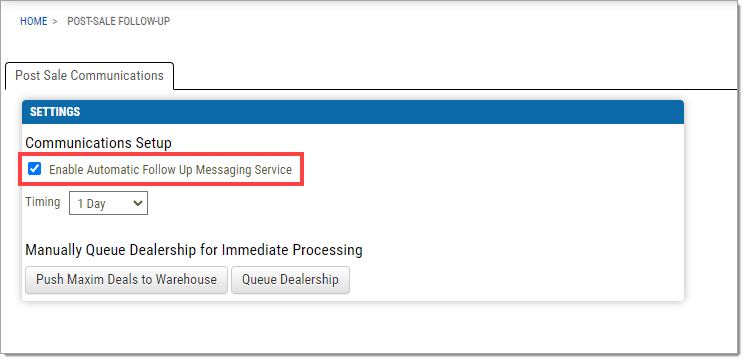
To enable Post-Sale, click the ‘Enable Automatic Follow Up Messaging Service’ check box.
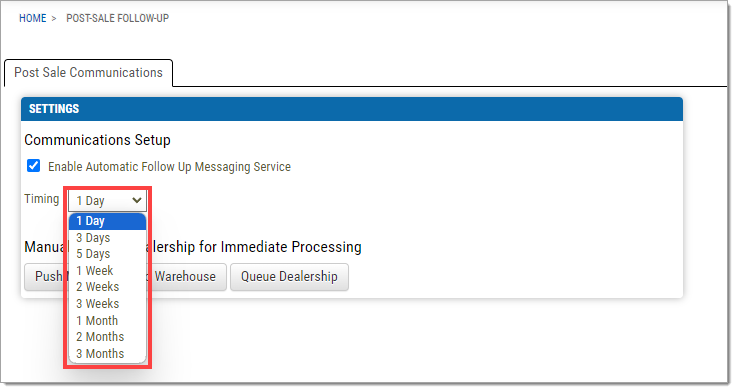
Open the ‘Timing’ drop-down menu to designate how long after the completion of the deal the post-sale communication will be sent.
ROUTEONE SUPPORT
Hours (EST)
Monday - Friday: 6:00am – Midnight
Saturday: 9am – 9pm
Can’t find what you need?
Try our search
