In This Guide:
Related Guides:
Access and Administration
Logging into RouteOne
If you do not yet have an account, please contact your Dealer System Administrator (DSA), or contact RouteOne Customer Support at 1-866-ROUTE01 (1-866-768-8301), Option 3, in the U.S. You may also send an email to [email protected].
Directly Logging In
To log into your RouteOne account, visit www.routeone.com.
If you have not yet migrated to our new Enhanced Login process, click here to access the pre-migration Logging into RouteOne user guide.
Click the green ‘Login’ button in the top right-hand corner of the page.
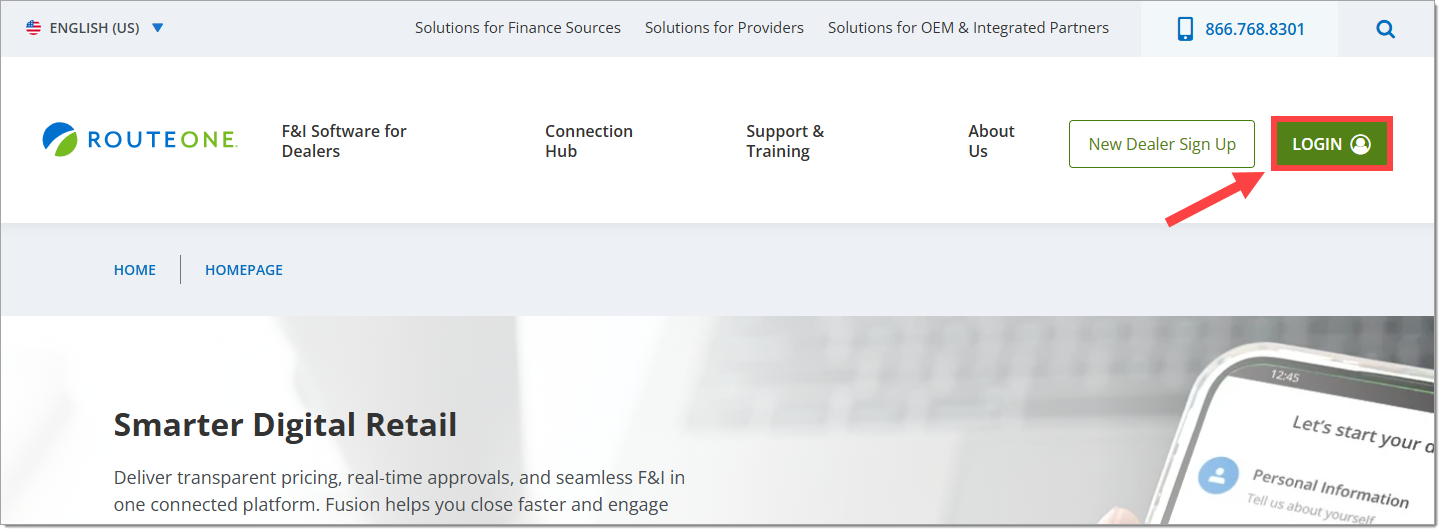
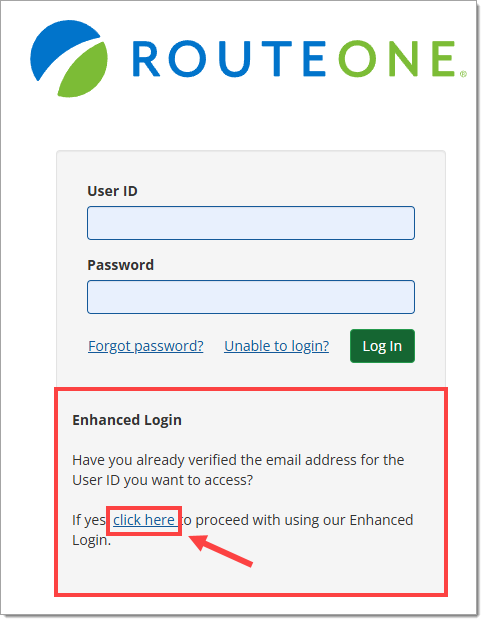
Once on the login screen, click the ‘click here’ link in the Enhanced Login section.
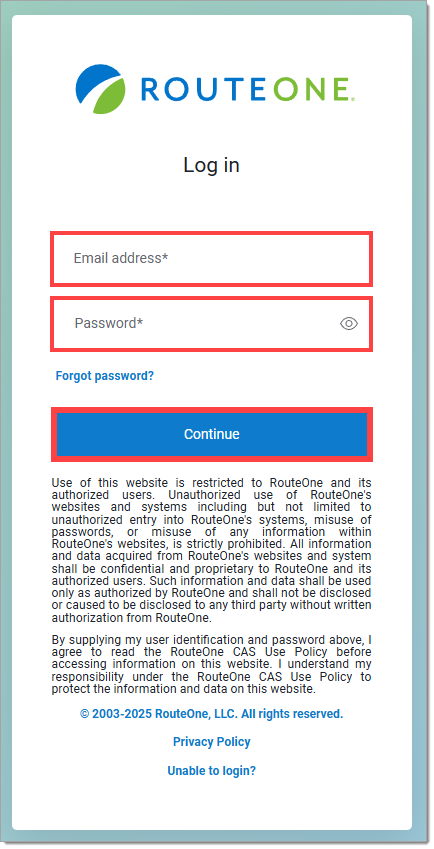
Once on the Enhanced Login screen, enter your email address and password in the designated fields, then click the ‘Continue’ button.
Users with RouteOne-branded company portals that have Single Sign On can access RouteOne directly from the company portal without having to separately log into RouteOne. If your company portal becomes unavailable, you will need to directly log into RouteOne using the steps mentioned here.
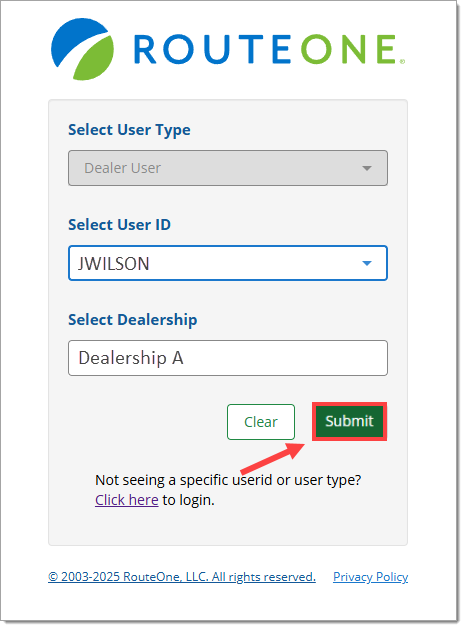
If applicable, you will then be prompted to select your ‘User Type,’ ‘User ID,’ and/or the dealership that you want to access.
Click ‘Submit.’
The first time you log in to RouteOne, you will have to set up Multi-Factor Authentication (MFA). For more information on MFA, click here to navigate to the section below.
Resetting your Password
Resetting your Password from the Log In Screen
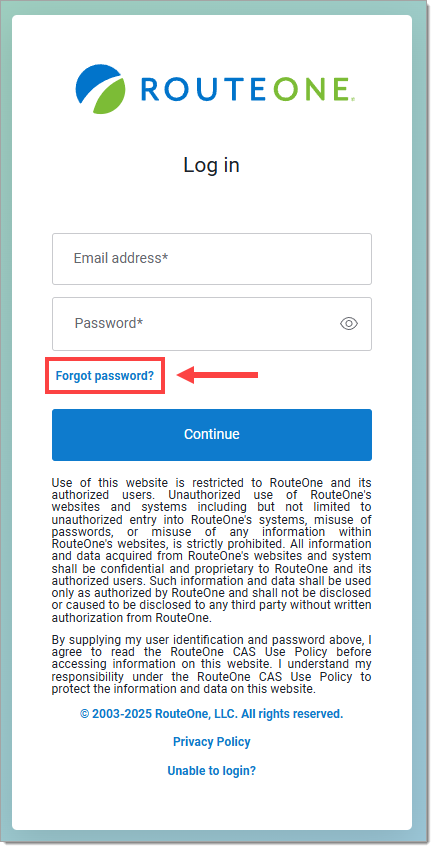
If you do not remember your password, click the ‘Forgot password?’ link on the Log In screen.
You will be directed to the Reset Password screen. Input your email address and click ‘Continue.’
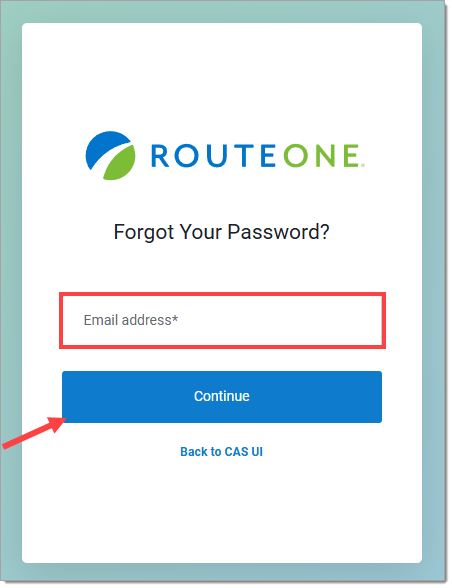
Your email address must match the address saved in your RouteOne profile. If you do not know which email address is associated with your RouteOne account, please contact your DSA or RouteOne customer support.
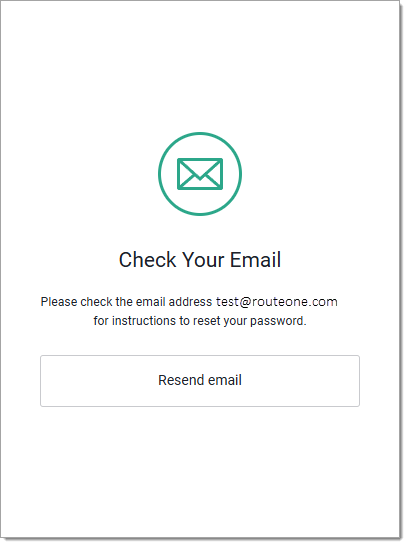
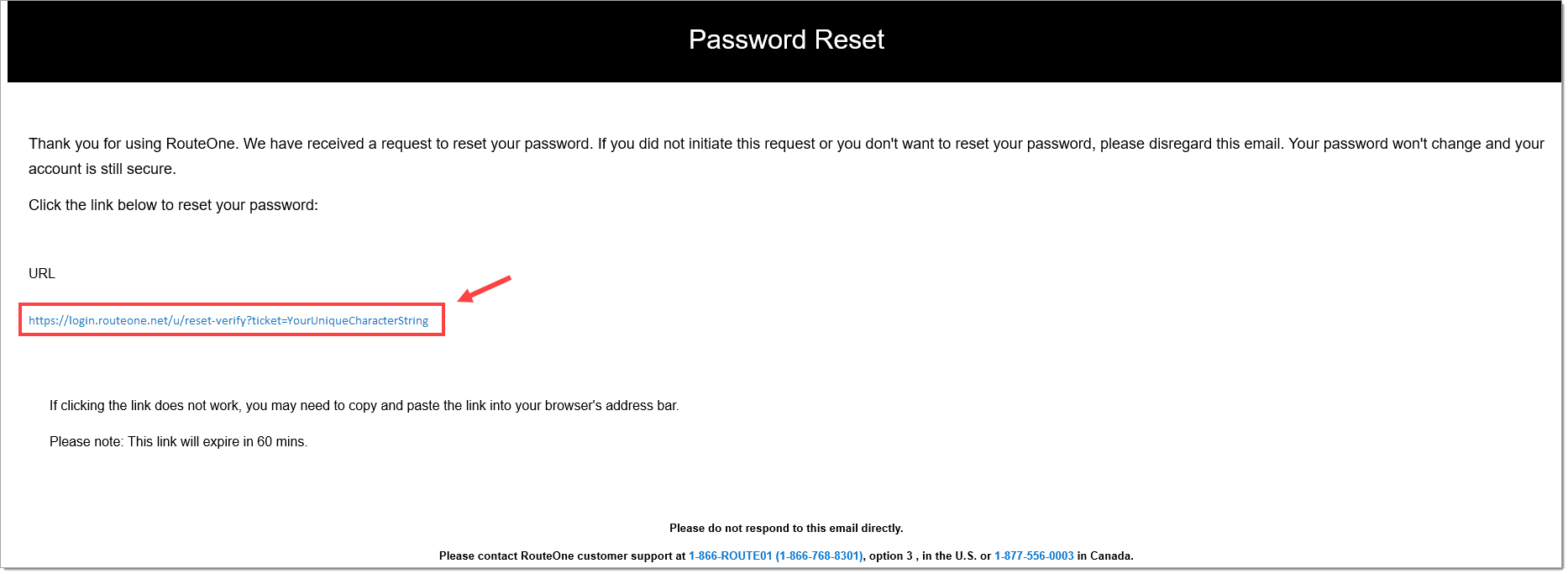
After entering your email address and clicking ‘Continue’, you will receive an email from [email protected] with instructions on how to reset your password. The email may take up to 5 minutes to arrive. If you do not receive an email within 5 minutes, be sure to check your spam/junk folders.
Click the link provided in the email. You will be directed to the RouteOne page for creating a new password.
Password Requirements
- Your password cannot be one of your previous six passwords.
- The password must:
- Be at least 8 characters long
- Contain at least 3 of the following:
- 1 number (0-9)
- Lower case letter (a-z)
- Upper case letter (A-Z)
- A special character (e.g., !@#$%^&*)
- Passwords are case sensitive.
- Passwords may not include any variations of “RouteOne” or “MaximTrak”.
- Additionally, RouteOne maintains a list of commonly used words that cannot be included as part of a password.
Updating an Expired Password
Every 60 days the RouteOne system will require you to update your password when you attempt to log in. When logging in with an expired password, the following message will be displayed.
Click ‘Continue.’
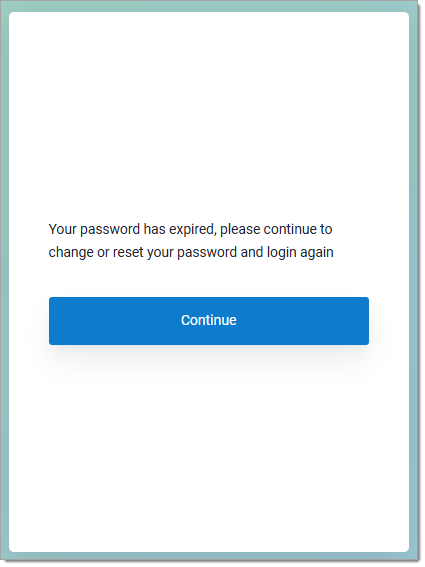
Click ‘Continue.’ You will receive an email from [email protected] with instructions on how to reset your password. The email may take up to 5 minutes to arrive. If you do not receive an email within 5 minutes, be sure to check your spam/junk folders.
Click the link provided in the email. You will be directed to the RouteOne page for creating a new password.
Tips For a Successful Password Change
- If you have automatically saved your old password, you will need to completely delete it before you can use the new password, or you will continue to be locked out.
- Ford Toolkit/Ally Portal Single Sign On Tip: Passwords must be reset directly in RouteOne; they cannot be reset in a Toolkit or Portal.
Multi-Factor Authentication (MFA)
The first time you log into RouteOne, you will be prompted to set up multi-factor authentication (MFA). This will allow RouteOne to verify whether the person accessing your account is really you.
Important Note: If access to your email address or text messages is ever compromised, contact your DSA or RouteOne Support immediately to update your information.
Select whether you would like the verification code sent to your cell phone via text (‘SMS’), or to your email address (‘Email’). If you do not currently have a phone number associated with your account, you will be able to add one now.
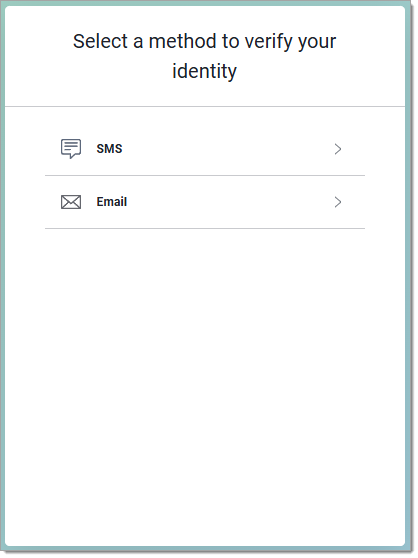
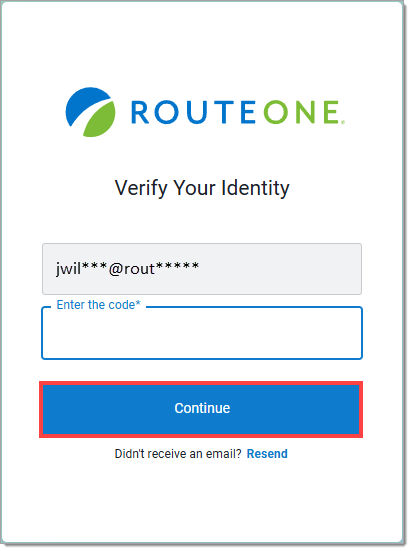
Retrieve the code from your email or SMS message and enter it in the appropriate field.
Click ‘Continue.’
The email or SMS message may take up to 5 minutes to arrive. If you do not receive an email within 5 minutes, be sure to check your spam/junk folders. If over 5 minutes have elapsed, click the ‘Resend’ link under the ‘Continue’ button. If over 5 minutes have elapsed, click the ‘Resend’ link under the ‘Continue’ button.
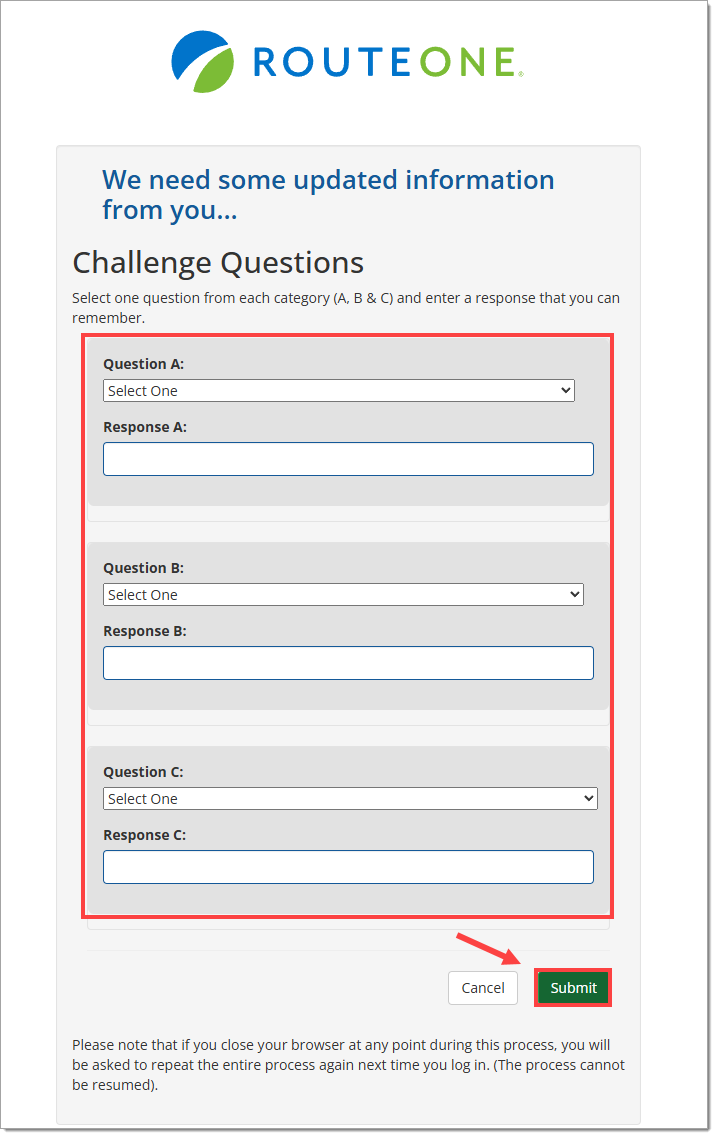
You will then be asked to select challenge questions and answers which will be used if RouteOne Support needs to confirm your identity.
Select your three challenge questions from the dropdown menus and enter unique answers that you will remember.
Important Note: If you close your browser at any point during this process, you will be asked to repeat the entire process again the next time you log in.
Click ‘Submit.’
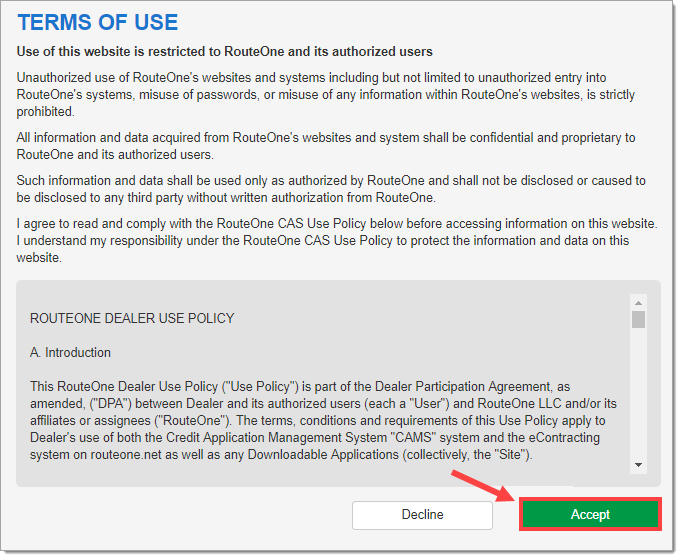
Review and accept the terms of use for the RouteOne system.
Logging In on a New Device
In addition to providing your password, each time you log in using a new device you will be prompted to verify your identity via multi-factor authentication (MFA).
Select whether you would like the verification code sent to your cell phone via text (‘SMS’), or to your email address (‘Email’).
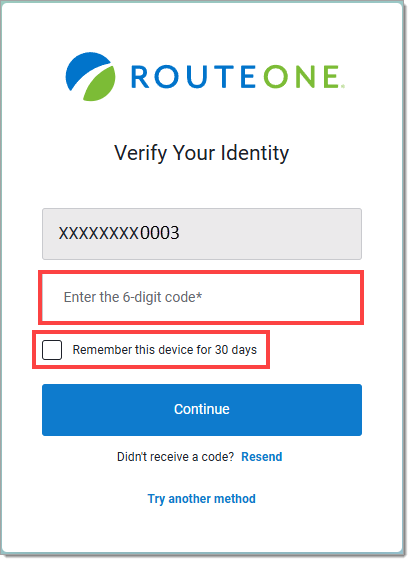
Retrieve the code from your email or SMS message and enter it in the appropriate field.
The email or SMS message may take up to 5 minutes to arrive. If you do not receive an email within 5 minutes, be sure to check your spam/junk folders. If over 5 minutes has elapsed, click the ‘Resend’ link under the ‘Continue’ button, or click ‘Try another method.’
If this is a device you use often, click the ‘Remember this device for 30 days’ checkbox.
Click ‘Continue’ to proceed with the login process.
Adding a Mobile Number to Your Profile
If you did not add a mobile number when you set up Multi-Factor Authentication, you can update your profile information at any time using My RouteOne.
Once you have logged in, visit the ‘My RouteOne’ page, by clicking the ‘Gear' icon in the upper right-hand corner.

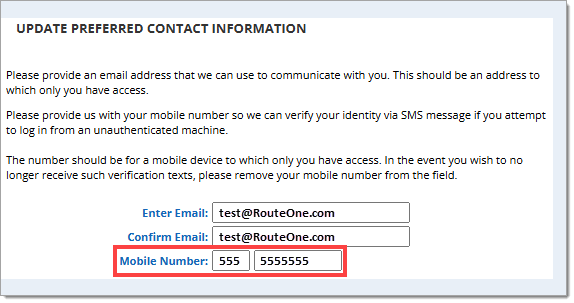
Scroll down to the ‘Update Preferred Contact Information’ section.
Input your mobile number, then click the ‘Save’ button at the bottom of the page.
Many other user preferences can also be updated in the ‘My RouteOne’ page. For more information, click here to visit the Using My RouteOne user guide.
ROUTEONE SUPPORT
Hours (EST)
Monday - Friday: 6:00am – Midnight
Saturday: 9am – 9pm
Can’t find what you need?
Try our search
