In This Guide:
Related Guides:
Access and Administration
Using My RouteOne
What is ‘My RouteOne’?
My RouteOne is the area in the RouteOne system where users can view and manage their individual account settings and preferences, including:
- User ID, Dealer ID, and the name of your Dealer System Administrator(s) (DSA)
- Password
- Default page
- Preferred contact information
- Challenge questions
Note: For any changes to ‘My RouteOne’ to take effect, they must be saved by scrolling to the bottom of the page and clicking the ‘Save’ button.
Accessing My RouteOne
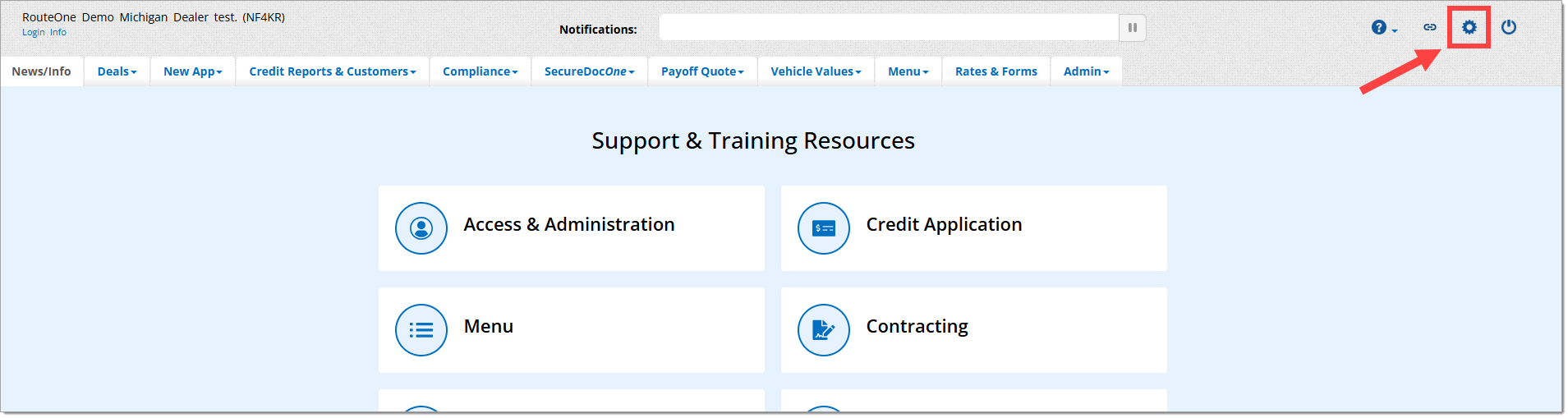
Click on the ‘Gear’ icon in the upper right-hand corner of RouteOne.net. A new window will open showing your ‘My RouteOne’ account section.
Locating your User ID, Dealer ID, and Dealer System Administrator (DSA)
User ID and Dealer ID
At the top of the My RouteOne page is a short message containing your User and Dealer information. It is formatted as follows:
“Hello [First Name]! You are logged into RouteOne as [User ID] at the [Name of Dealership], RouteOne Dealer ID: [Dealer ID]”
For example, if your User ID is JWILSON and your Dealer ID is ABCDE, the message would read:
“Hello James! You are logged into RouteOne as JWILSON at the Dealership A, RouteOne Dealer ID: ABCDE”
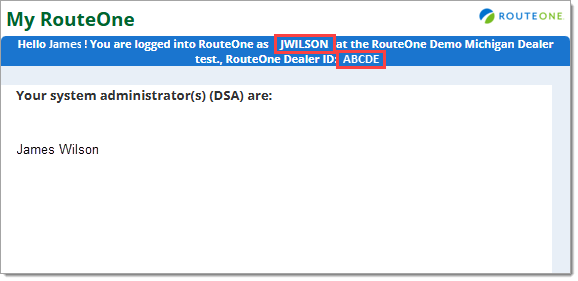
Note: Your Dealer ID also appears in the top left corner of RouteOne in parentheses following the name of your dealership.
Dealer System Administrator (DSA)
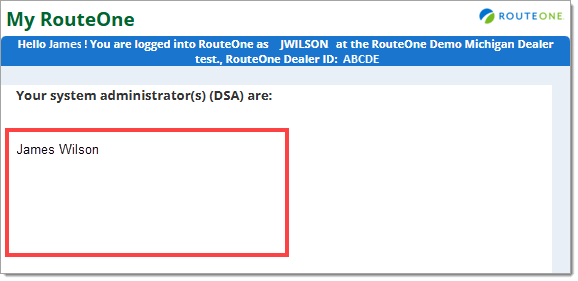
You can find a list of your Dealer System Administrators (DSA)s under “Your system administrator(s) (DSA) are:” line.
Changing your Password
Note: For information on resetting a forgotten or expired password, click here to view our Logging into RouteOne user guide.
To change your password in the ‘Change Password’ section, click the checkbox that states “If checked, you will receive an email that provides further instructions on resetting your password.” The email associated with your account is shown in the ‘Email’ field above.

Note: To trigger the password reset email, you must scroll to the bottom of the page and click ‘Save.’
Setting your Default Page
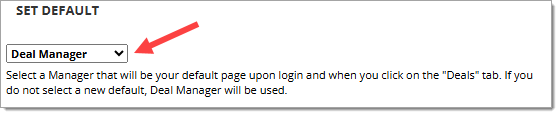
In the ‘Set Default’ section you can set the default page you see:
- When you log into the RouteOne system
- When you click directly on the ‘Deals’ navigation tab at the top of the RouteOne system
- When you refresh whatever page you are on
The currently available default pages are:
- App Manager
- Contract Manager
- Deal Manager
- Desktop
- Lead Manager
To select your default page, click on the dropdown menu and select one of the options.
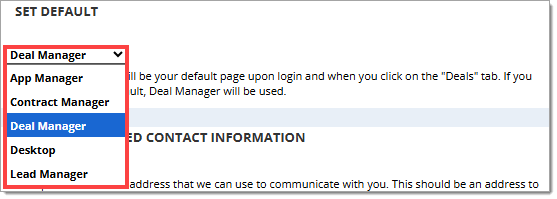
Note: To save your default page, you must scroll to the bottom of the page and click ‘Save.’
Updating your Preferred Contact Information
In the ‘Update Preferred Contact Information’ section, you can view or update the email address associated with your account and view, add, or update your associated mobile number.
RouteOne uses this information to confirm your identity when you have forgotten your password, and for Multi-Factor Authentication (MFA) when you are logging in from a new device. For more information on MFA, click here to view the Logging into RouteOne user guide.
To update your email address, replace the old email address with the new email address in both the ‘Enter Email’ and ‘Confirm Email’ fields.
Note: Make sure that the new email address is only accessible by you; i.e., no “Shared” email addresses.
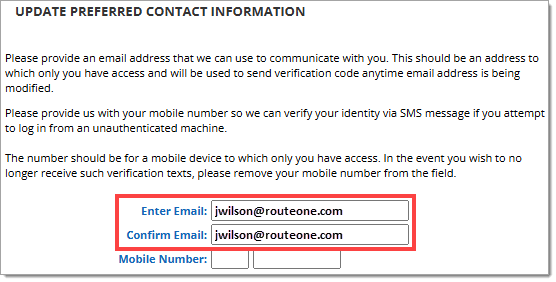
To add or update your mobile number, enter it into the ‘Mobile Number’ field.
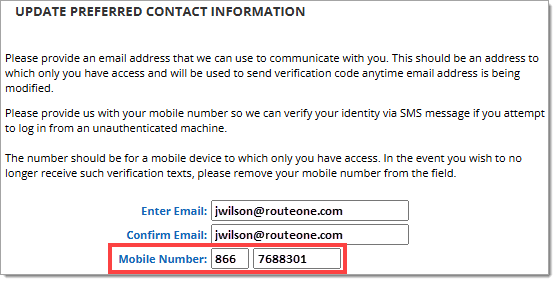
Note: To save your email address and/or mobile number, you must scroll to the bottom of the page and click ‘Save.’
Setting Challenge Questions
In the ‘Set Challenge Questions’ section, you can update the three challenge questions that RouteOne uses to confirm your identity. These questions and answers were set by you the first time you logged into your RouteOne account.
To update your challenge questions, use the ‘Question’ dropdown menus to select from the prewritten questions.
Input your answers to each question in the respective ‘Response’ fields.
Note: It is important to use unique answers that you will remember.
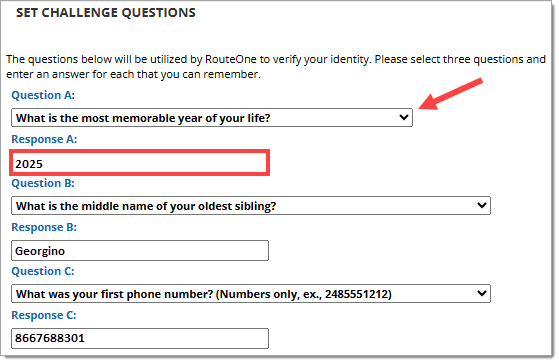
Note: To save updates to your challenge questions and/or answers, you must scroll to the bottom of the page and click ‘Save.’
ROUTEONE SUPPORT
Hours (EST)
Monday - Friday: 6:00am – Midnight
Saturday: 9am – 9pm
Can’t find what you need?
Try our search
