Related Guides:
Access and Administration
Customizing the Consumer Facing Credit Application
Overview
The Consumer Facing Credit Application (CFC) is an Online Credit Application offered through RouteOne’s Digital Retail Services, which your dealership can embed in several places to generate leads.
This guide details how to customize your Consumer Facing Credit Application.
More information about installing the Consumer Facing Credit Application can be found here.
By comparison, the Lead Capture Form offered through RouteOne’s Digital Retail Services has limited requirements (name, email, phone number) for the consumer to submit their information.
For more information, visit the resources on Installing the Lead Capture Form and Customizing the Lead Capture Form.
Accessing the Online Credit Application Configuration Options
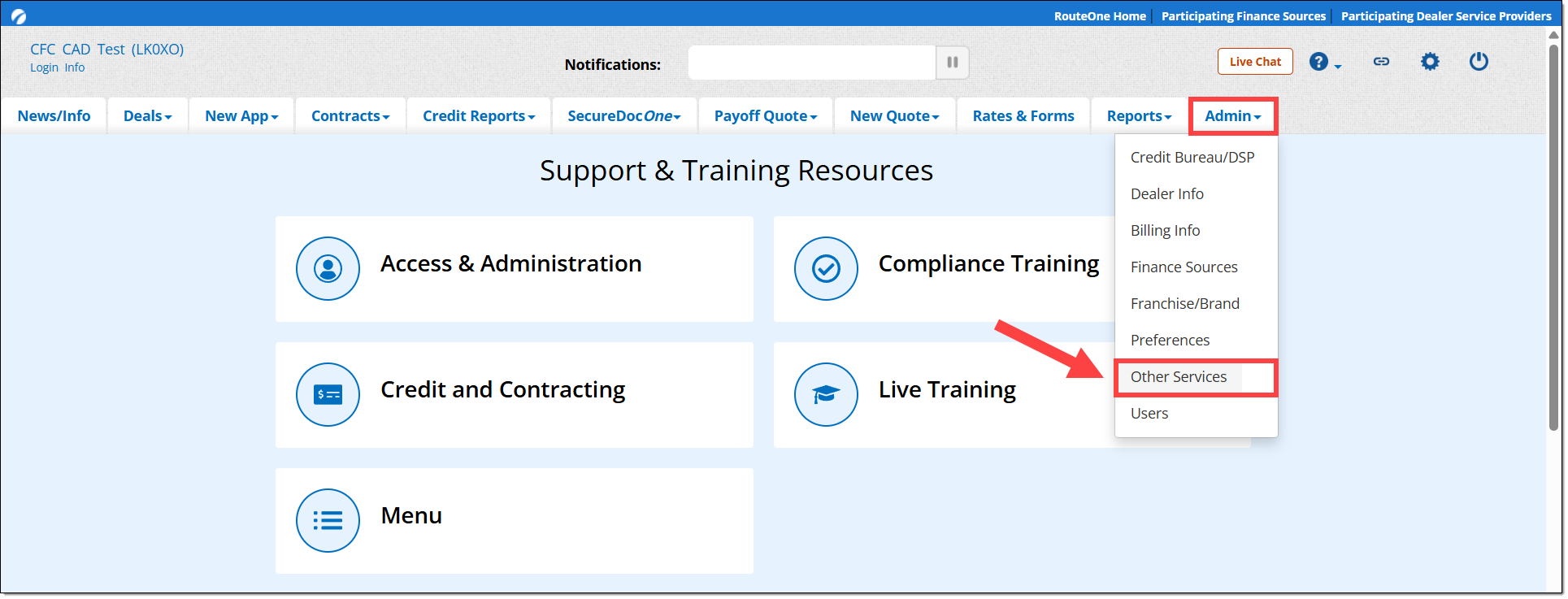
Hover over the ‘Admin’ tab from the top navigation and select ‘Other Services’ from the drop-down menu.
To view this page in the RouteOne system, you must be a Dealer System Administrator (DSA). To locate the DSA for your dealership, click here to visit the Using My RouteOne user guide.
Click on ‘Digital Retail’ to expand the section.

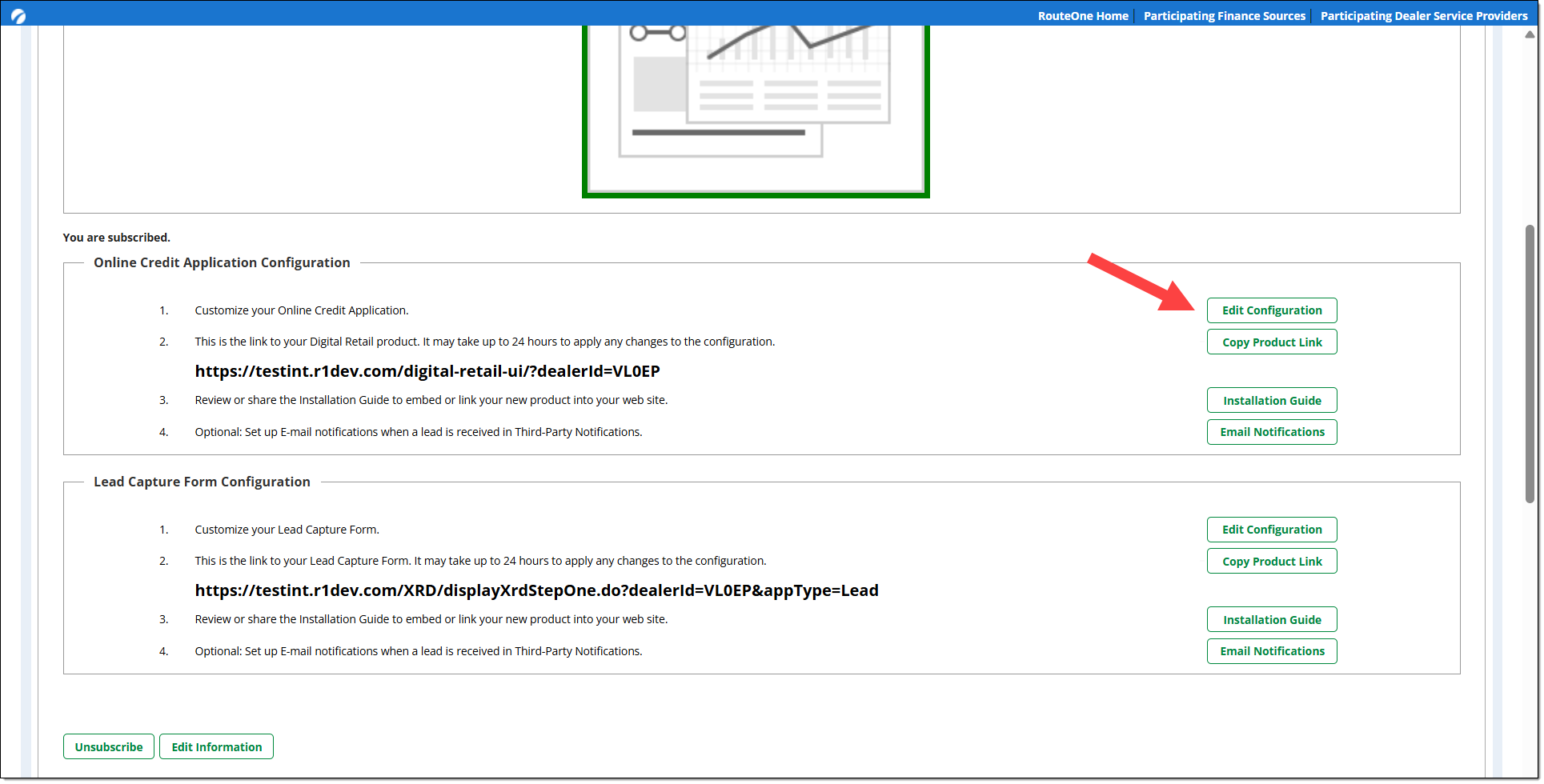
Scroll down to the ‘Online Credit Application Configuration’ section and click on the ‘Edit Configuration’ button.
Global Settings
The Global Settings tab is where you can configure the settings for the links that you will embed.
Site Name
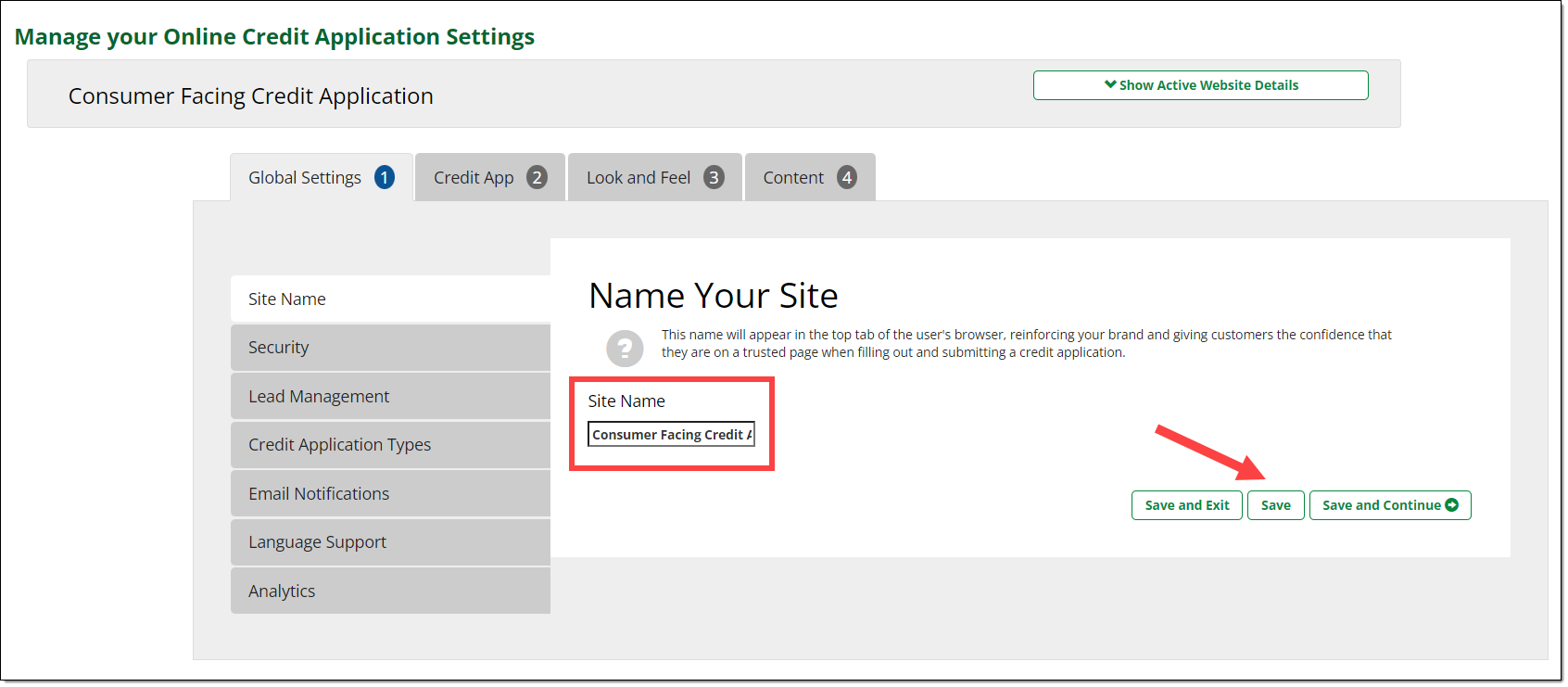
Use this setting to name the tab of your Digital Retail product, reinforcing your brand and assuring applicants that they are on a trusted page when filling out and submitting a Consumer Facing Credit Application.
The text entered in the ‘Site Name’ field will appear in the top tab of a user’s internet browser.
Enter your desired text into the field and click ‘Save and Exit,’ ‘Save,’ or ‘Save and Continue.’
You can ‘Save and Exit,’ ‘Save,’ or ‘Save and Continue’ in any of the sections as you progress through the different customization sections.
Security
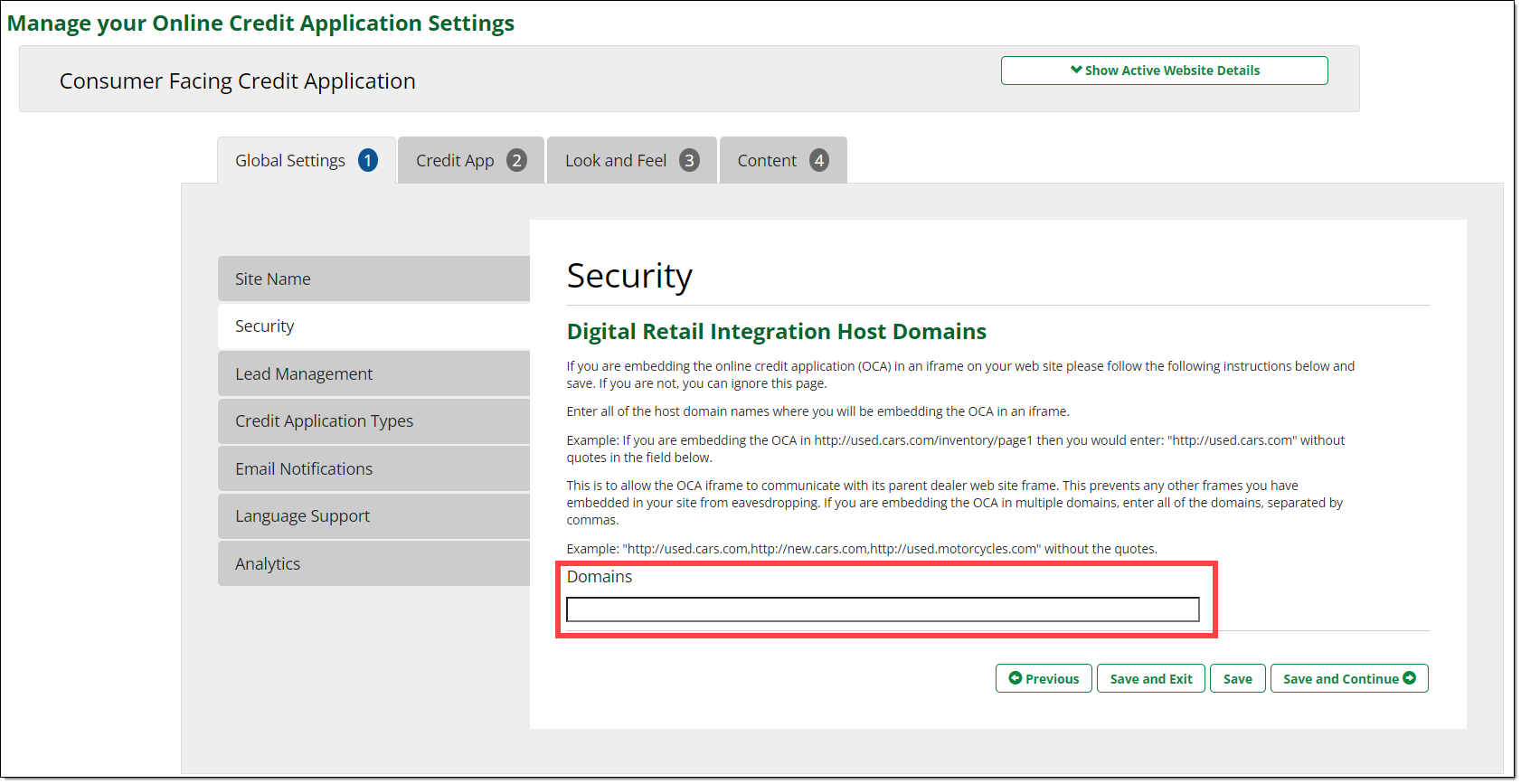
This setting supports the security of your Digital Retail Online Credit Application, Consumer Facing Credit Application, if you are embedding it in an iframe on your website.
By entering all of the host domain names where you will be embedding the CFC in an iframe and saving this setting, this will allow the CFC iframe to ‘talk’ to your website and prevent any other frames on your website from eavesdropping.
If you are embedding the CFC in multiple domains, enter all of the domains, separated by commas.
Example: If you are embedding the OCA in http://used.cars.com/inventory/page1 in the Domains field, then you would enter: http://used.cars.com
Lead Management
The Lead Management section is where you will create the unique links for your dealership’s Consumer Facing Credit Applications. Here you can enable silent leads, create and name links, and exclude certain leads from display on the Digital Retail Link page.
Silent Leads
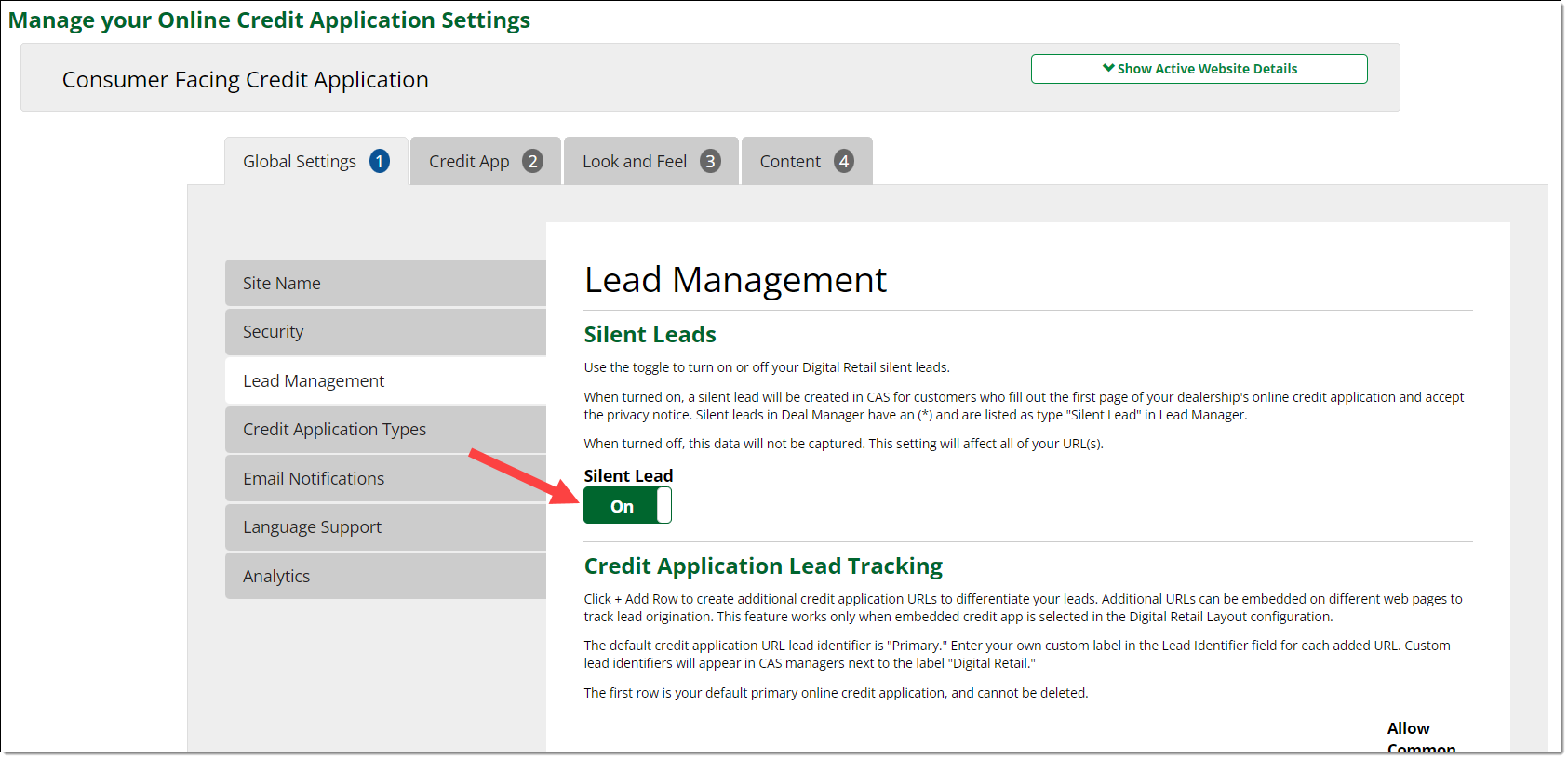
Silent Leads are created for customers who fill out the first page of the Consumer Facing Credit application and accept the privacy notice, but who do not complete and submit the credit application.
Click the toggle to turn your Digital Retail silent leads on or off. This setting will affect all of your URL(s).
Credit Application Lead Tracking
Scroll down the page to the Credit Application Lead Tracking section, where you can create additional credit application URLs with unique names (‘lead identifiers’) for your subscription, to differentiate your leads in the RouteOne platform.
Additional URLs can be embedded on different web pages to track lead origination or use in social media and are available to dealership users as links and QR codes.
Click ‘+ Add Row’ and input the necessary information to create additional credit application URLs.
In the ‘Lead Identifier’ field, input a title that indicates the source of a lead received through that URL. This will allow you to track the efficiency of various link placements.
To delete a URL, click on the red ‘X’ icon next to the URL.
You cannot delete your primary URL, such as your ‘Dealer Website.’ Additionally, at least one row must be set to ‘Allow Common Link Access to Product.'
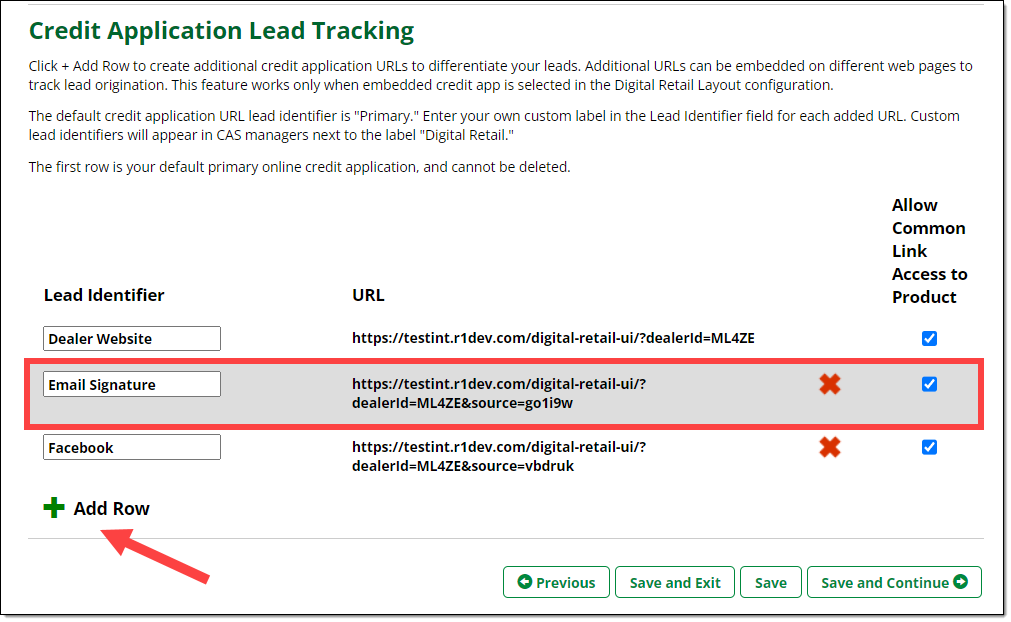
Checking the ‘Allow Common Link Access to Product’ next to a URL, as indicated above, adds the URL to a list of URLs and QR codes for dealerships that are subscribed to RouteOne Digital Retail.
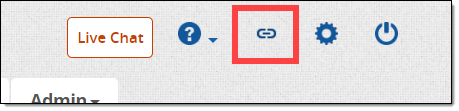
This list can be accessed from the RouteOne platform by any logged-in user, by clicking on the ‘link’ icon in the top right corner of the screen.
Credit Application Types
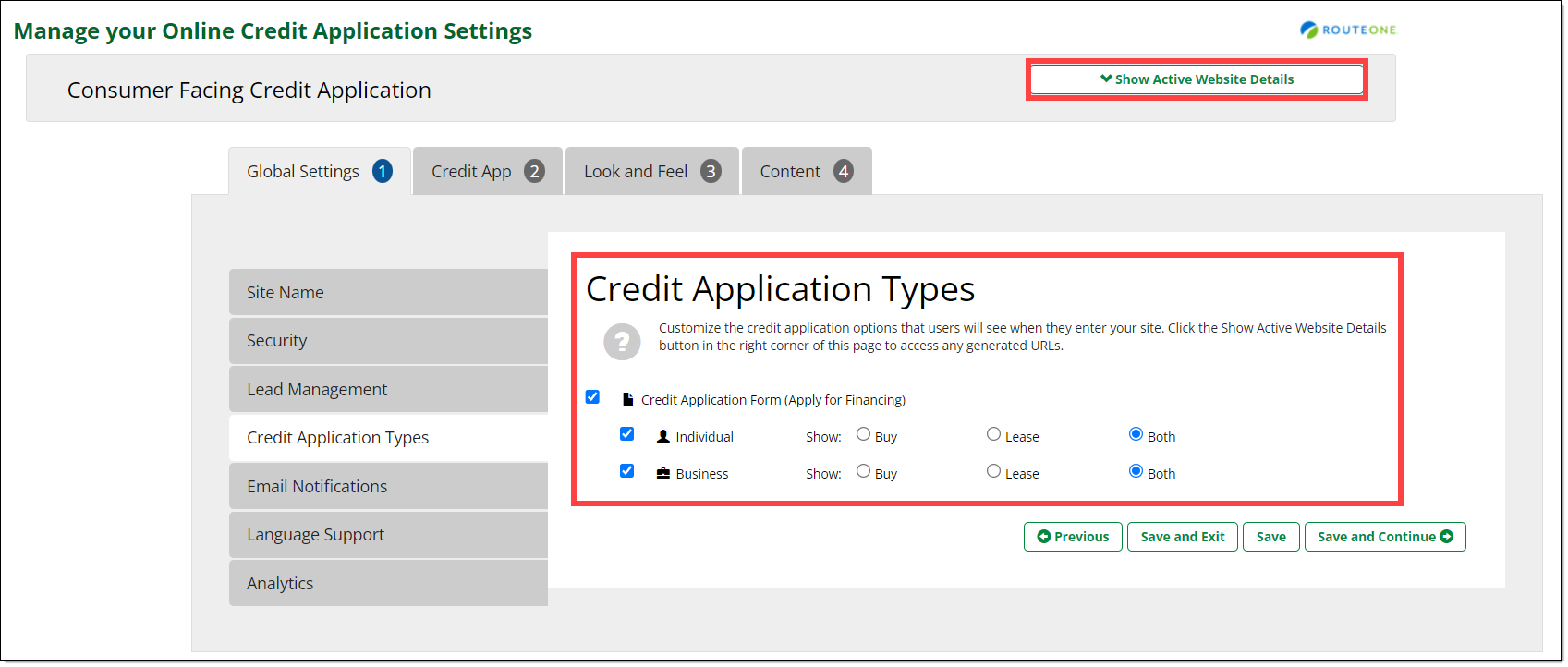
You can customize the types of credit applications that users will see (e.g. individual, business, both) when they click on your link. Clicking ‘Show Active Website Details’ in the top-right corner of the page will display all the primary product URLs that you are subscribed to, which may include French language URLs.
Email Notifications
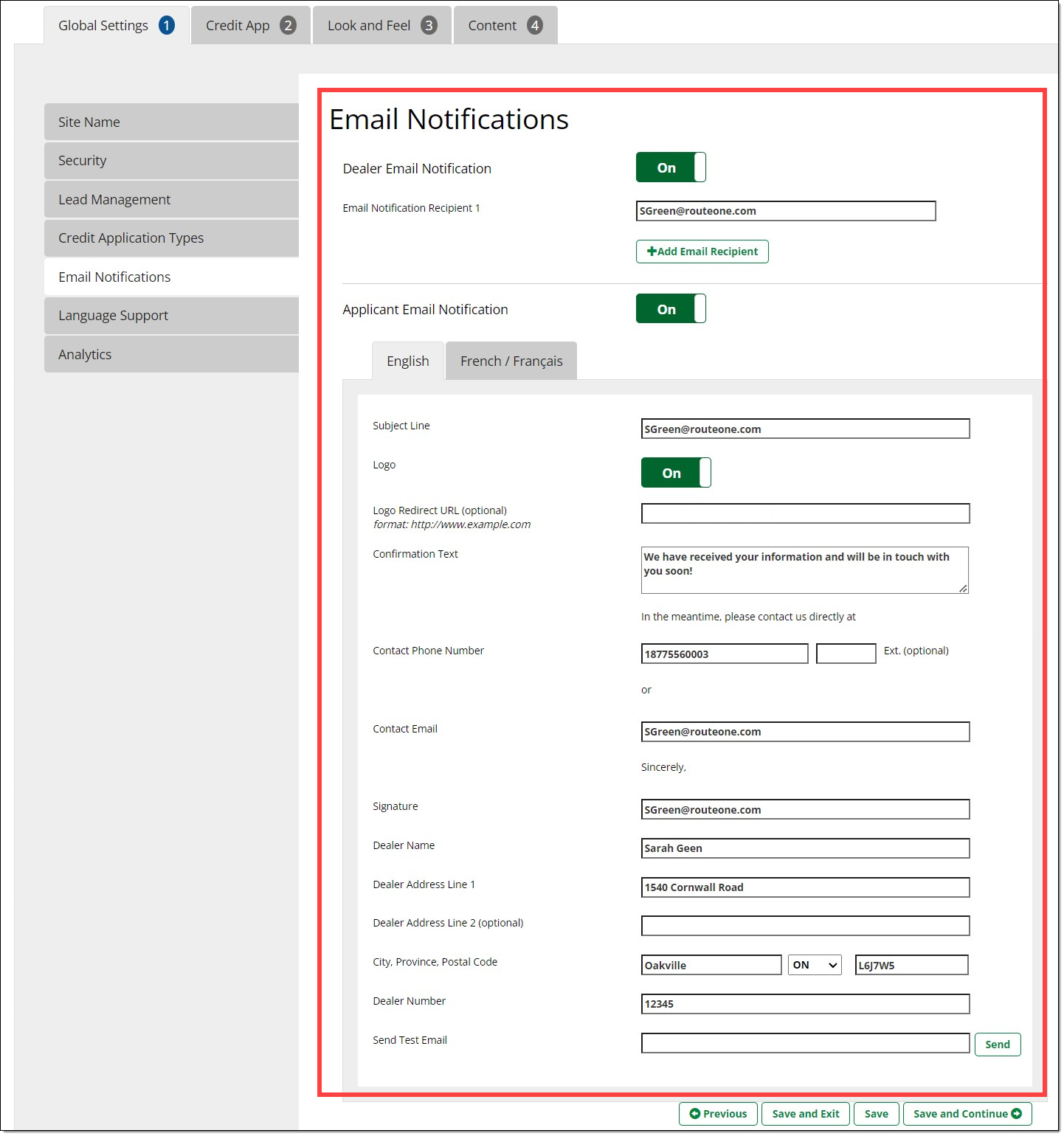
You can turn Dealer and Applicant email notifications On/Off, and customize what information is included in the email notifications. This can be done in both English and French.
Language Support
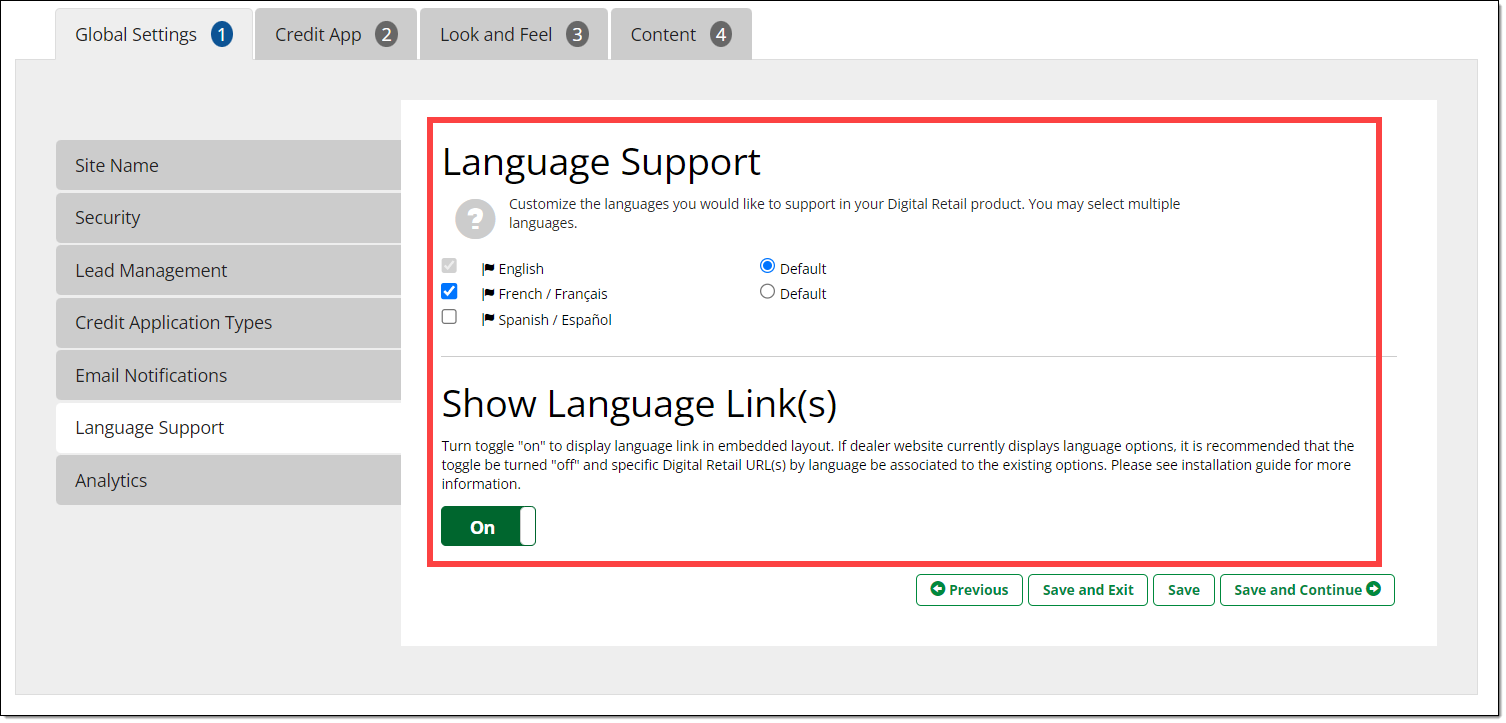
You can select which languages the customer can view the Consumer Facing Credit Application in, as well as select the default language.
You can also toggle language links ‘on’ to display the language link in the embedded layout, or ‘off’ if your dealership website displays language options.
Analytics
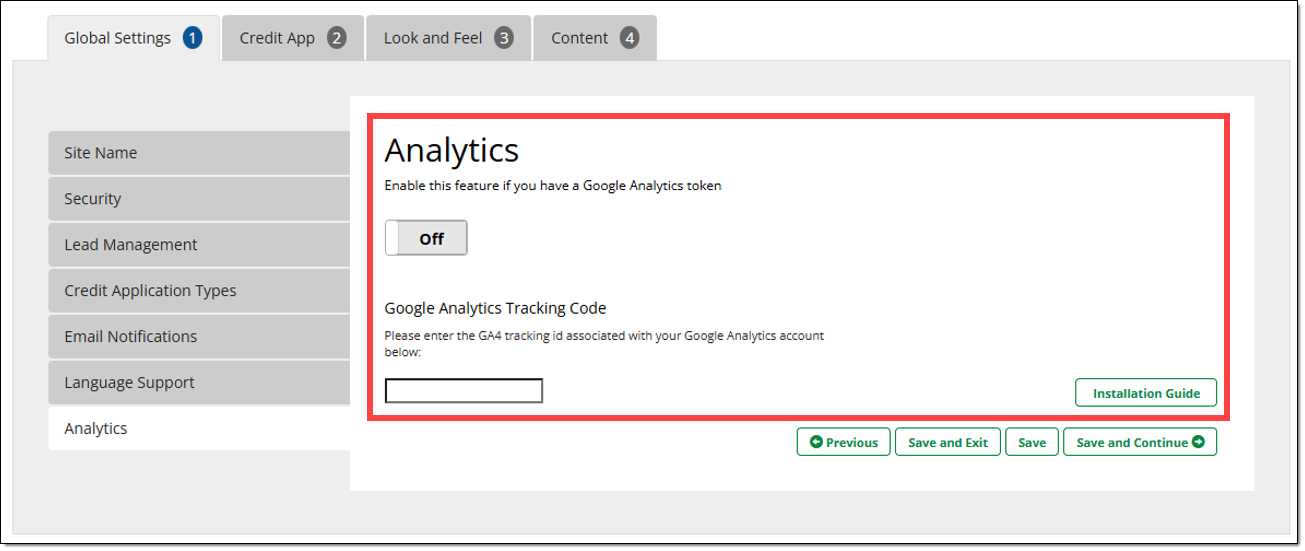
Use the toggle in this section to turn Google Analytics On/Off. For more information, please click here to see the Data and Analytics Guide.
Credit App
The Credit App tab is where you can customize the fields and settings that appear on your Consumer Facing Credit Application.
Optional Fields
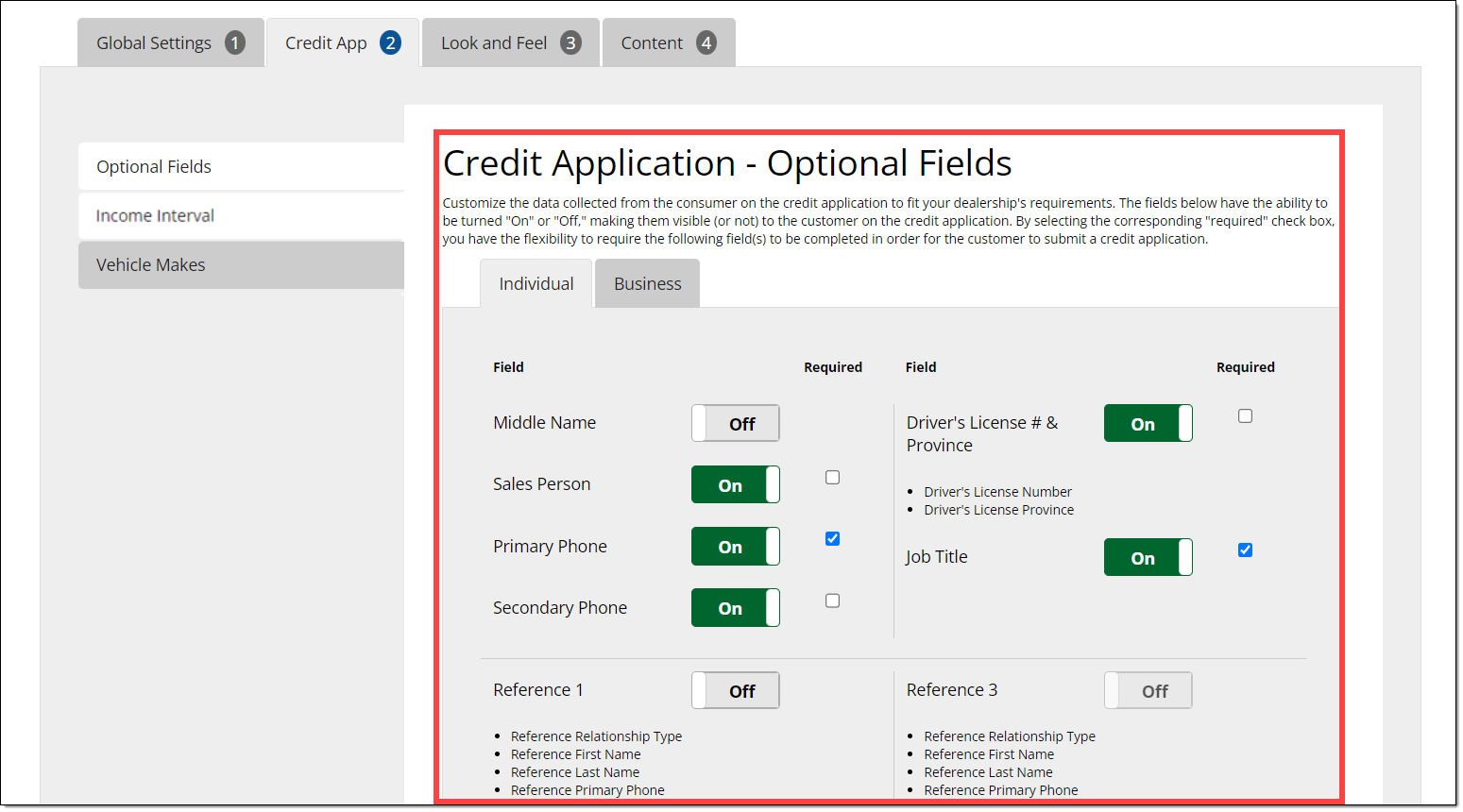
You can customize the data collected from the applicant on the credit application to fit your dealership's requirements by toggling fields On/Off.
By selecting the corresponding ‘Required’ check box, you have the flexibility to require if the following fields must be completed for the applicant to submit a credit application.
For the same settings to be applied to both Individual and Business applications, you must separately apply the options within both the ‘Individual’ and the ‘Business’ tabs.
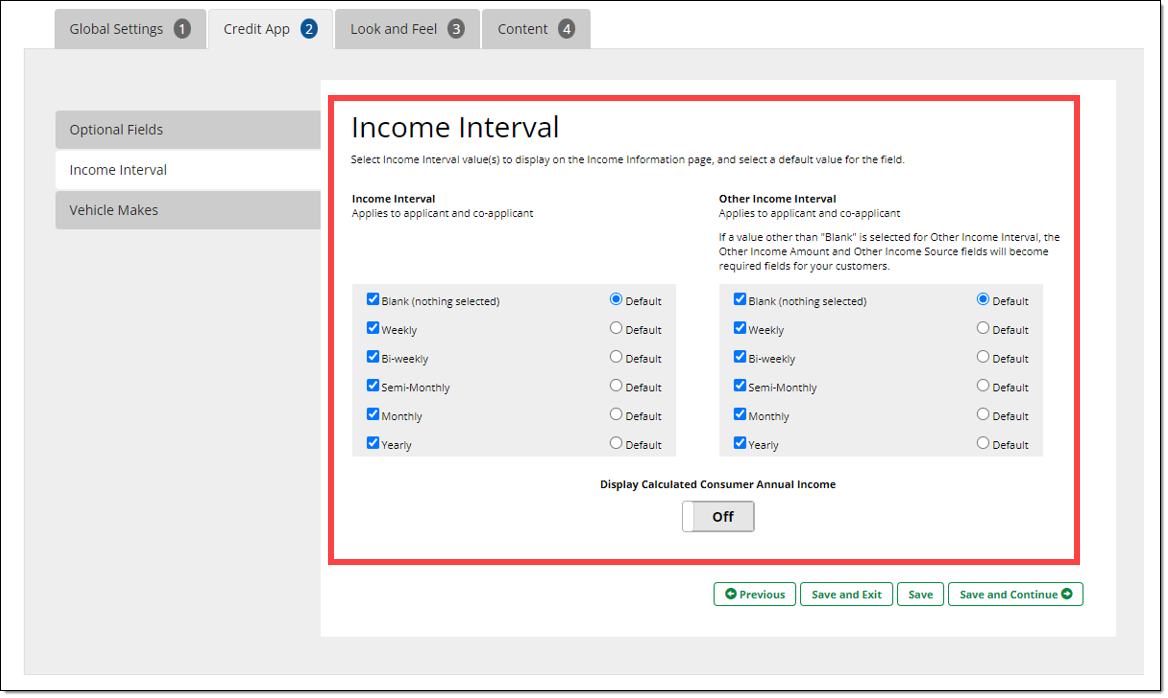
Income Interval
You can customize which income intervals can be selected on the Consumer Facing Credit Application for the ‘Income Interval’ and ‘Other Income Interval’ fields. Select which will be the default options.
Choose whether a read-only equivalent of calculated annual income will be displayed to the applicant.
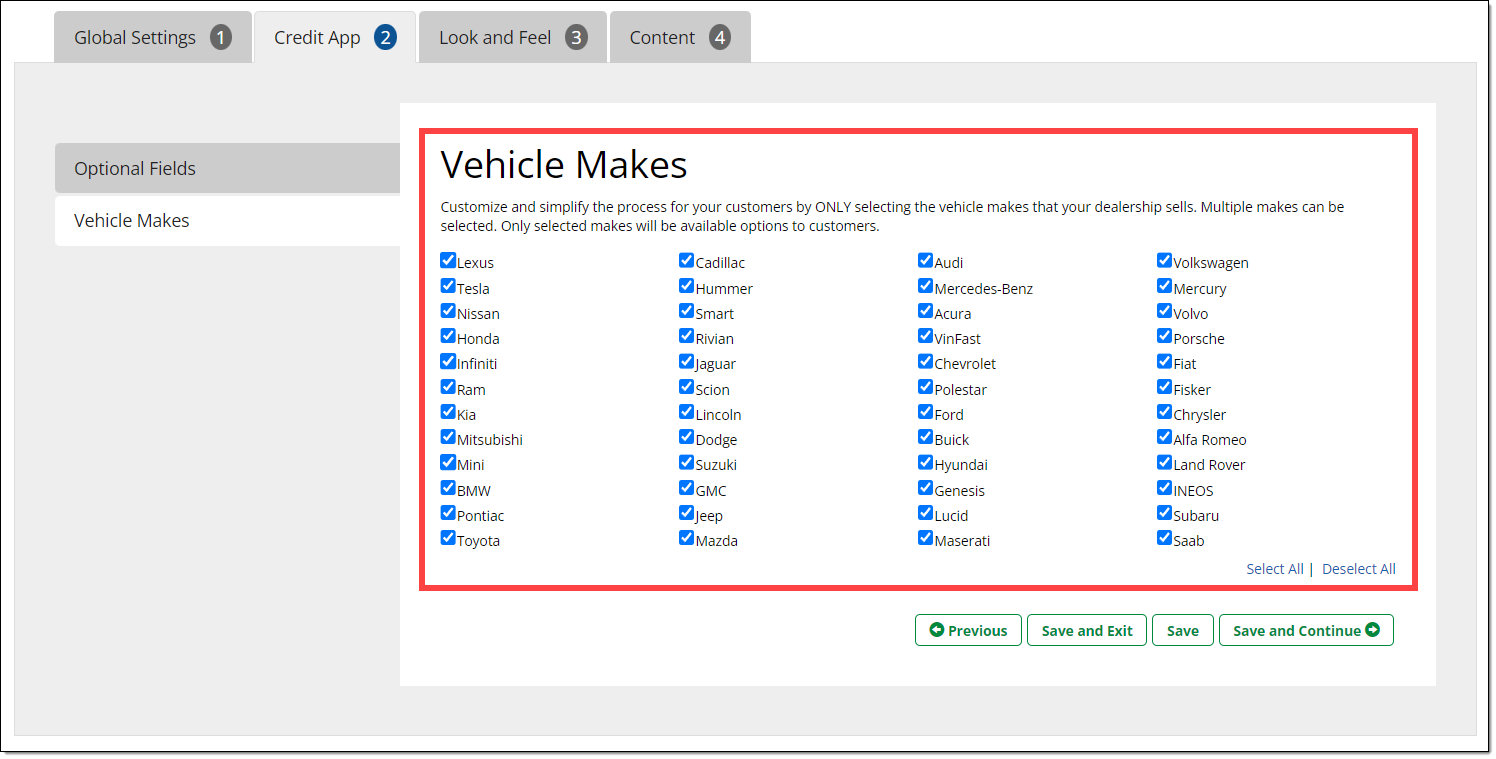
Vehicle Makes
You can customize and select the vehicles make(s) that are available in your dealership. The options selected here are shown to applicants as options on the Consumer Facing Credit Application.
Look and Feel
The Look and Feel tab is where you can customize the appearance of your Consumer Facing Credit Application, including your logo, font, and color, to align with your branding and design.
Logo
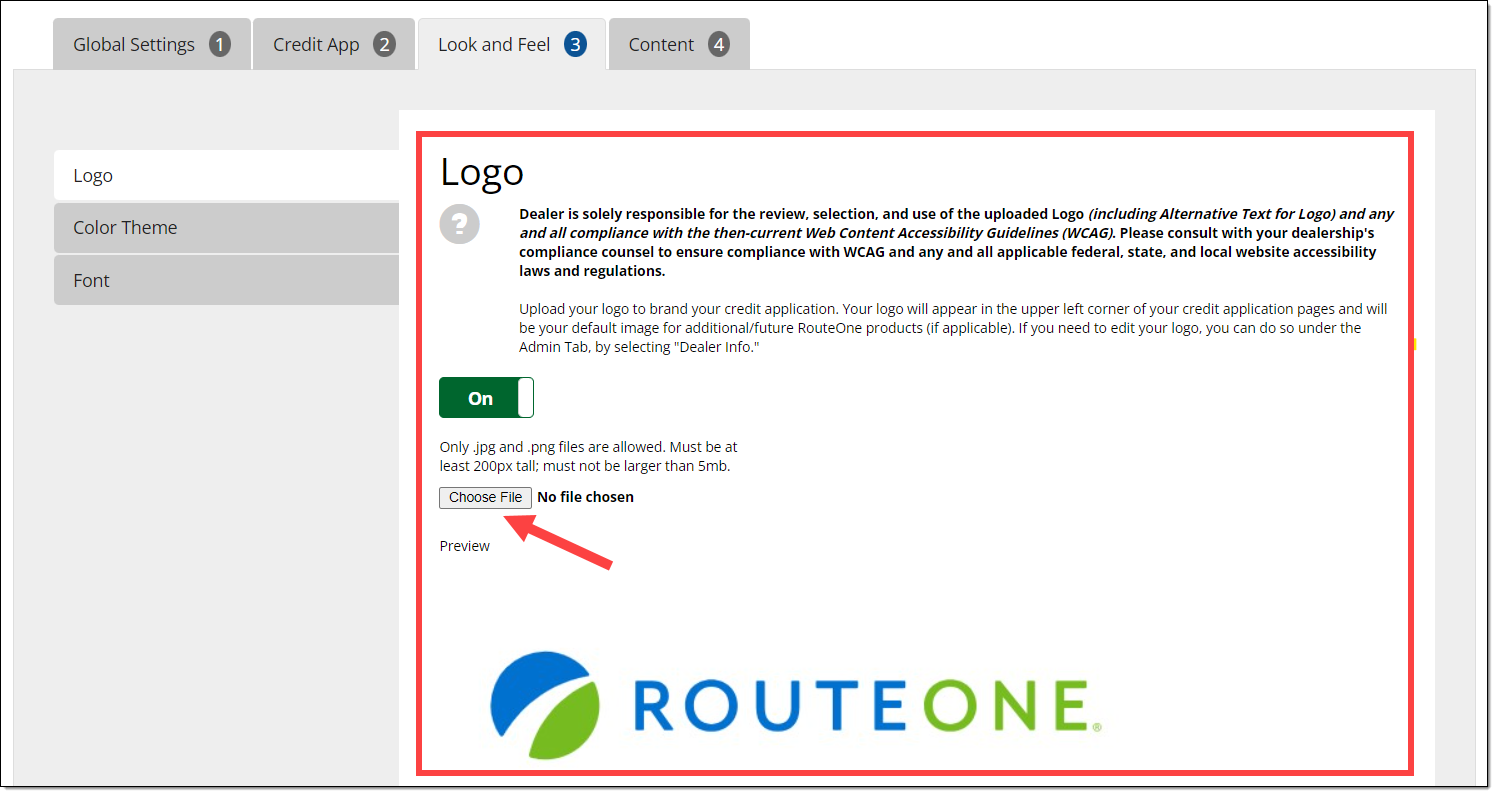
You can upload your logo to your credit application. It will appear in the upper left corner of your credit application pages and will be your default image for any current or future RouteOne products, as applicable. You can toggle your uploaded logo On/Off as needed.
Clicking ‘Choose File’ will direct you to upload your logo from your files.
The logo option must be toggled On in this section for it to be displayed.
Only .jpg and .png file formats can be uploaded.
Files must be at least 200px tall.
Files cannot be larger than 5mb.
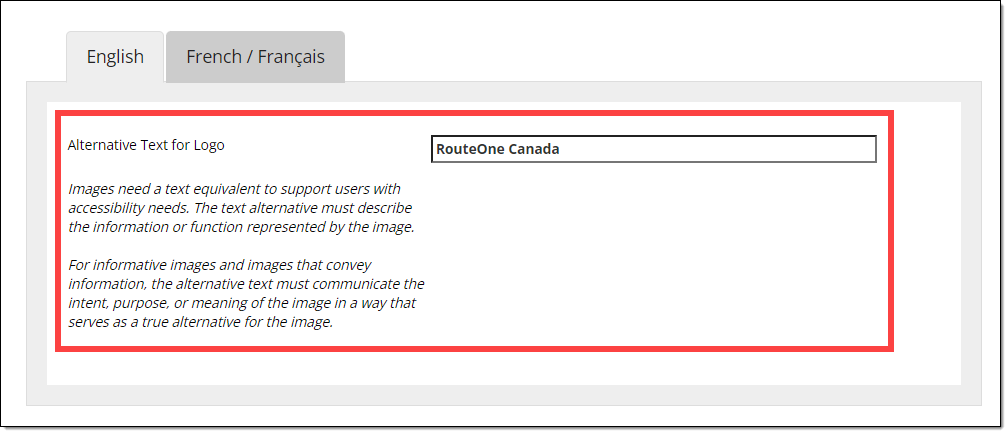
When adding your logo, you will also be able to add Alternative Text, which will allow users with accessibility needs to use a text equivalent of the image. The text alternative must describe the information or function represented by the image. Both English and French options are available to configure.
Color Theme
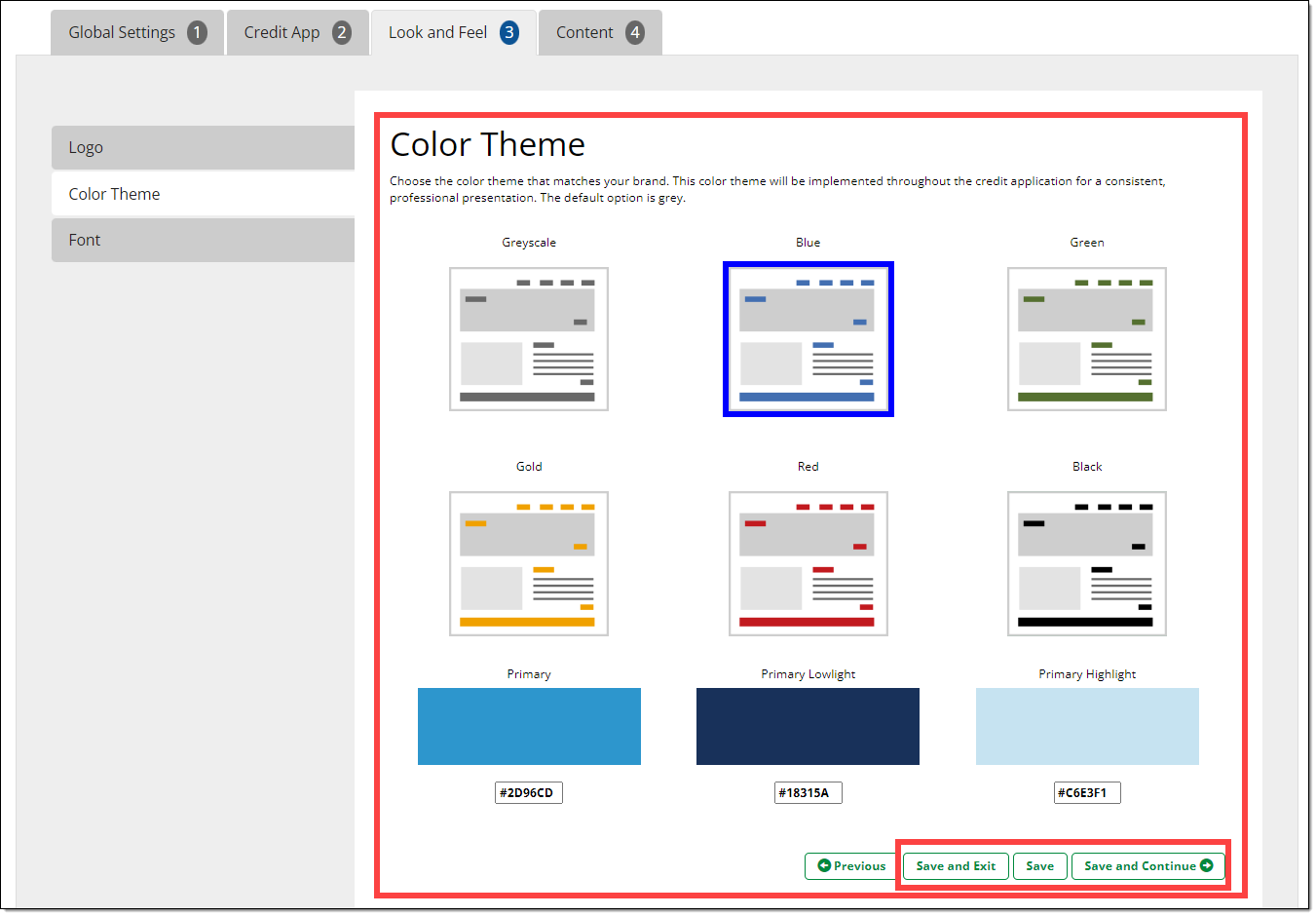
The color theme you select will be implemented throughout the credit application for a consistent, professional presentation. The default color option is grey.
To select a color, click one of the thumbnails or add your customized colors by typing in the HEX color codes. Your selection will be highlighted with a border.
When entering HEX color codes, enter in a code for the ‘Primary’ color, the ‘Primary Lowlight’ color, and the ‘Primary Highlight’ color.
If you do not know the HEX color codes, you can use a HEX converter tool online to help populate the desired HEX color code.
Click one of the save options to apply your changes. Design elements, such as page buttons, will be updated to reflect the selected color.
Font
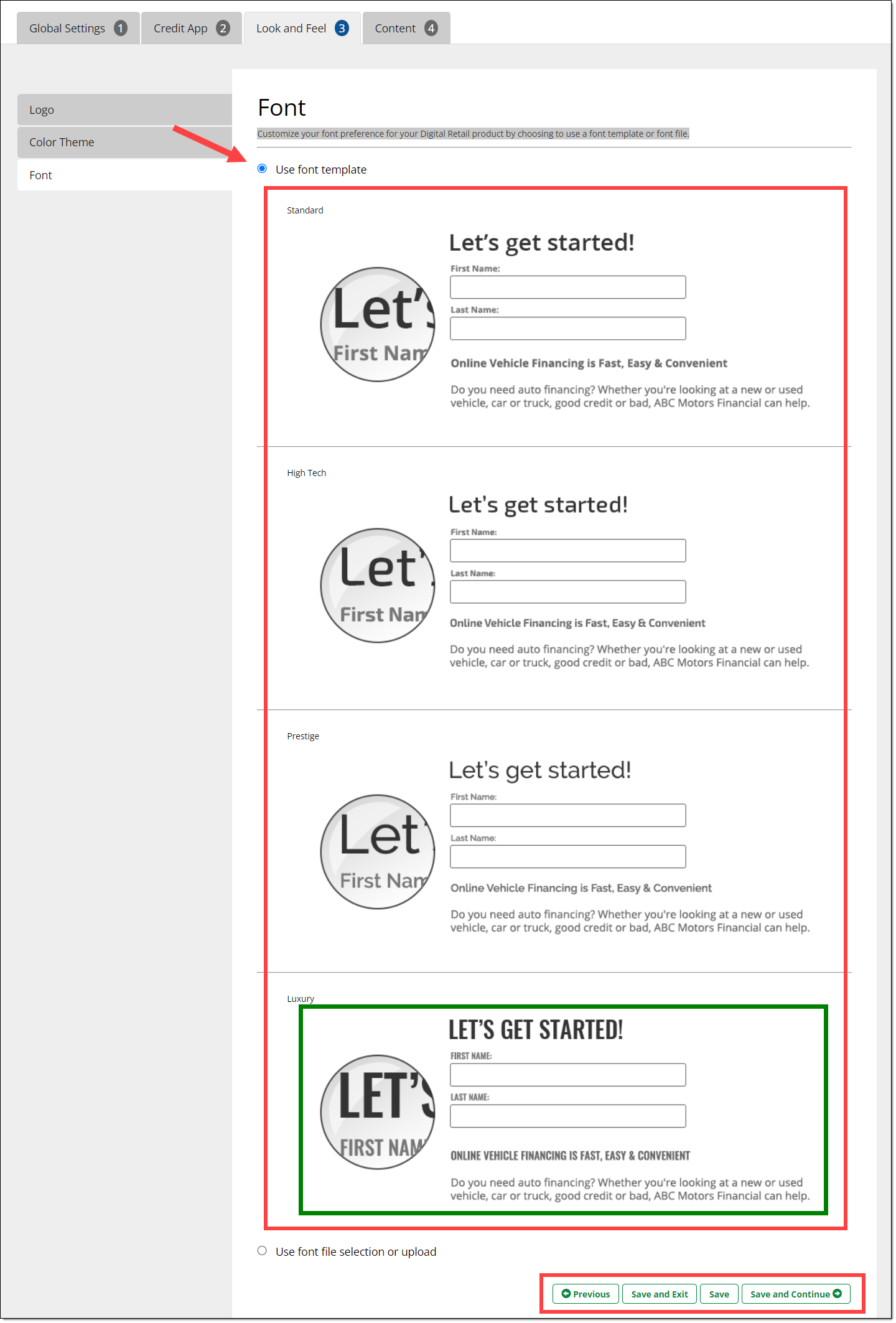
You can customize the font used throughout your Consumer Facing Credit Application to best match your website and brand.
The default setting is to select from the available font template options on the page. Click any of the font templates. Your selection will be highlighted in a green border.
Click one of the save options to apply your font selection. These changes will apply to all content on your Consumer Facing Credit Application.
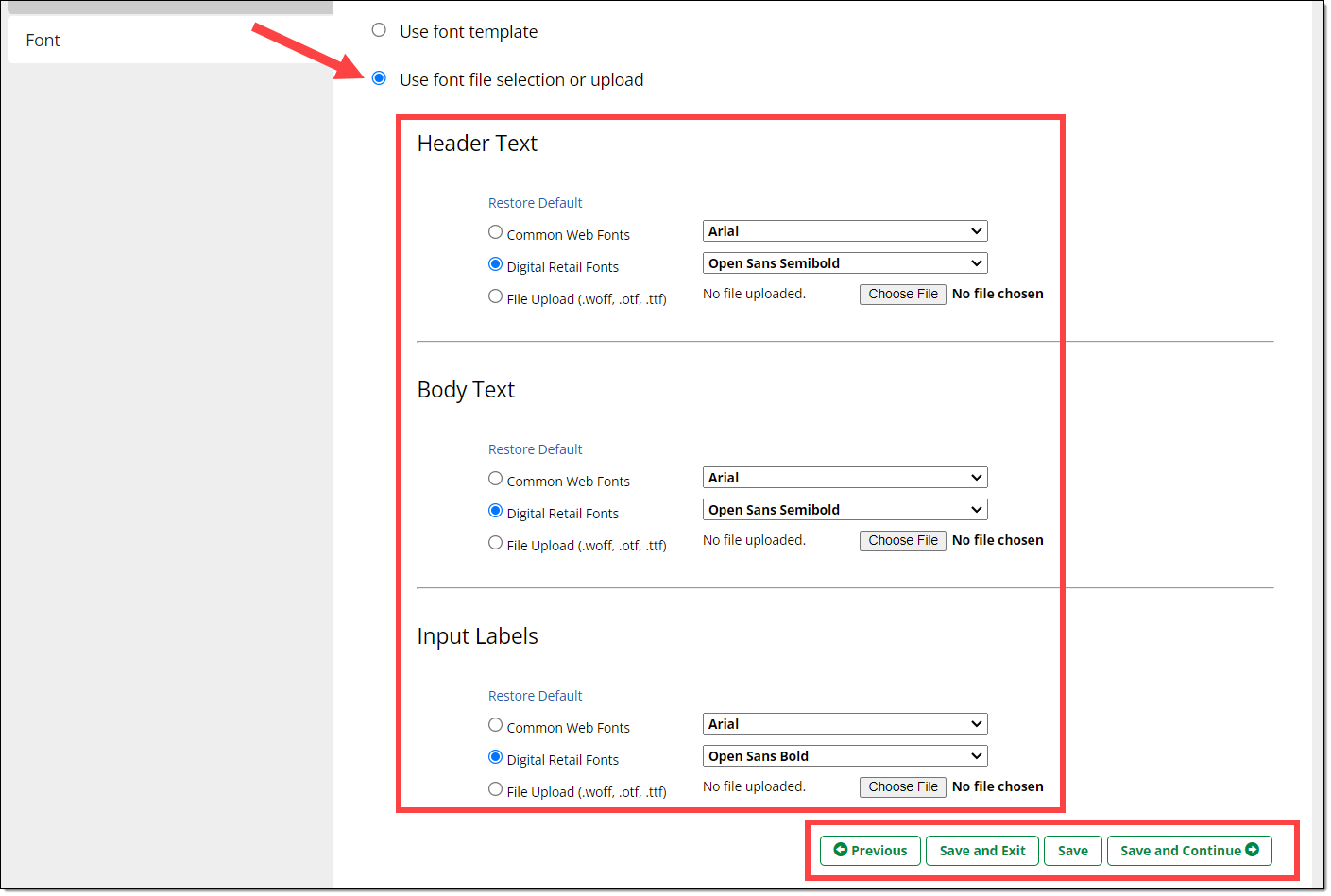
Alternatively, you also have the option to upload a font file instead of using the available font templates.
If you select the option to ‘Use font file selection or upload,’ you will be presented with additional options for customizing your font.
Here you can either select specific fonts or upload your own font files. You have the ability to customize the fonts for your header text, body text, and input labels.
If you would like the font to be the same across each of these elements, you must apply the same changes to each.
Click one of the save options to apply your font selection. These changes will apply to all content on your Consumer Facing Credit Application.
Content
Page Content
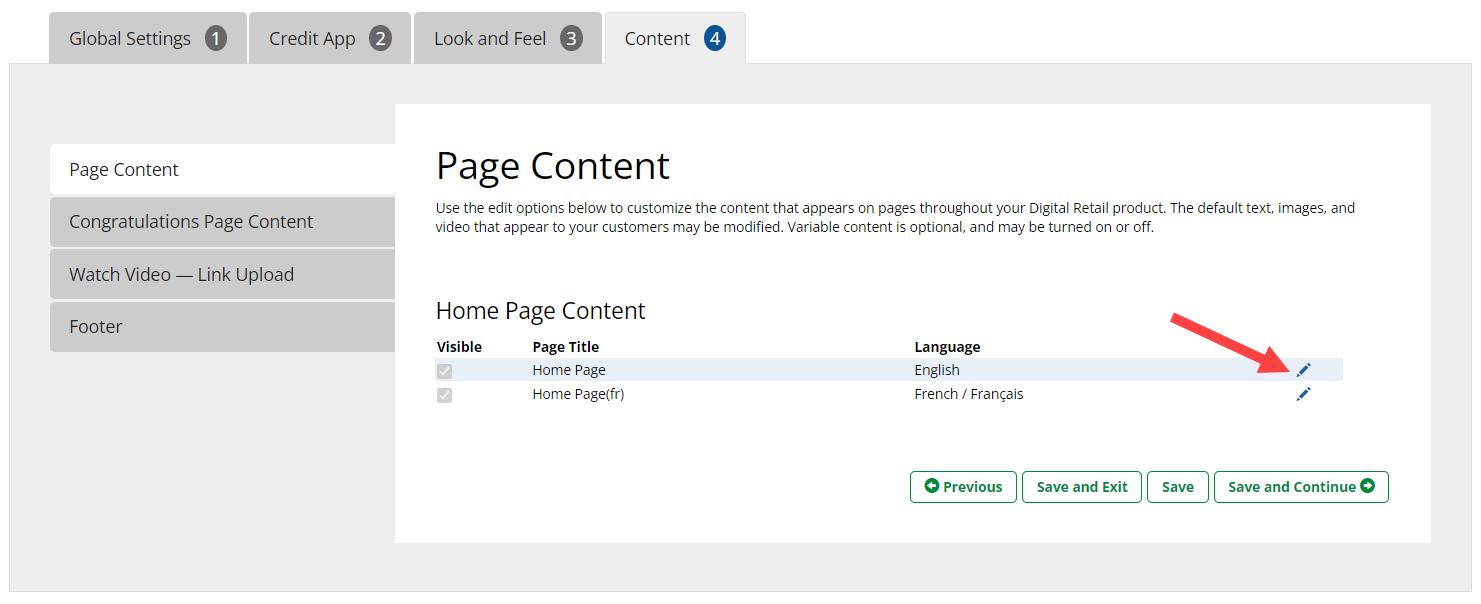
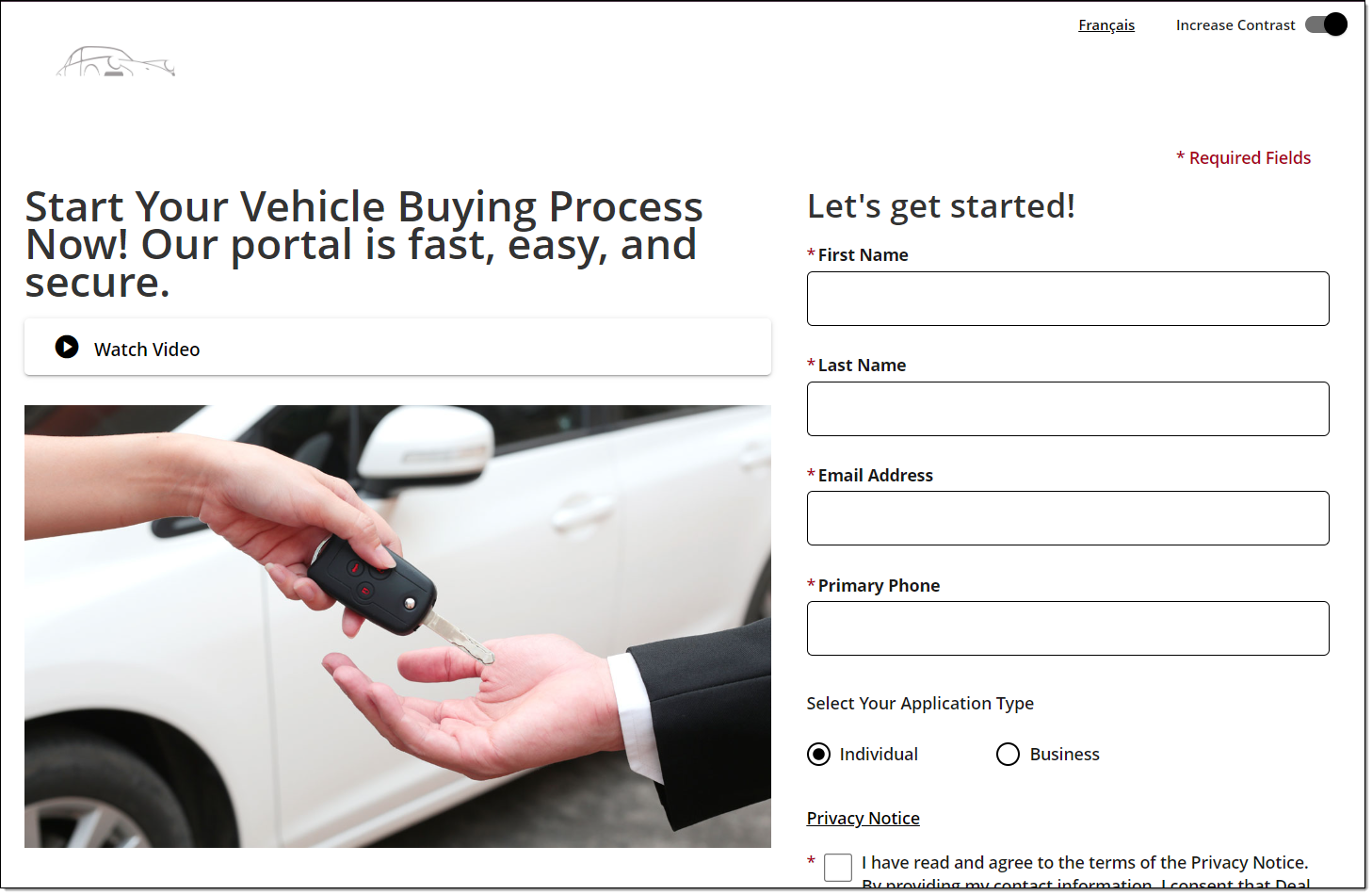
You can customize what content that appears on pages throughout your Consumer Facing Credit Application. The default text, images, and video that appear to your customers may be modified.
To customize a page, click the blue pen icon.
You pages presented in different languages are listed separately and can be customized individually.
The customizable sections for the selected page will load.
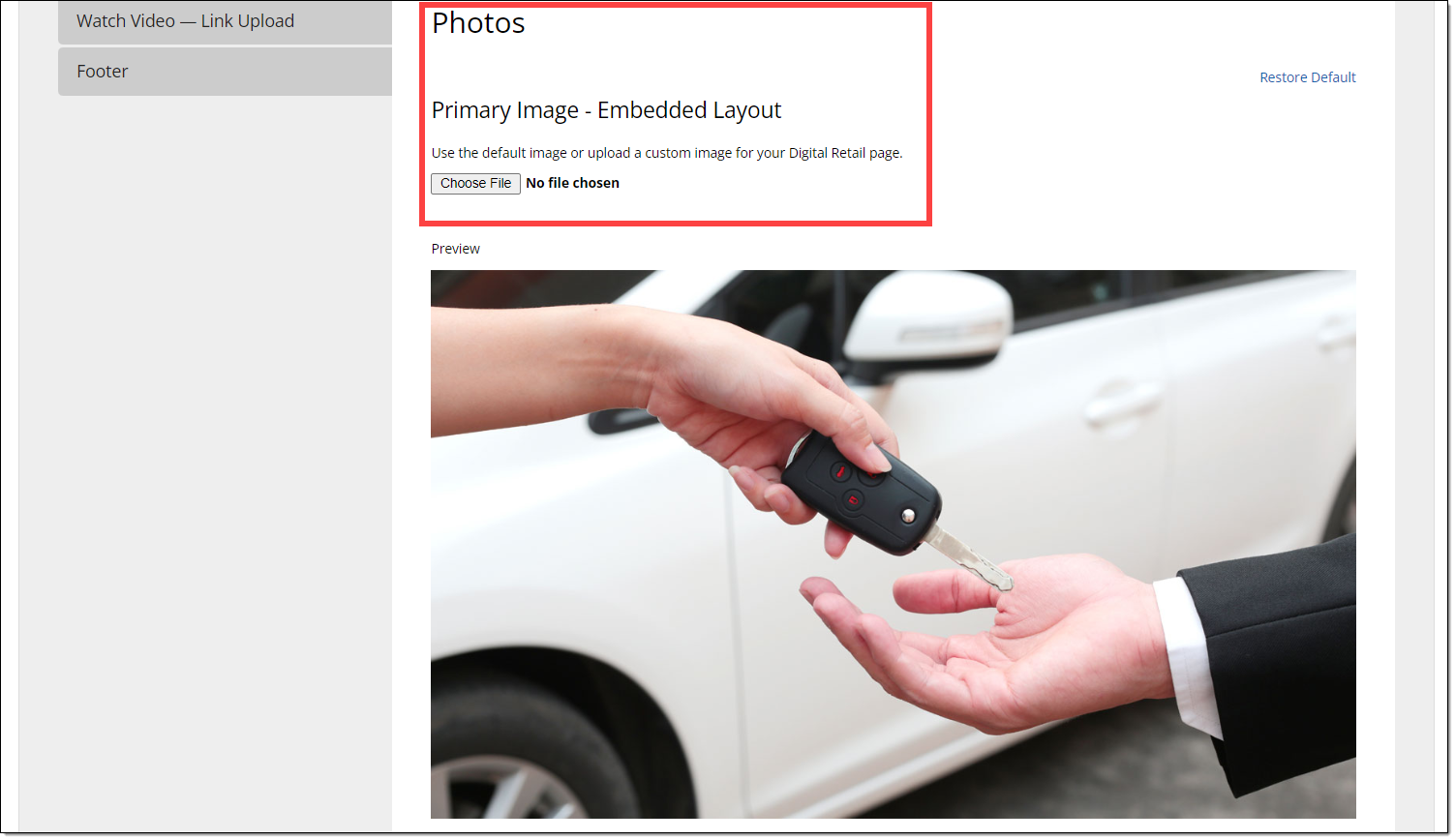
In the ‘Photos’ section you can replace the default homepage image by uploading your own.
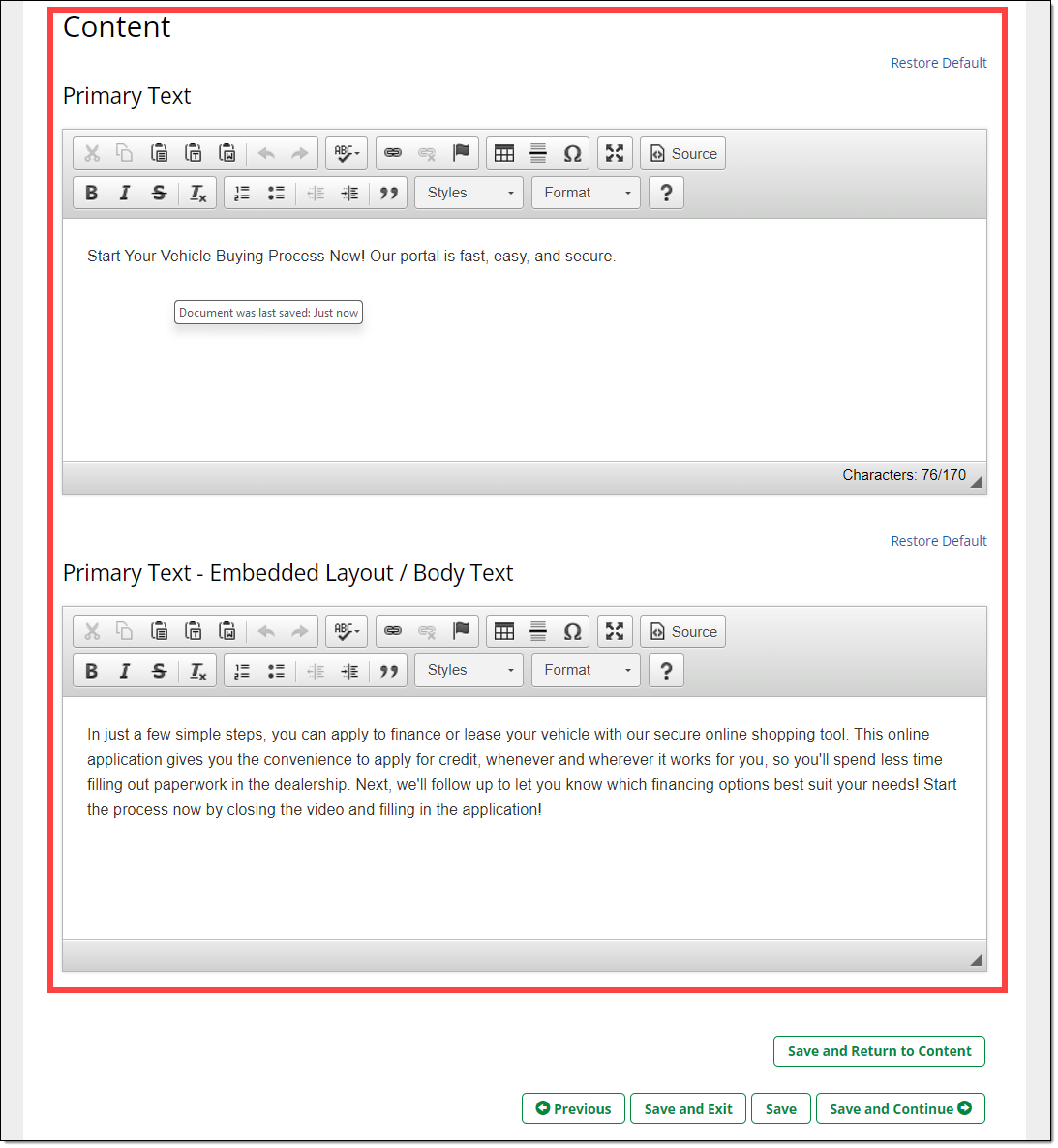
In the ‘Primary Text’ sections you can input and customize and format the text on the page.
Congratulations Page Content
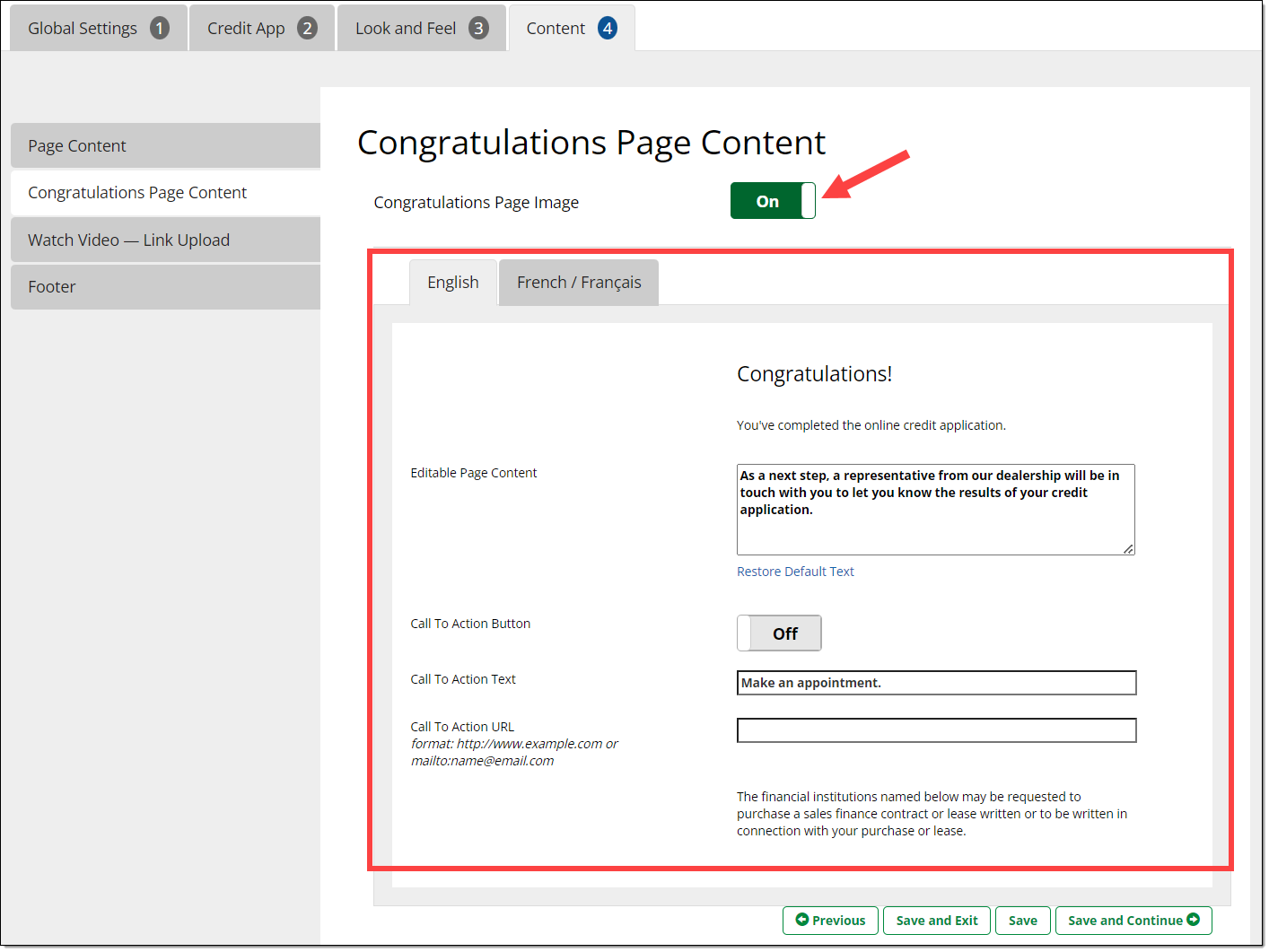
You can customize the content that the applicant sees once they complete the Consumer Facing Credit Application process.
You can toggle the Congratulations Page Image On/Off.
The text that you input in the ‘Editable Page Content’ section here is what the applicant will see.
You can also turn the ‘Call to Action Button’ On/Off, and customize the text on the button and URL the button navigates to. When the applicant clicks the button, they will be redirected to the URL input here (e.g. to schedule a test drive at your dealership).
Customizations can be made here for both English and French pages.
Watch Video – Link Upload
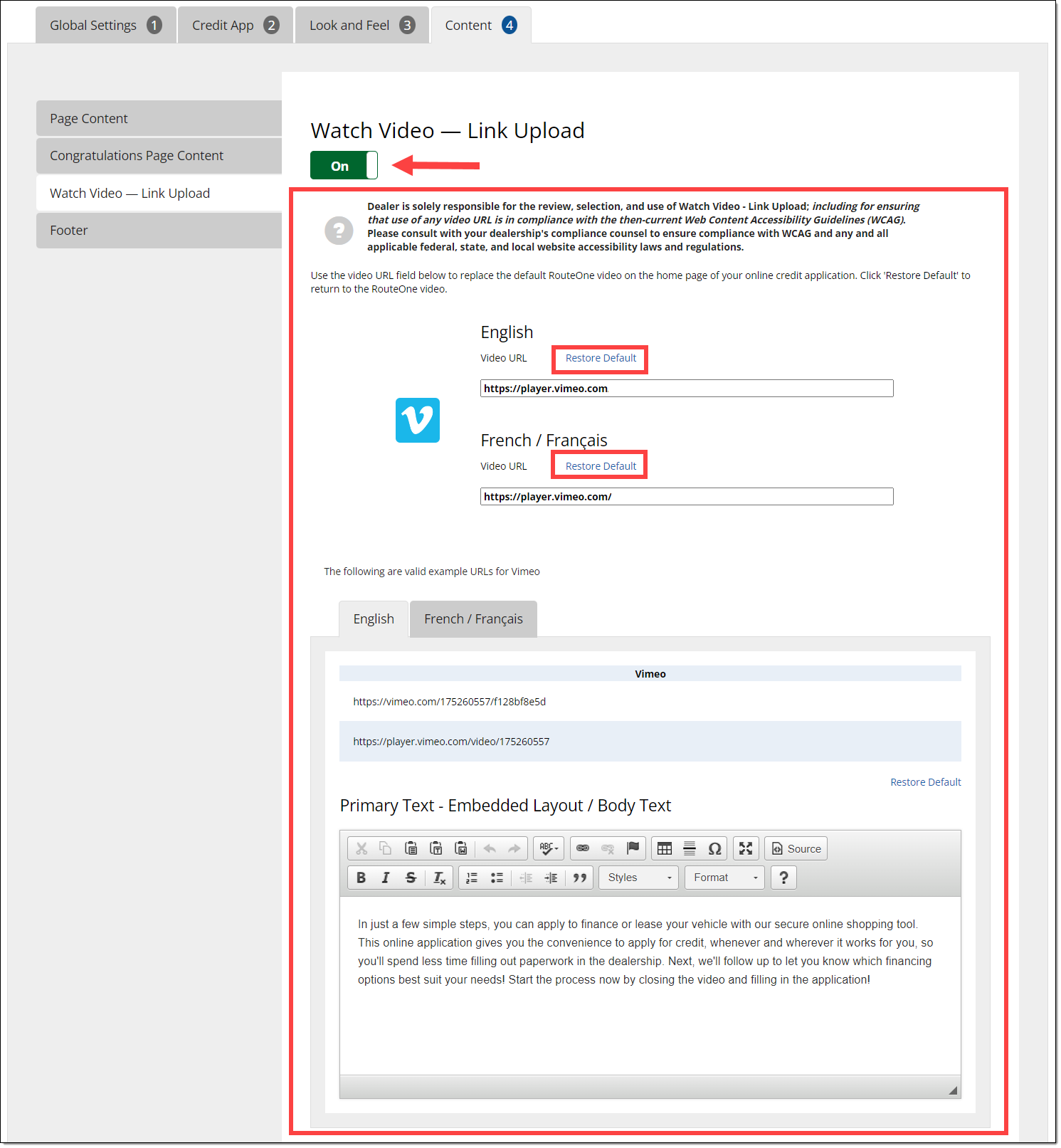
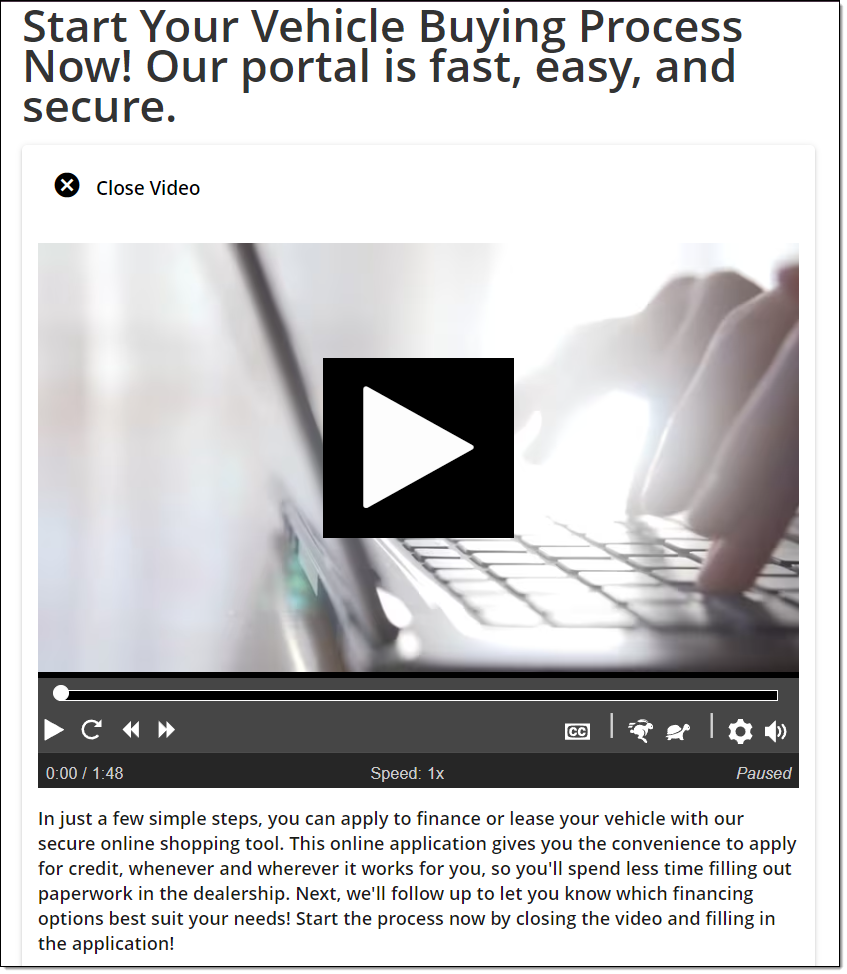
The homepage of your Consumer Facing Credit Application can play a video that explains how the process works.
You have the option of turning the video On/Off.
RouteOne provides a default video that you can use.
You also have the option of replacing the default video with your own video link. Be sure to consult with your legal counsel regarding content, compliance and other considerations appropriate for you.
Click 'Restore Default' to return to displaying the RouteOne-provided video.
Customizations can be made here for both English and French pages.
Footer
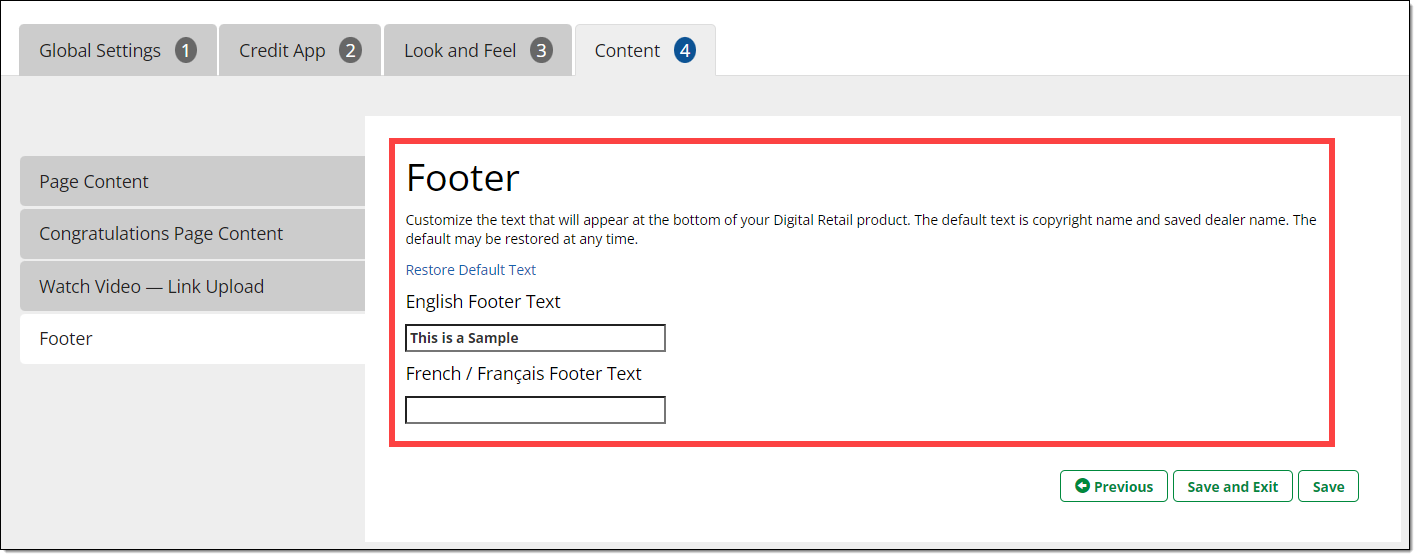
You can customize the text that appears at the bottom of your Digital Retail product page by inputting text in this section. Customizations can be made here for both English and French pages.
Click 'Restore Default' to return to displaying the default text.
If you do not enter anything in this section, the copyright name and saved dealer name will be shown by default.
Examples
Example of a Consumer Facing Credit Application Page
Example of the Video on the Consumer Facing Credit Application
ROUTEONE SUPPORT
Hours (EST)
Monday - Friday: 8:00 AM - 9:00 PM
Saturday: 9:00 AM - 9:00 PM
Can’t find what you need?
Try our search
