Related Guides:
Credit and Contracting - Canada
Using the Deal Manager
About the Deal Manager
The Deal Manager is a primary navigation tab for RouteOne users. This is where you can perform the most comprehensive number of tasks and actions in the system. All credit application-related actions can be performed from the Deal Manager, including compliance tasks.
The Deal Manager shows your active deals, sorted by most recent.
To access the Deal Manager, hover over the ‘Deals’ tab and select ‘Deal Manager.'

Accessing Credit Applications
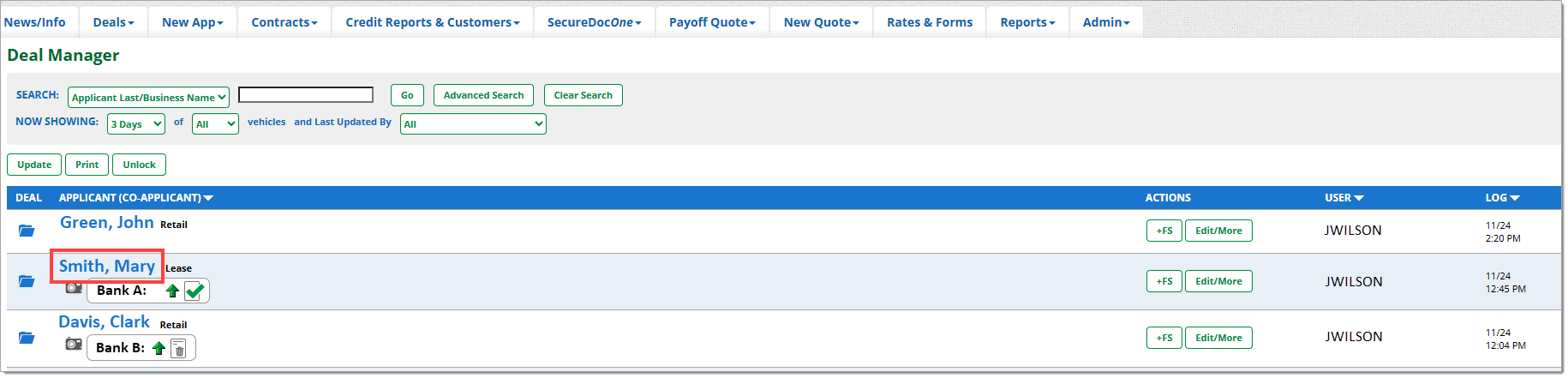
Clicking on the customer’s name will return you to their Credit Application to review the previously saved or submitted information.
Identifying Credit Application Statuses
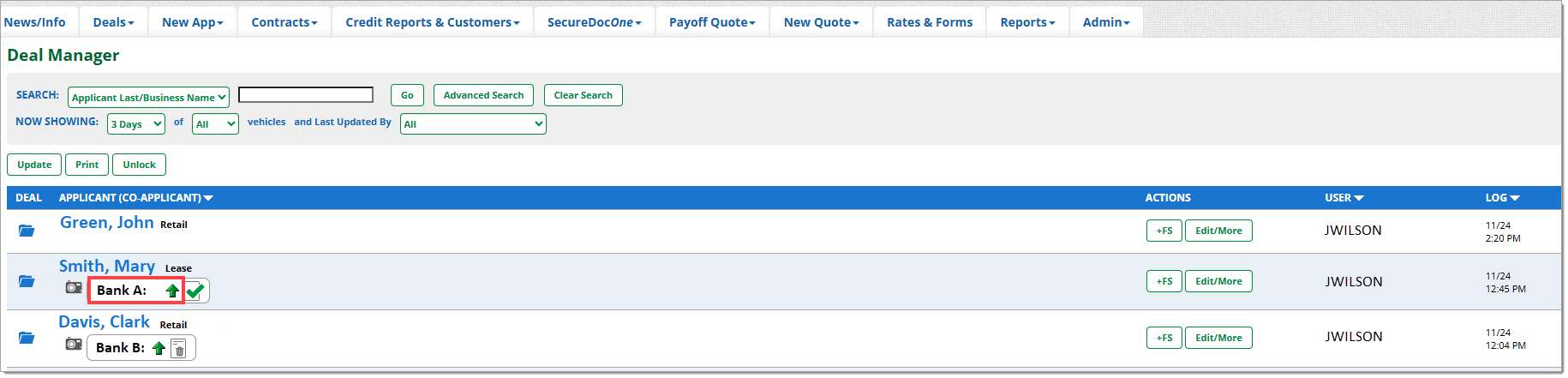
Directly below the applicant’s name, you can view the finance source(s) the credit application was sent to as well as the status of the decision from that finance source.
Status Icons Legend
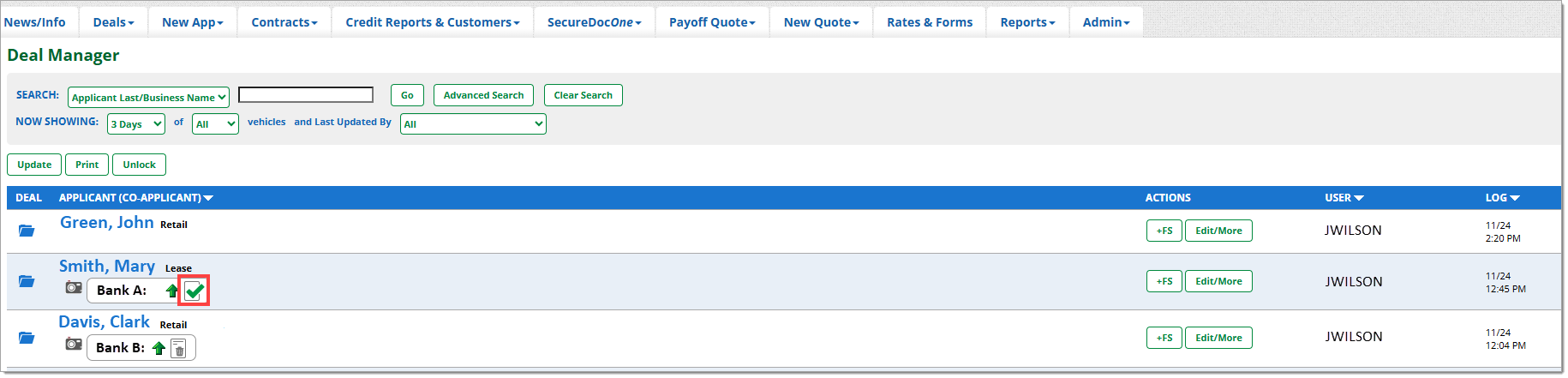
To view a legend of the various credit application statuses and their meanings, click the ‘Show/Hide Legend’ button at the bottom of the page. This allows you to identify the exact status of the application.

Identifying eSignature Statuses
If a deal is using eSign, the status of the eSignature will appear to the right of the credit application status icon.
Using the ‘Edit/More’ Button
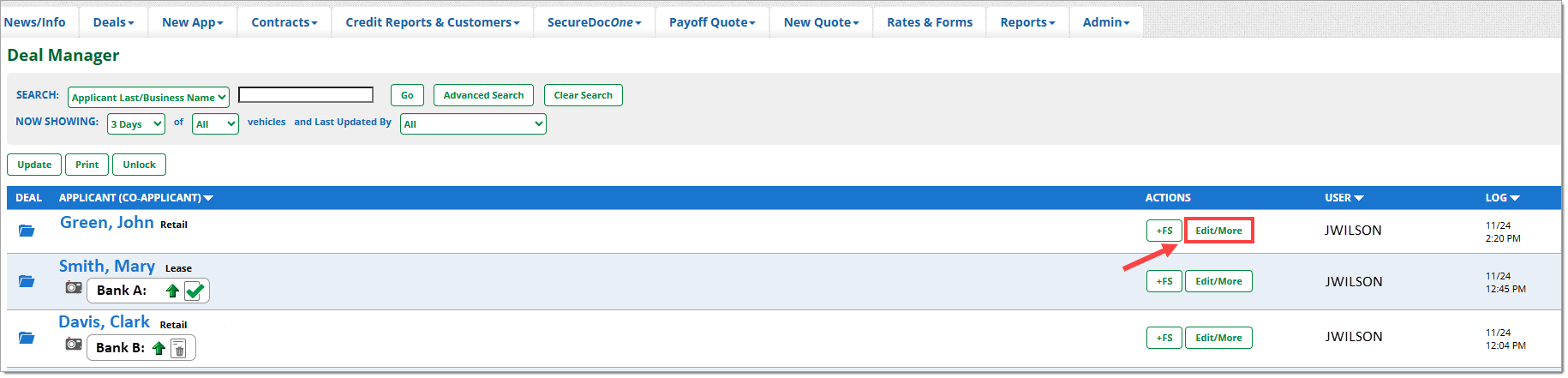
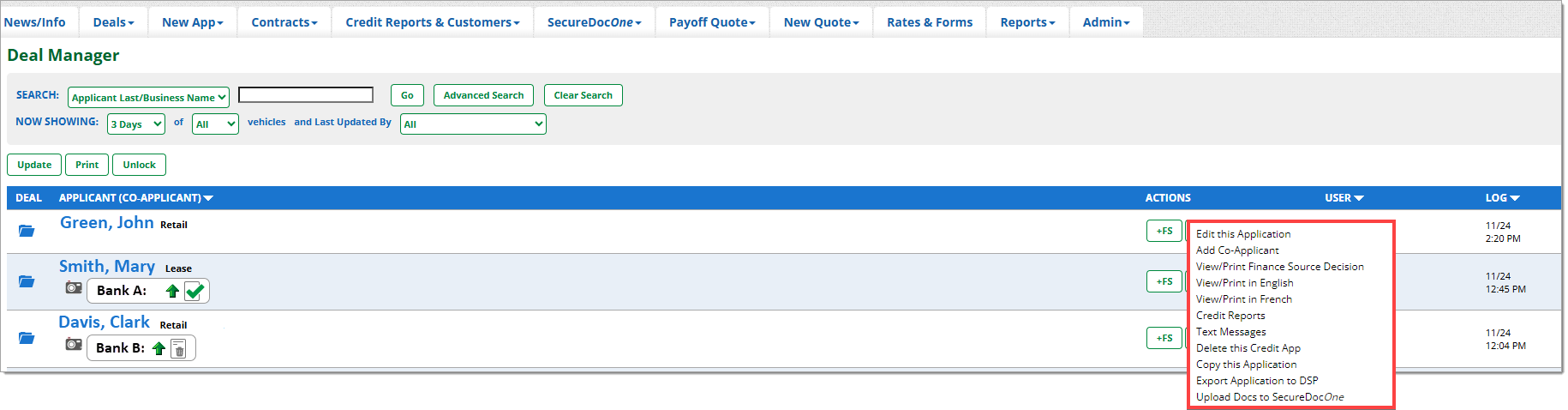
Clicking on the ‘Edit/More’ button will show a list of actions that can be taken for each Credit Application.
Types of actions that can be completed include:
- Copy this Application
- Add Co-Applicant
- View/Print Finance Source Decision
- Delete this Credit App
- Generate Contract Worksheet
- Compliance related activities:
- Credit Reports
Decision Snapshot
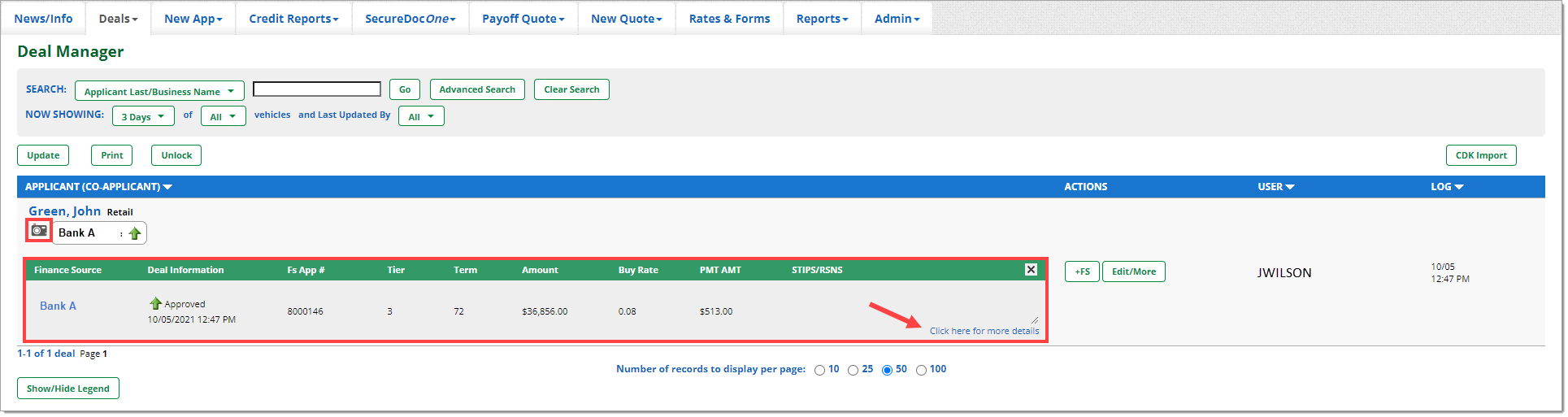
Clicking on the camera icon under the customer’s name will expand the section and provide a decision snapshot of the Credit Application. Clicking the ‘Click here for more details’ link will direct you to the ‘Decision Summary’ page, which provides more details about the deal.
Adding a Finance Source
ROUTEONE SUPPORT
Hours (EST)
Monday - Friday: 8:00 AM - 9:00 PM
Saturday: 9:00 AM - 9:00 PM
Can’t find what you need?
Try our search
