Related Guides:
Access & Administration - Canada
Dealer Information and Preferences
Dealer information and preferences may only be updated by Dealership System Administrators (DSAs). To locate your Dealership System Administrator (DSA), click the ‘Gear’ icon at the top right-hand corner of the screen.
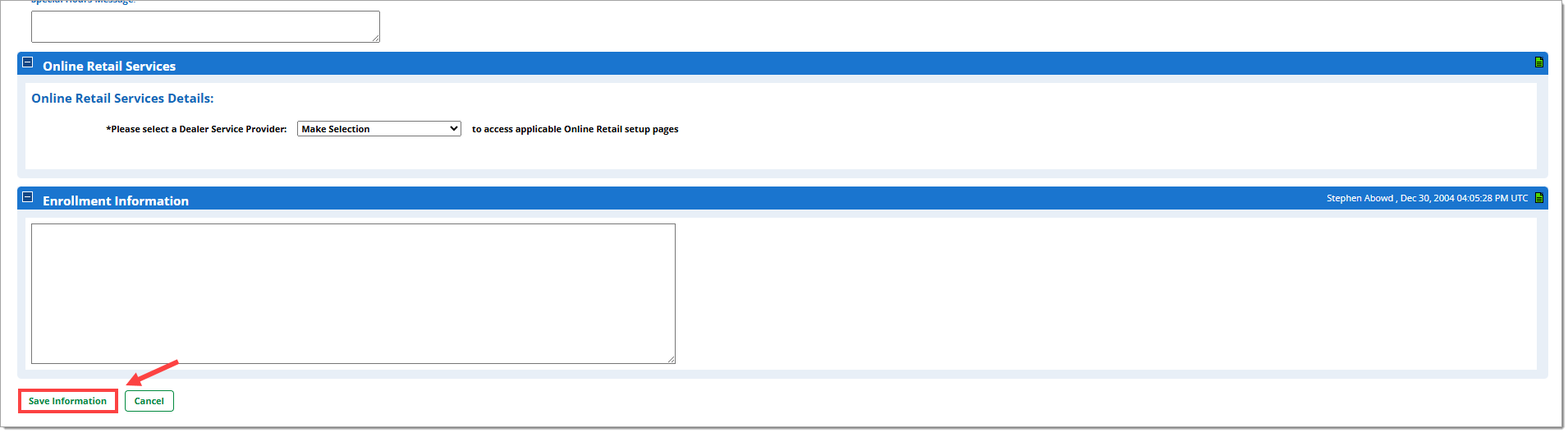
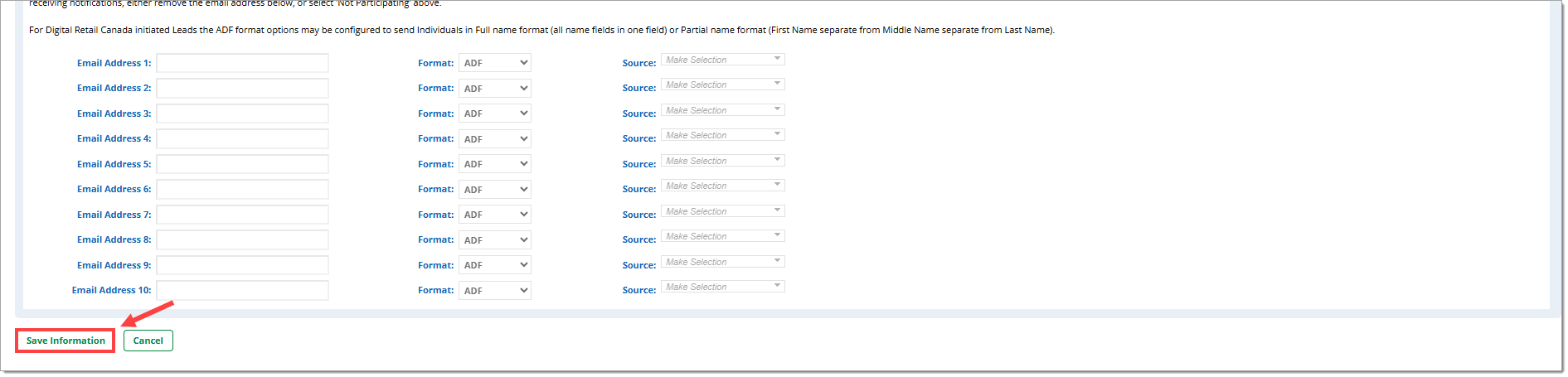
IMPORTANT: To apply any changes to your Dealership Preferences, ensure you click the ‘Save Information’ button at the bottom of the page.
To learn about user information and how to set individual user permissions, click here to see our User Information and Permissions guide.
Setting Dealer Information
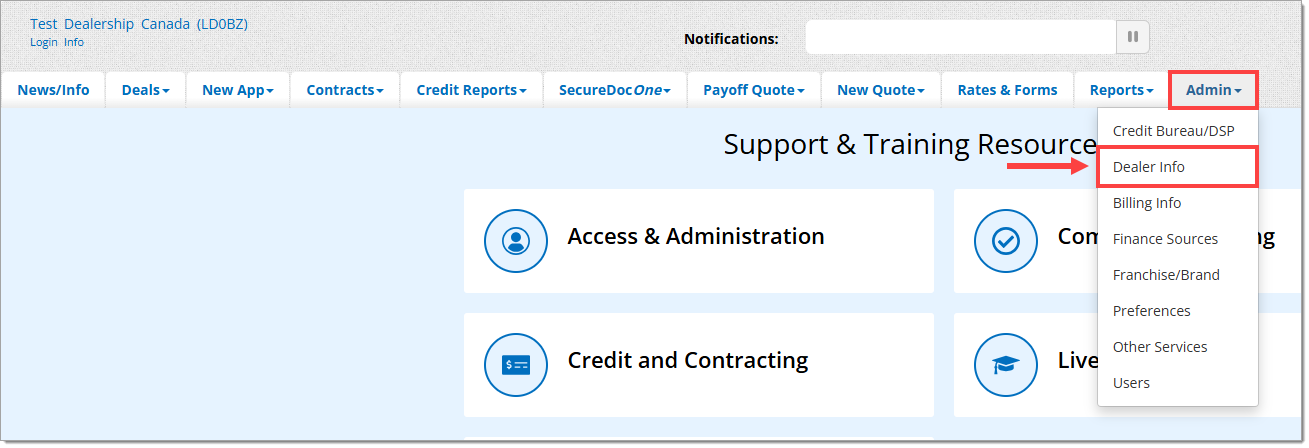
Hover over the ‘Admin’ tab in the top navigation and select ‘Dealer Info’ from the dropdown menu.
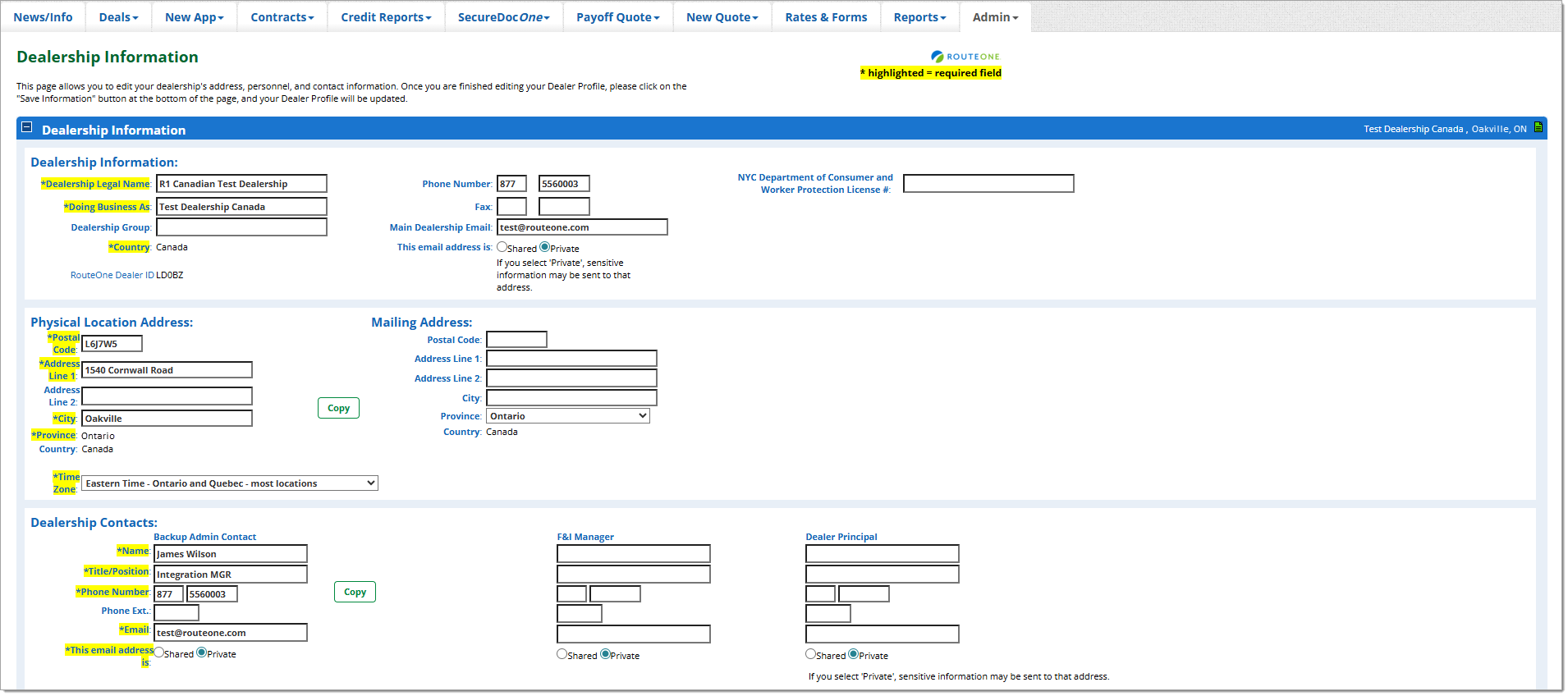
The available preferences within the ‘Dealership Info’ page include:
- Dealership Information
- Dealership Information (details)
- Physical Location Address / Mailing Address
- Dealership Contacts
- Dealership Hours of Operation
- CarProof Account Connection
- Online Retail Services
- Online Retail Services Details
- Online Real Time Retail Services Details
- Enrollment Information
Required information is highlighted and marked by an asterisk (*).
Once you are finished editing your dealership information, click the ‘Save Information’ button at the bottom of the page to update.
Setting Dealership Preferences
This section allows you to edit the defaults, configurations, and preferences for your dealership in the RouteOne system, including alerts, notifications, and other advanced features.
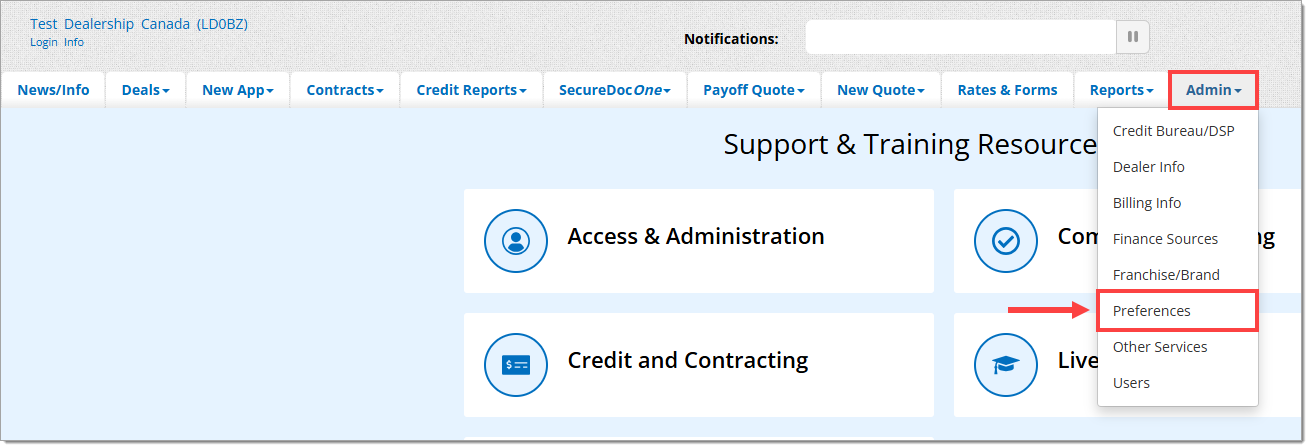
Hover over the ‘Admin’ tab and click on the ‘Preferences’ option.
Compliance
Privacy Notice
To utilize certain RouteOne services, including Remote eSigning, Digital Retail Services or others, a Privacy Notice must be uploaded in the RouteOne system. To upload a privacy notice, click the ‘Select File’ button.
The document must be a PDF and cannot exceed 2MB.
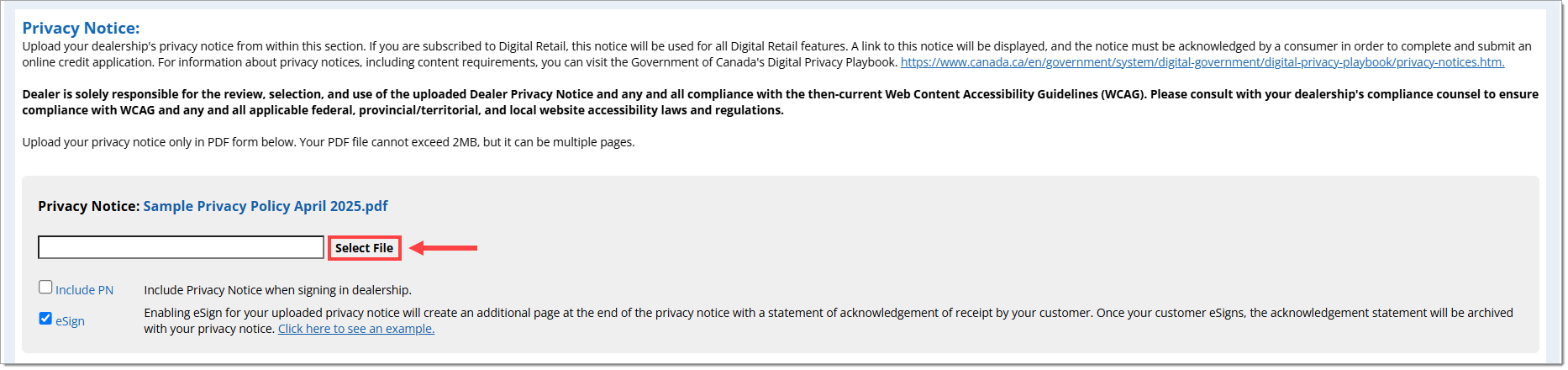
Province/Territory-Specific Privacy Notice
To upload a province/territory-specific privacy notice, click the ‘Select File’ button for the respective province/territory.

Preferences
Active User Report – Distribution Enrollment
This section allows you to request an automated Active Dealer User Report. This report will be sent monthly to the email addresses that you provide. Contents will include a list of dealer user names that are active within the dealership.
To enroll in Report Distribution, set the ‘Report Distribution’ drop-down menu to ‘Participating.’

The report may be sent to a minimum of one email address and up to five.

Credit Application Defaults
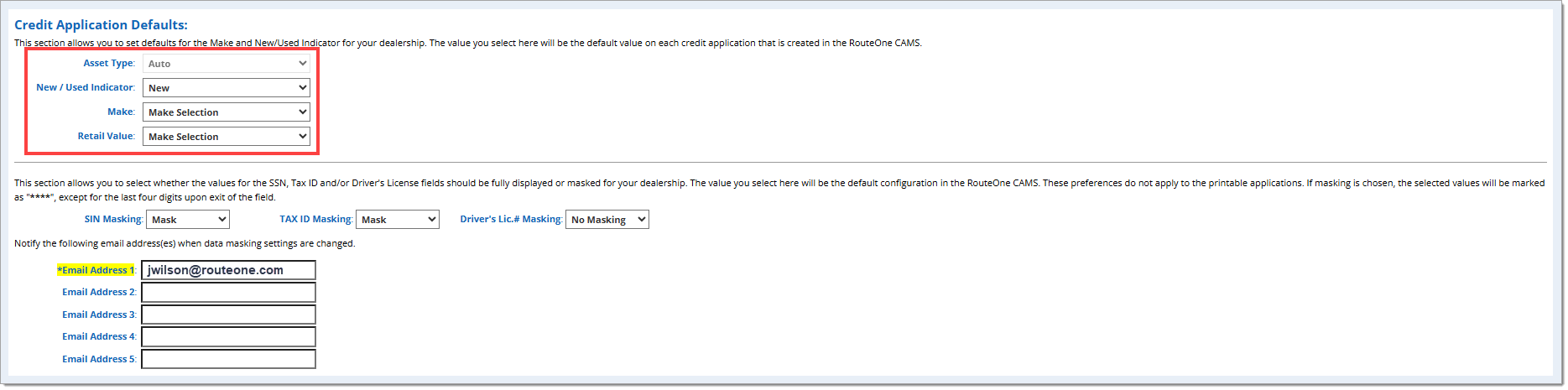
This section allows you to set defaults for the Make and New/Used Indicator for your dealership. The value you select here will be the default value on each credit application that is created in the RouteOne Credit Aggregation System (CAS).
Masking SIN/Tax ID/Driver’s License Numbers
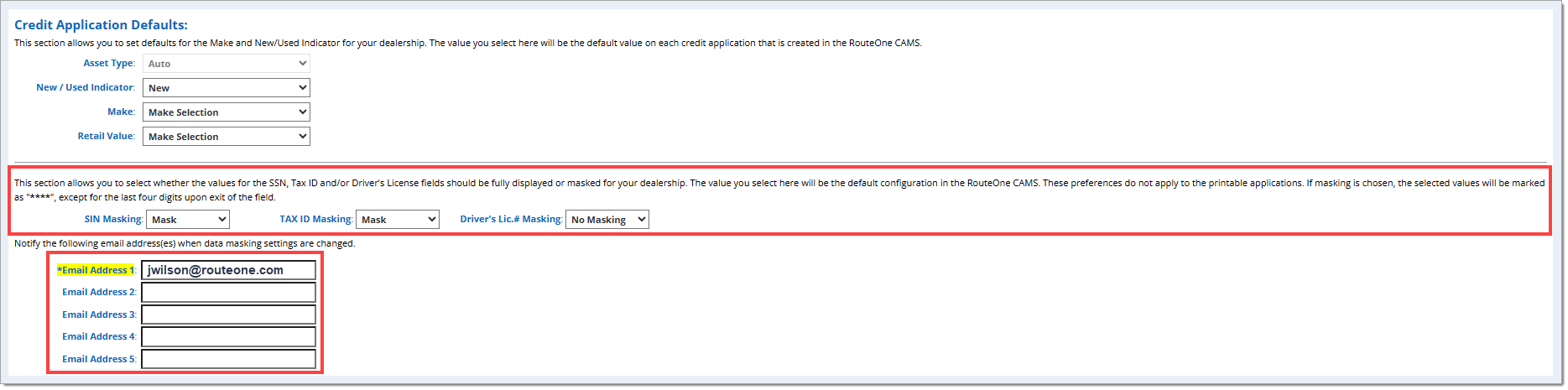
This section allows you to select whether the values for the SIN, Tax ID and/or Driver's License fields should be fully displayed or masked for your dealership.
The value you select here will be the default configuration in the RouteOne Credit Aggregation System (CAS). These preferences do not apply to printable applications. If masking is chosen, the selected values will be marked as "****," except for the last four digits upon exit of the field.
You can also set email addresses to be notified when the data masking settings are changed.
Deal Saver (Email Alert) Settings
This section allows you to notify individuals by email if an application has not been approved within a desired time period, or if an application has been funded or booked.
Use the right-hand dropdown menu for application approval to select the amount of time before the system triggers a notification to the emails.
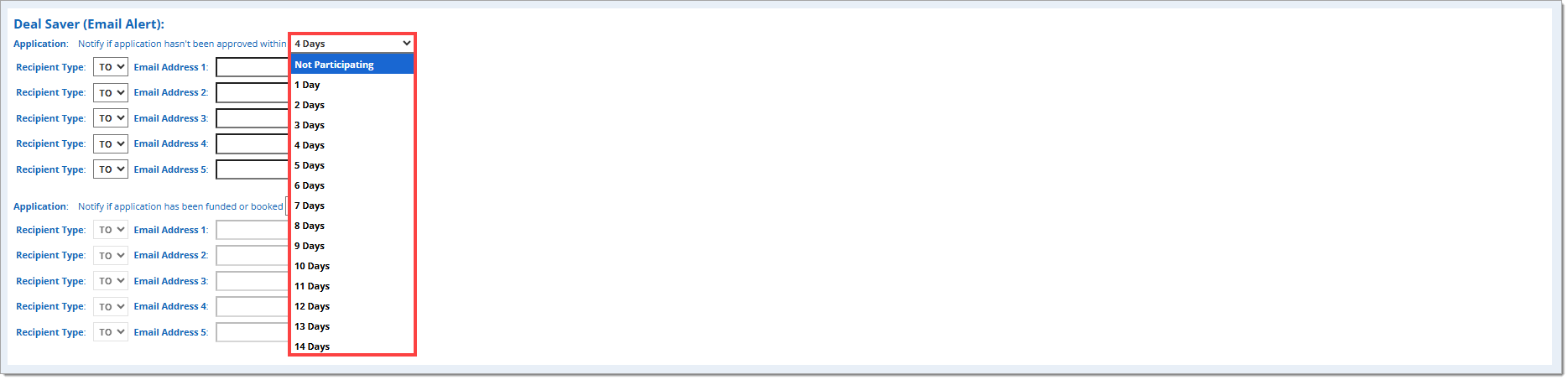
Enter up to five email addresses in the respective fields and use the drop-down menus on the left to designate whether the recipient gets a direct email (TC) or a copy (CC).
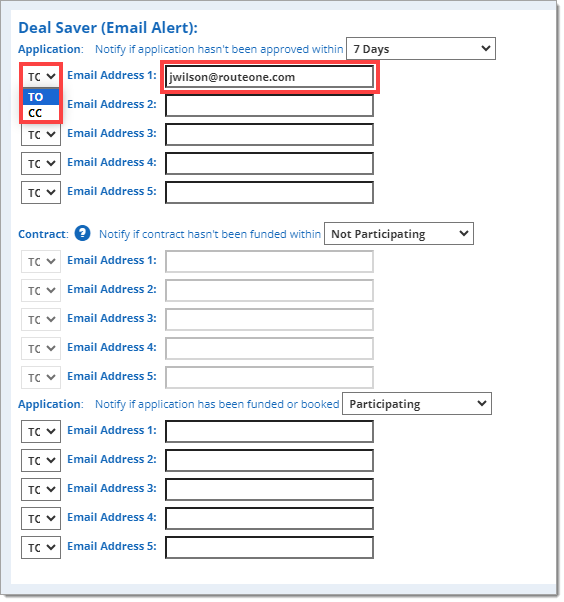
Repeat the above steps for notification if the contract has not been funded or booked.
The emails for each notification do not need to match.
Delete Credit Apps
This section allows you to select whether or not your dealership should have the ability to 'Delete Credit Apps’ and set email addresses to be notified when the setting is changed.
To enable this feature, click the 'Dealership's ability to 'Delete Credit apps' is active' checkbox.
While one email address is required to be notified when these settings are changed, you can choose to notify up to three email addresses by entering them into the respective fields.

Finance Source Auto Forward
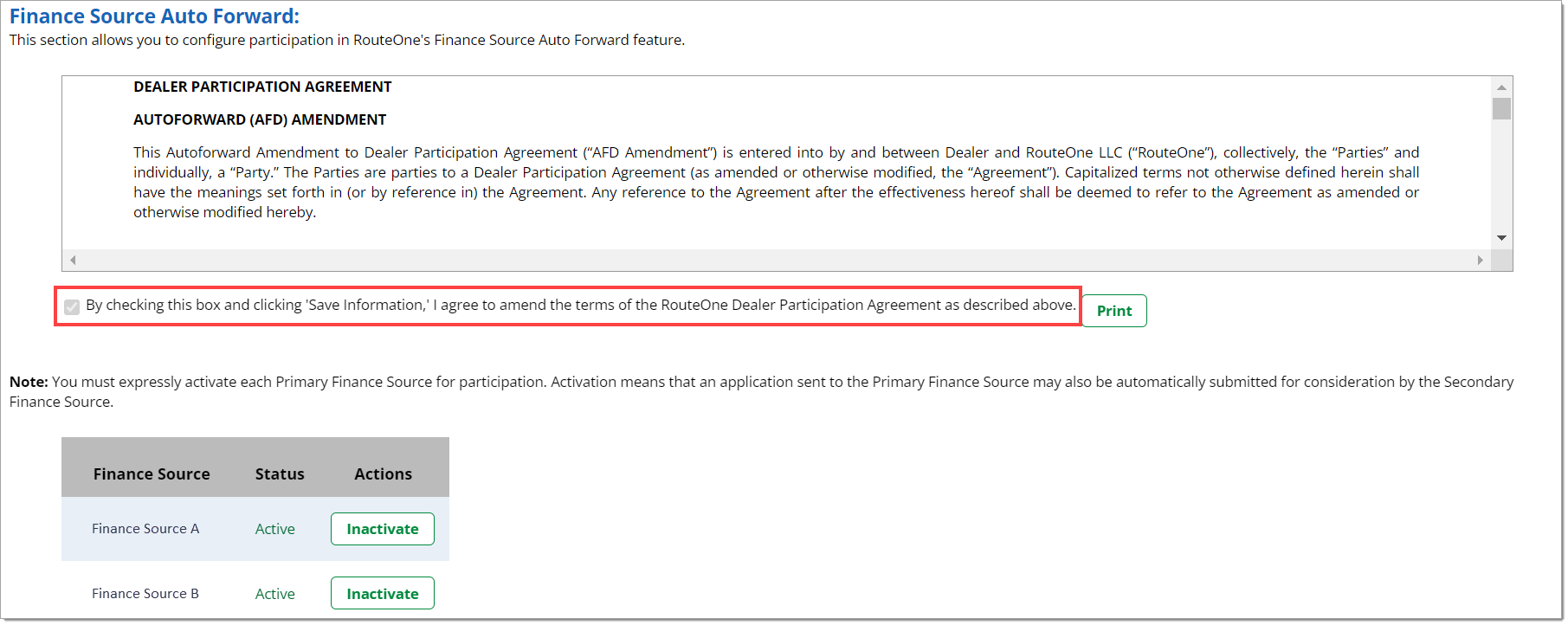
In order to participate in Finance Source Auto Forwarding, you must first agree to the ‘Dealer Participation Agreement Autoforward (AFD) Amendment.’ To agree, click on the checkbox under the agreement. Then scroll to the bottom of the Dealer Preferences page and click ‘Save Information’ to finalize the agreement.
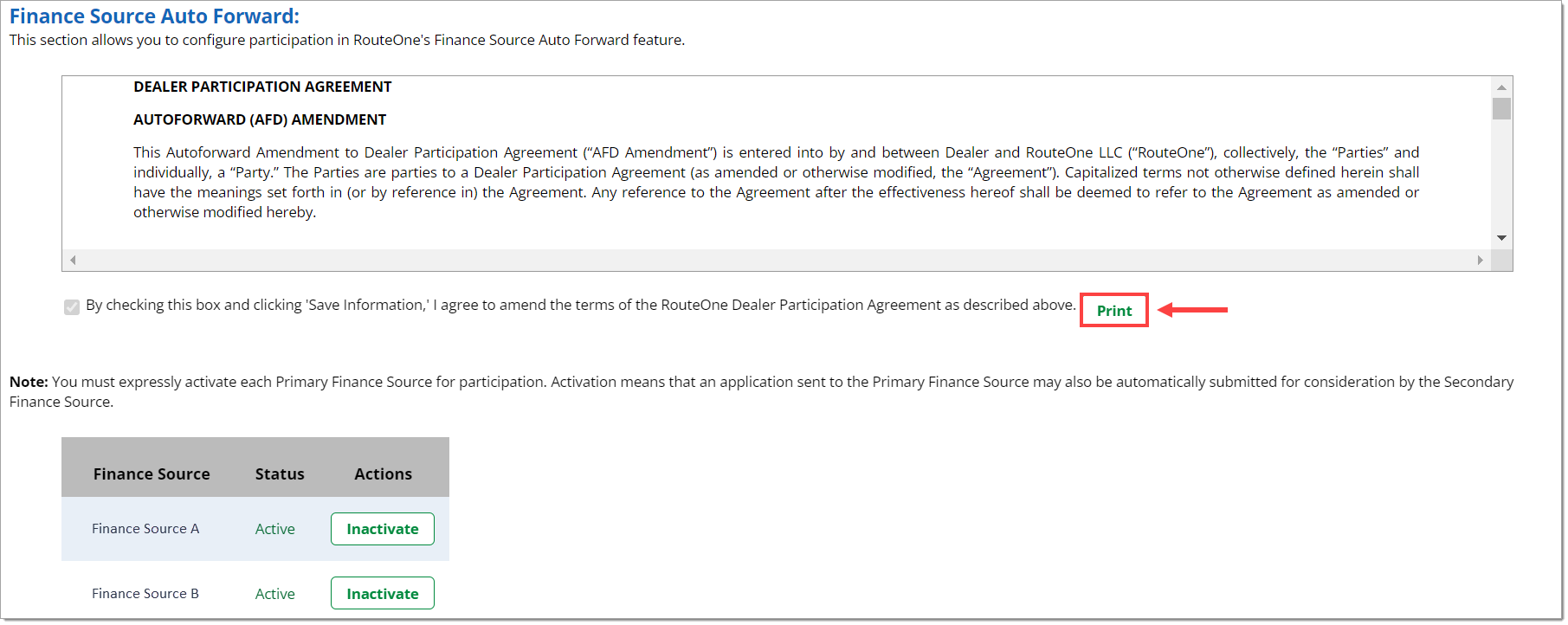
You can print the amendment by clicking the ‘Print’ button.
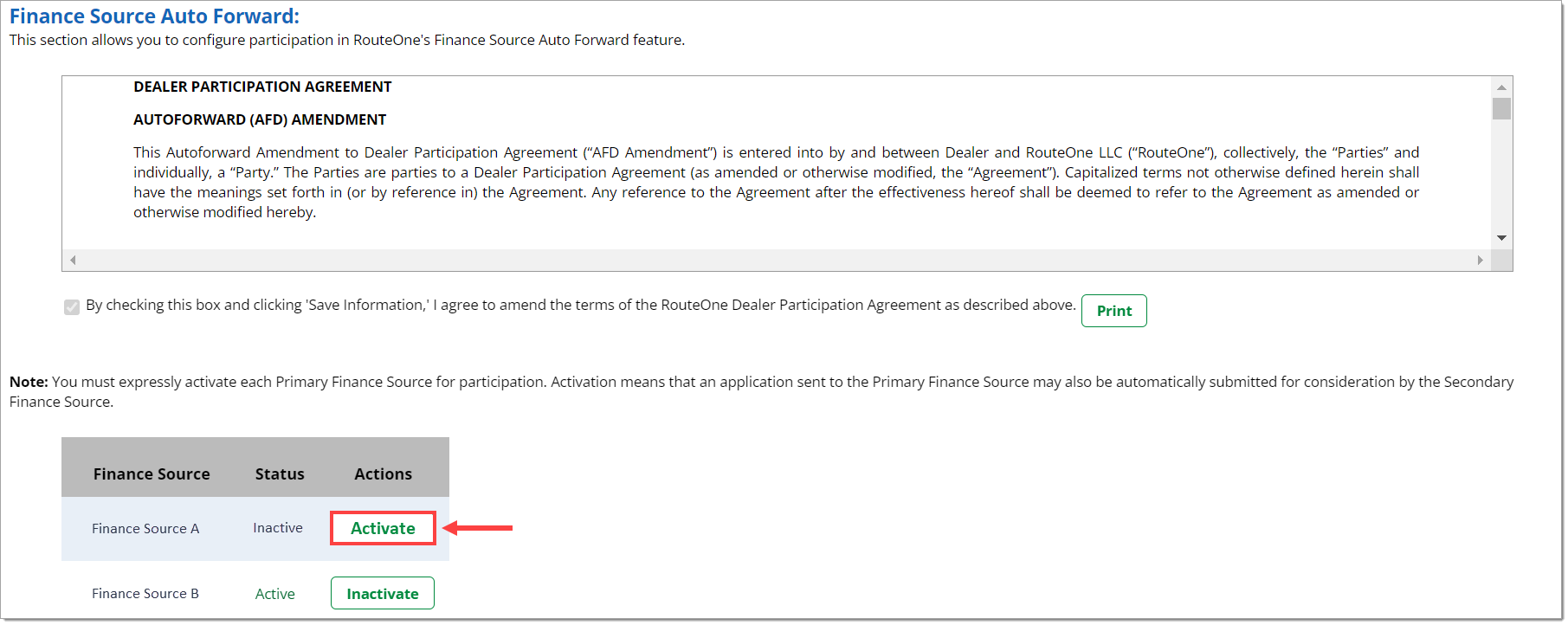
You must expressly activate each Primary Finance Source for participation. Activation means that an application sent to the Primary Finance Source may also be automatically submitted for consideration by the Secondary Finance Source.
To activate a Finance Source, click the corresponding ‘Activate’ button in the ‘Actions’ column. When a Finance Source is activated, the button will change to ‘Inactivate’ and the ‘Status’ will change to ‘Active.’
Finance Source Associations
This section allows you to choose if finance sources can unilaterally activate an association with your dealership, so they can be selected for credit application submission without your explicit request for the association. Selecting this option will prohibit finance sources from activating your dealership without your explicit consent.

Third Party Lead Notification
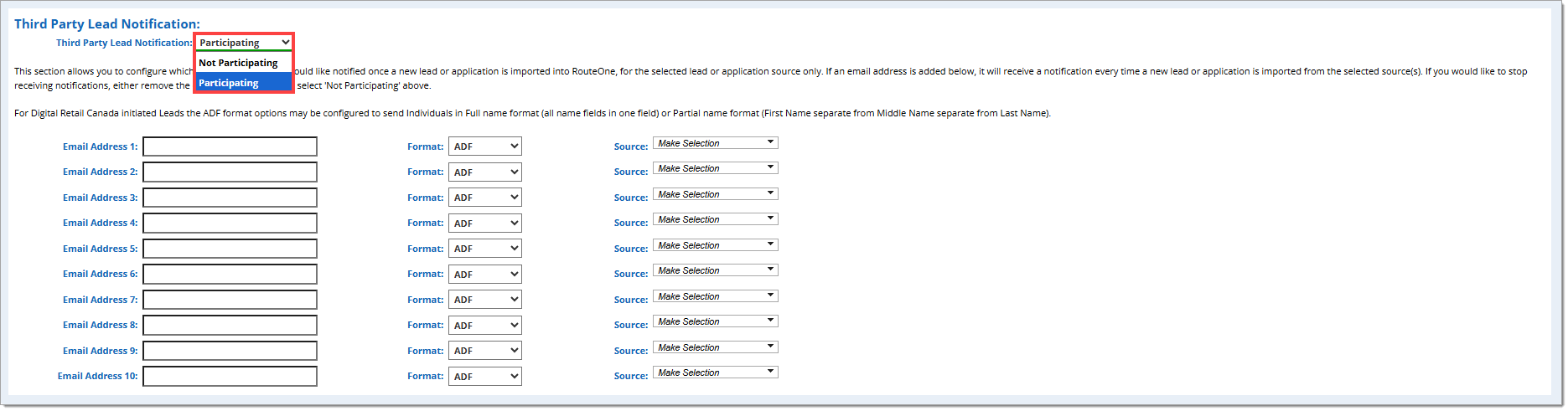
This section allows you to configure which email addresses you would like notified once a new lead or application is imported into RouteOne.
The notification will only occur for the specific leads or applications you selected for each individual email you added. If an email address is added, it will receive a notification every time a new lead or application is imported from the selected source(s).
To enable Third Party Lead Notifications, set the ‘Third Party Lead Notification’ drop-down menu to ‘Participating.’ Conversely, if you would like to stop receiving notifications, either remove the email address or select 'Not Participating.’
When you are finished updating your dealership preferences, click the ‘Save Information’ button at the bottom of the page to save your changes.
ROUTEONE SUPPORT
Hours (EST)
Monday - Friday: 8:00 AM - 9:00 PM
Saturday: 9:00 AM - 9:00 PM
Can’t find what you need?
Try our search
