In This Guide:
Related Guides:
Enhanced Login Transition
Preparing your Dealership for Login Changes
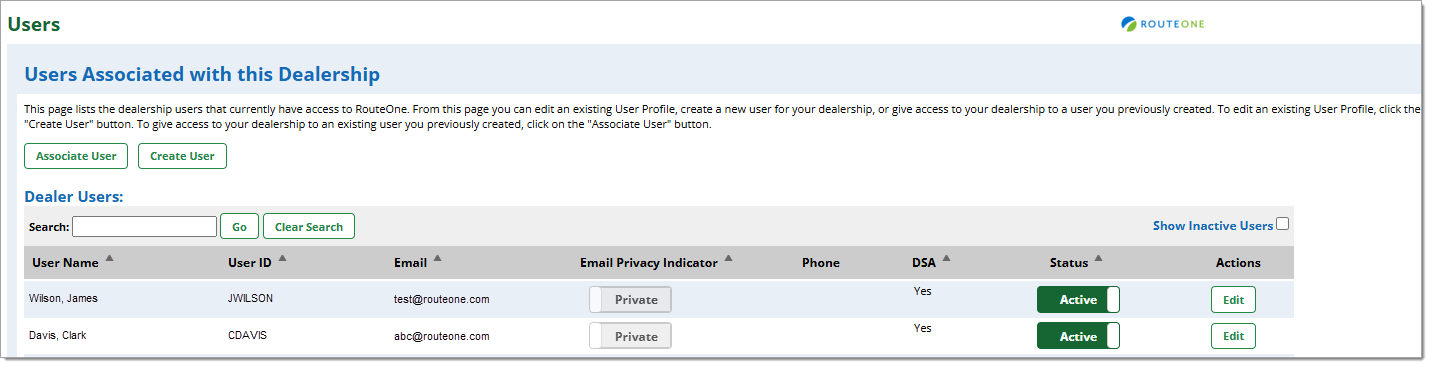
In preparation for the new RouteOne Enhanced Login process, we encourage Dealership System Administrators (DSAs) to prune their list of users and ensure that each user has a private and unique email address. To ease this process, we have updated the Users page to be more user friendly and to allow DSAs to make changes without having to click into each individual user profile.
Accessing the Users Page
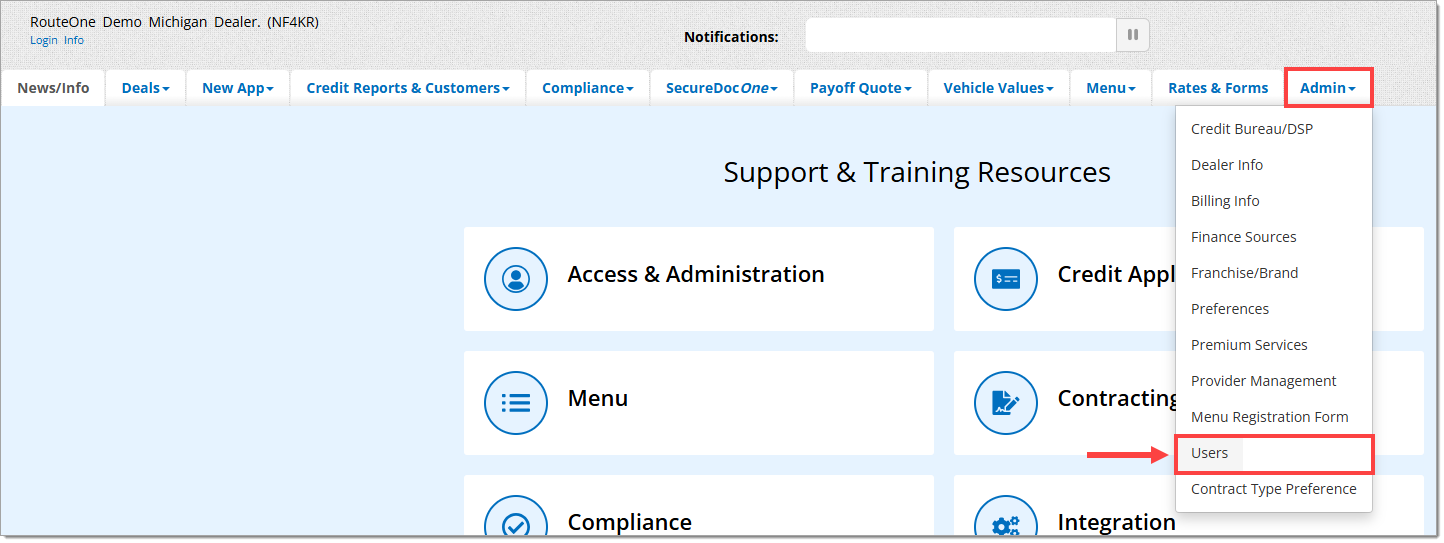
The processes in this guide will all be done on the Users page. To access the Users page, hover over the ‘Admin’ tab and select the ‘Users’ option.
Prune Dealer Users
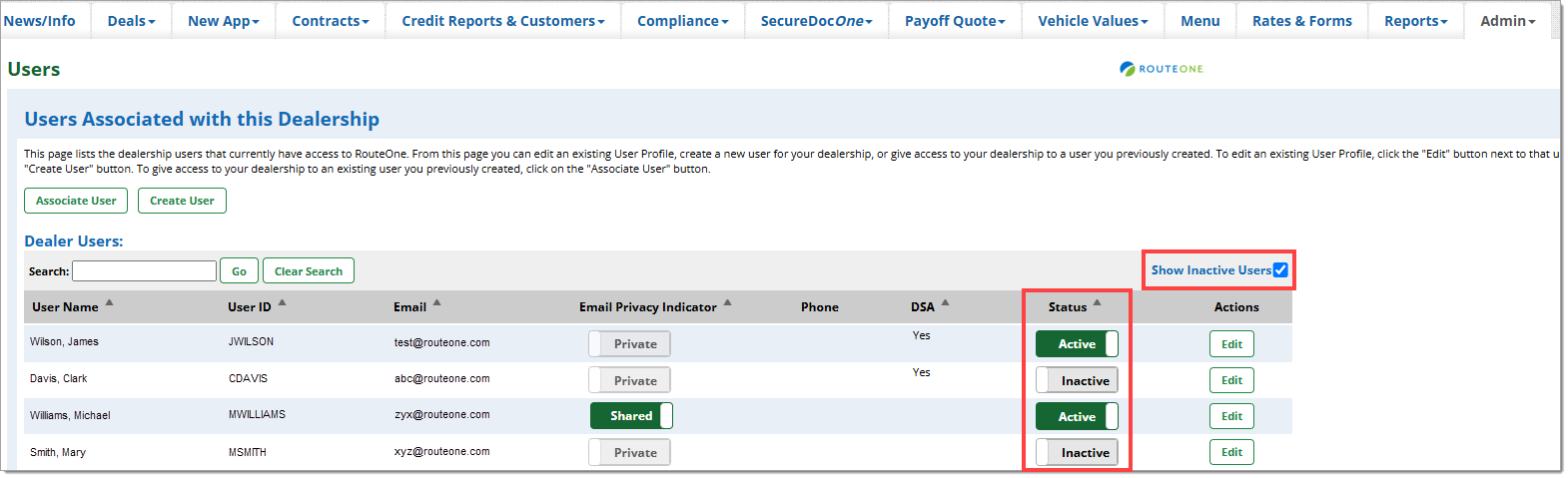
To make the rest of the process easier, you will want to ensure that users are marked appropriately as “Active” or “Inactive.”
Each user’s current designation is represented as a toggle under the ‘Status’ column of the Users page. To update a user’s status, simply click on the toggle to switch their status, and the change will automatically go into effect.
To include “Inactive” users on the list, click the ‘Show Inactive Users’ checkbox.
Ensure that each user has their own unique email address
One email address = one user
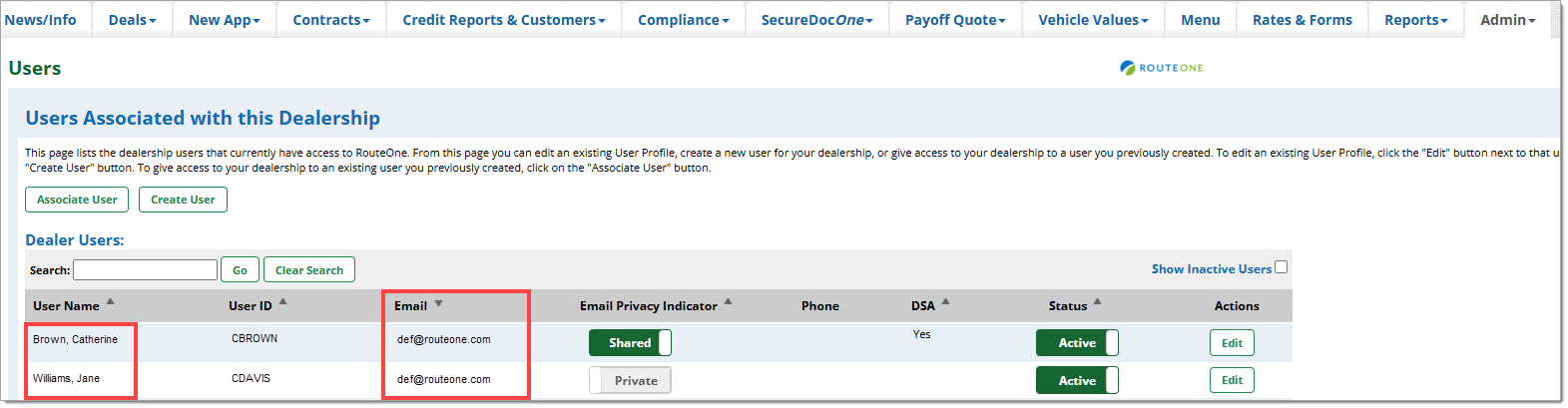
Moving forward, each email must correspond to a single individual user (no sharing of email addresses across multiple users).
To identify duplicate email addresses, click on the ‘Email’ header to sort the list alphabetically by email. Users with the same email address will appear together, and you can easily determine if they belong to the same individual or multiple.
If the same email is associated with multiple individuals, their email addresses will have to be changed to be unique to the individual. Click here to navigate to the ‘Updating a User’s Email Address’ section of this page.
Ensure that each user is using a “Private” email address
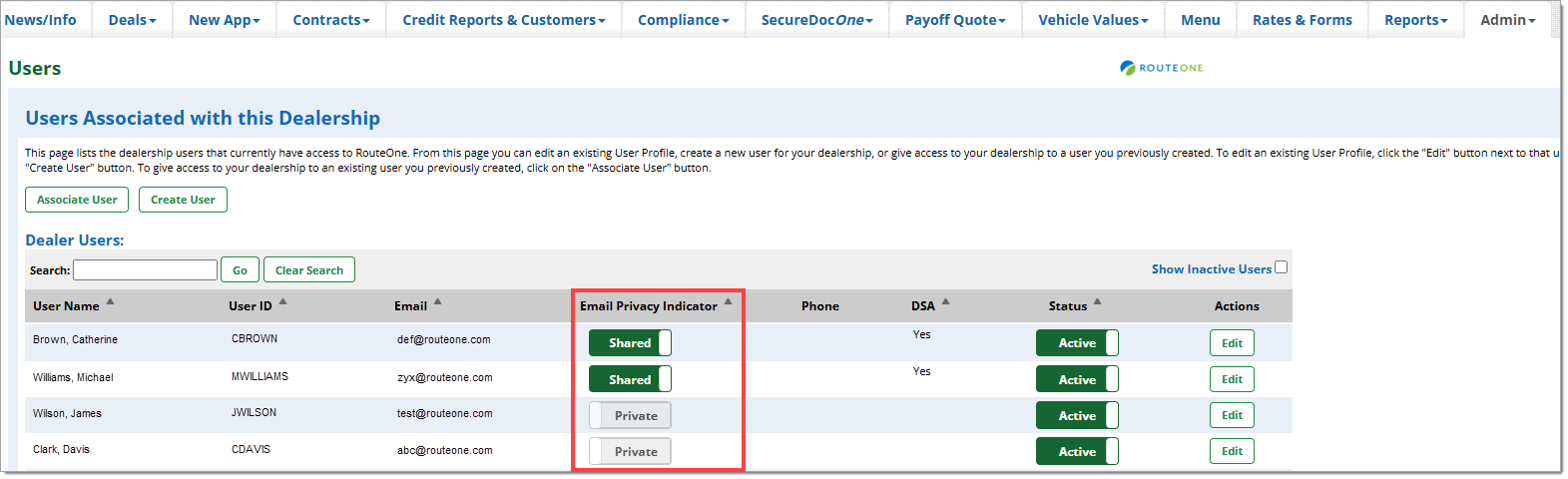
All email addresses associated with RouteOne accounts going forward are required to be “Private,” or only accessible by a single user. As such, existing “Shared” email addresses need to be updated within the system.
To identify users with email addresses flagged as “Shared,” click the ‘Email Privacy Indicator’ header to group the list by privacy. Users with “Private” email addresses will then appear at the top, followed by “Shared” email addresses. Click the header again to bring the “Shared” email addresses to the top.
If a user has a shared email address, you can update it to a unique email address using the steps below. Click here to navigate to the ‘Updating a User’s Email Address’ section of this page. After updating the email address, you can either mark it as “Private” on the Edit User page or return to this page and click the toggle to change the flag from “Shared” to “Private.”
Since “Shared” email addresses will no longer be supported, you are unable to toggle an email from “Private” to “Shared.”
Updating a User’s Email Address
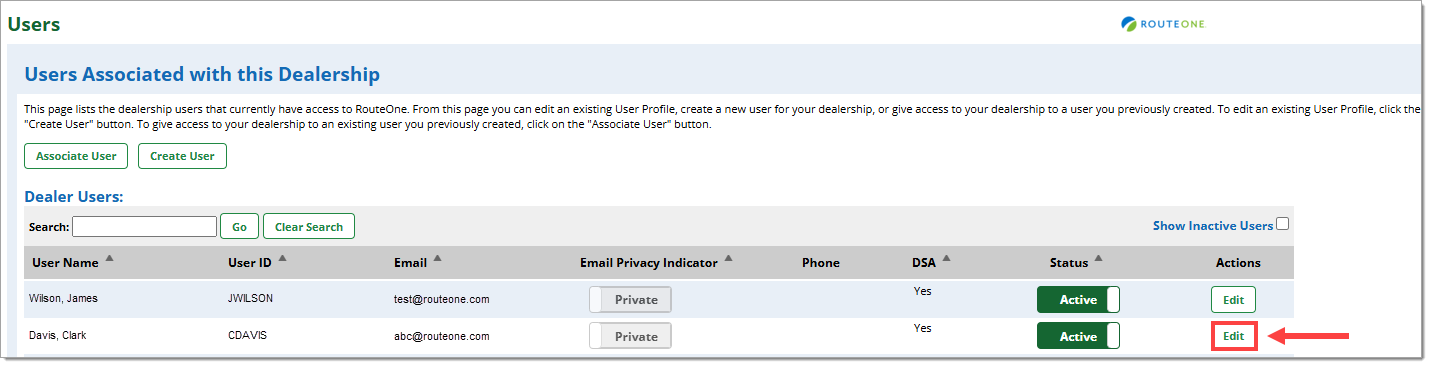
To update a user’s email address, click on the ’Edit’ button under the ’Actions’ tab for that user.
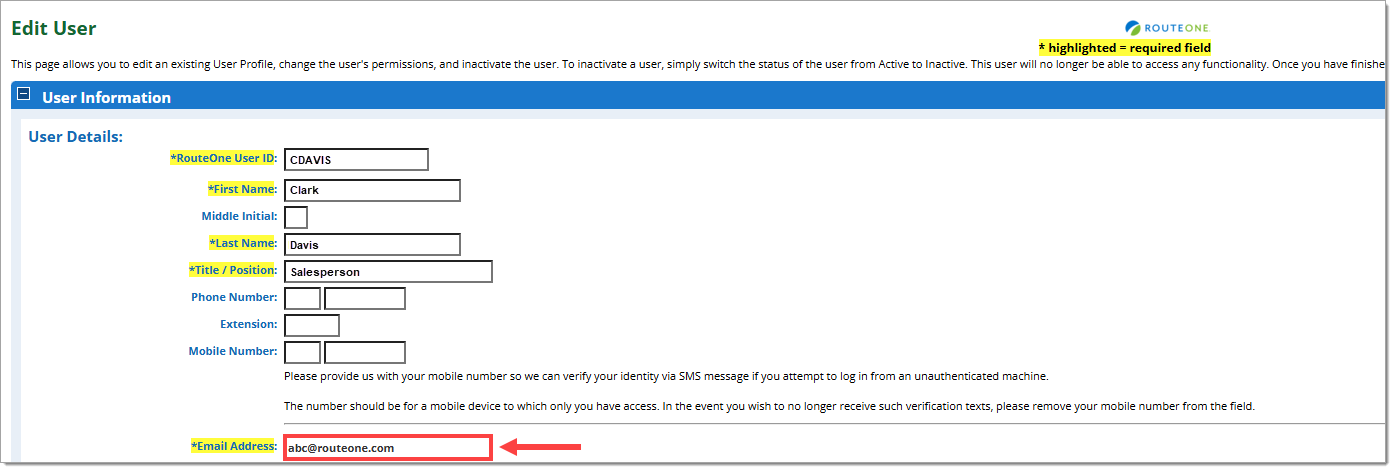
On the ‘Edit User’ page, update the email that appears in the ‘Email Address’ field.
Scroll to the bottom of the page and click ‘Save.’
Once the Enhanced Login process is active, DSA users will no longer be able to change a user’s email. The user will still be able to change their own email using My RouteOne. For more information on updating contact information, click here to view the ‘Using My RouteOne’ user guide.
ROUTEONE SUPPORT
Hours (EST)
Monday - Friday: 6:00am – Midnight
Saturday: 9am – 9pm
Can’t find what you need?
Try our search
