Related Guides:
Access and Administration
Installing the Lead Capture Form - Digital Retail Services
The Lead Capture Form is offered through RouteOne’s Digital Retail Services, and has limited requirements (name, email, phone number) for the consumer to submit their information.
This guide details how to install your Lead Capture Form.
More information about customizing the Lead Capture Form can be found here.
By comparison, the Consumer Facing Credit Application offered through RouteOne’s Digital Retail Services requires all necessary fields for the consumer to submit a full contract. For more information, visit the resources on Installing the Consumer Facing Credit Application and Customizing the Consumer Facing Credit Application.
Embedding Your Lead Capture Form URL
In this guide you will learn how to embed your lead capture form URL into your dealership website so that customers can access it.
When embedding the Digital Retail lead capture form, an iframe with the correct link will be placed into your site. When customers visit your website, they will see the lead capture form in the location that you placed this iframe.
If you are not a web developer and are unfamiliar with HTML, it is advised that you find someone who can assist you with this task.
Below is an example of an embedded lead capture form. Other sites may vary depending on the dealership website style.
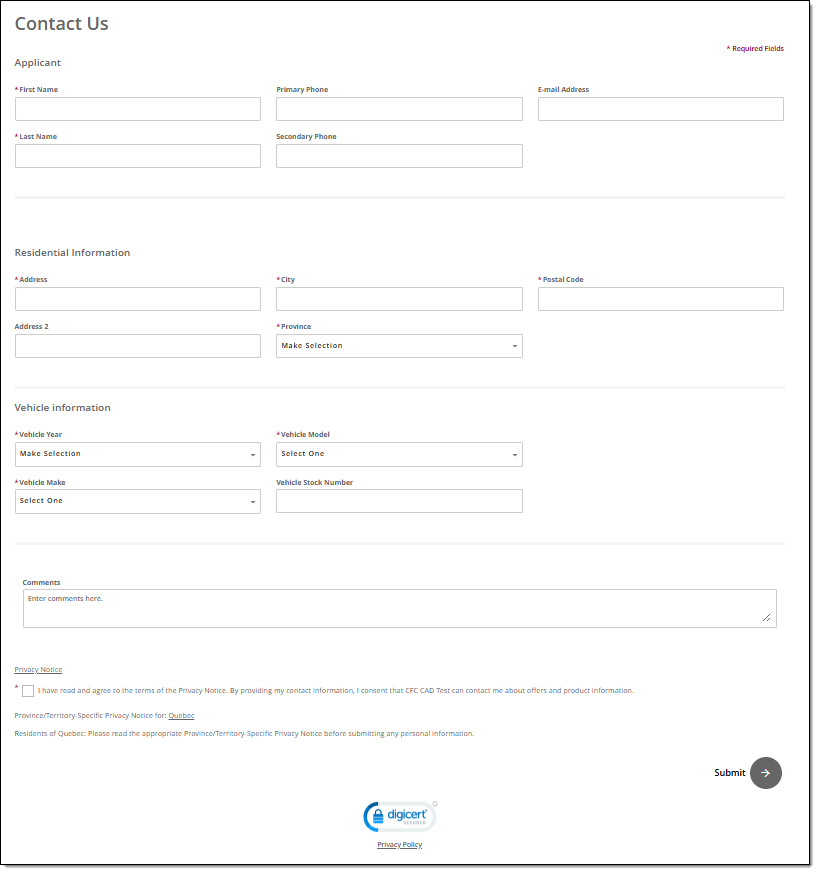
Important Note About Quotation Marks: In this document’s examples of code, straight quotation marks are used.
- Correct start and end quote: ""
Ensure that you are using this type of quote and not the curved quotation mark that Microsoft Word uses.
- Incorrect start and end quote: “”
You must use the straight quotation marks in attributes on your HTML elements, such as the src attribute on an iframe or the href attribute on your anchor tag.
Steps to Embed Your Lead Capture Form URL
- Copy the following text into your website:
- <iframe frameborder="0" src="URL-GOES-HERE" style="height:1200px;width:100%;"></iframe>
- Height and width should be styled in a way that is appropriate to your site. The above HTML may be modified accordingly by adjusting these parameters.
- <iframe frameborder="0" src="URL-GOES-HERE" style="height:1200px;width:100%;"></iframe>
- Replace all of URL-GOES-HERE in Step 1 on your website with your Digital Services Lead capture form URL. This URL was either shared with you by your dealership’s Digital Retail administrator or it can be accessed through an administrator login to RouteOne’s Premium Services Page.
- Steps on how to access the URL in RouteOne are available in the next section, ‘Copying your Lead Capture Form URL.’
- Example: If your product URL is
- The URL-GOES-HERE will be replaced with that URL/link. The result looks like this:
- <iframe src="https://routeone.net/XRD/displayXrdStepOne.do?dealerId=ABCDE&appType=Lead" style="height:1200px;width:100%;" frameborder="0"></iframe>
- Remember, you will be using your own URL from your account.
Important Note About Scroll Bar: It is strongly advised that you do not add the attribute "scrolling='no'" to your iframe. Digital Retail requires the scroll bar option, and is not meant to be embedded without one. Some developers want to remove the scrolling attribute because they like the look of having no scroll bar.
For the same reason, it is strongly advised that you do not add "overflow:hidden" to the iframe’s style attribute.
The lead capture form is designed to be responsive for mobile-friendly websites. If your website is configured to be responsive, you will want to ensure that the container div that surrounds the iframe has responsive attributes such as percentage widths or media queries with defined width break-points.
It is recommended that you test to see if your changes are successful before moving your changes into production. In other words, if you are using a website tool that allows you to preview your changes before saving/publishing, do so now. If the results are incorrect, please review/double-check that you have followed the instructions correctly.
We also recommend testing after publishing to verify that your recent changes are not only working in your test area, but also in your production area.
Copying your Lead Capture Form URL
Log in to RouteOne.net with your dealer account: https://www.routeone.net.
Under ‘Admin’ from the top navigation, select 'Other Services’ from the dropdown.
If you do not see this option, it may mean that you do not have adequate permissions. You will need to contact your Dealer System Administrator (DSA) for assistance.
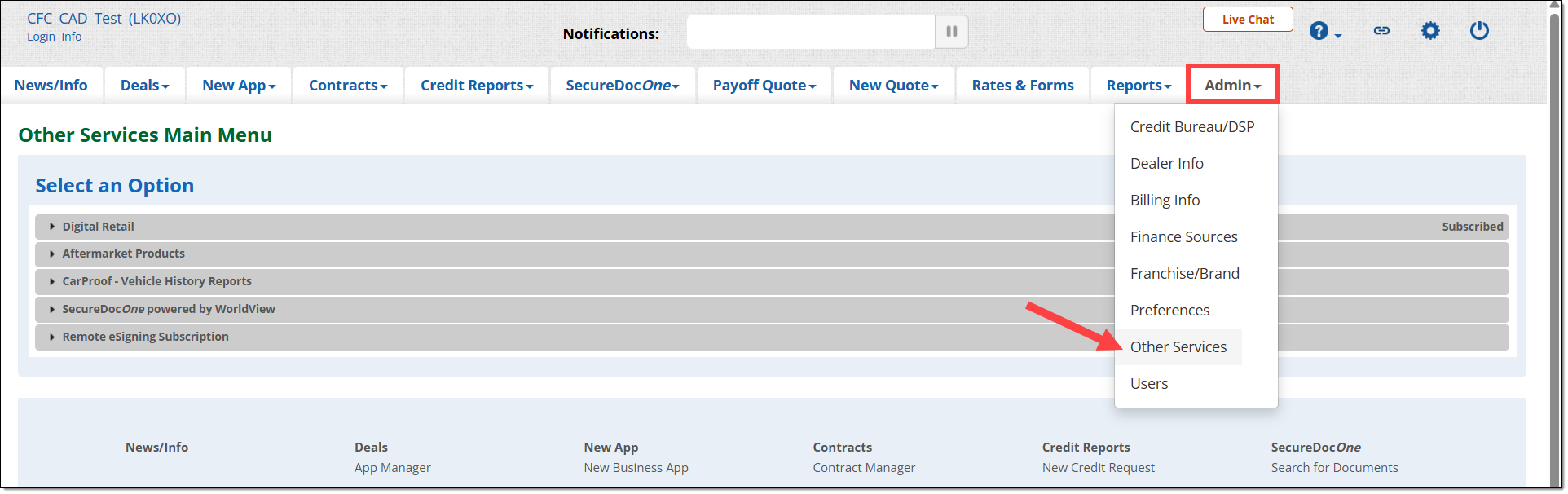
In Other Services, scroll down to Digital Retail and click to expand the section.

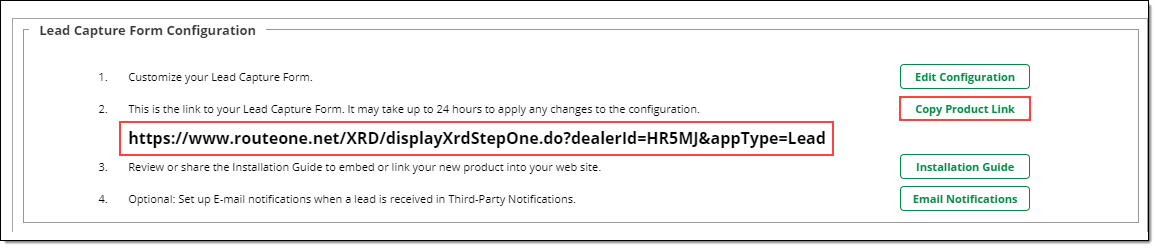
Scroll down to the Lead Capture Form Configuration area.
A URL will be displayed for your lead capture form.
You can copy your lead capture form URL by using the ‘Copy Product Link’ button or by highlighting and copying the text link.
Linking to your Digital Retail Product
If you do not want your lead capture form embedded, you can use the lead capture form URL like other standard URLs.
For example, you can use these links like any other links and:
- Paste them into an email
- Paste them into a post on social media, blogs, comment-sections, etc.
- Bookmark them
For example:
- <a href="https://www.routeone.net/digital-retail-ui/?dealerId=ABCDE&locale=en_USXRD">Apply For Credit</a>
To make your link open in a new tab, use: target="_blank
For example:
- <a href="https://www.routeone.net/digital-retail-ui/?dealerId=HR5MJ&locale=en_USXRD">target="_blank">Apply For Credit</a>
To the user of your website, this link will appear as ‘Apply For Credit.’
ROUTEONE SUPPORT
Hours (EST)
Monday - Friday: 8:00 AM - 9:00 PM
Saturday: 9:00 AM - 9:00 PM
Can’t find what you need?
Try our search
