Menu
Introduction to RouteOne Menu
What is RouteOne Menu?
RouteOne Menu is a cloud-based, digital Finance & Insurance (F&I) Menu, Reporting and eContracting platform for the automotive industry. Our industry-leading digital finance platform offers dealerships a simple, easy-to-use interface that allows them to engage customers with an interactive, customized menu and disclosure to help increase product sales while utilizing eRating and eContracting to offer a streamlined process for product registration.
Logging In
For more information on logging in, visit the Logging in to RouteOne Menu guide.
The Home Page
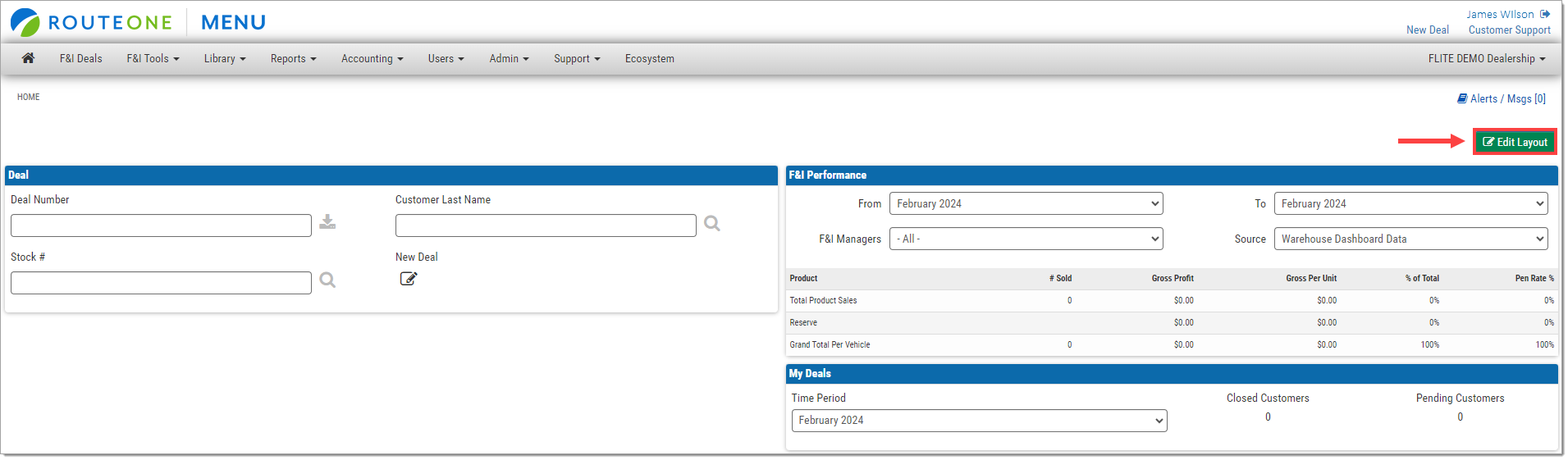
The home page is a customizable landing page where you can track different aspects of the F&I process, search for deals, and view in-site news. In-site news can include training and messages posted to users.
If you want to customize the home page, click the ‘Edit Layout’ button. You can add items by clicking and dragging from the list at the bottom or remove them by clicking the ‘X.’
The F&I Deals Page
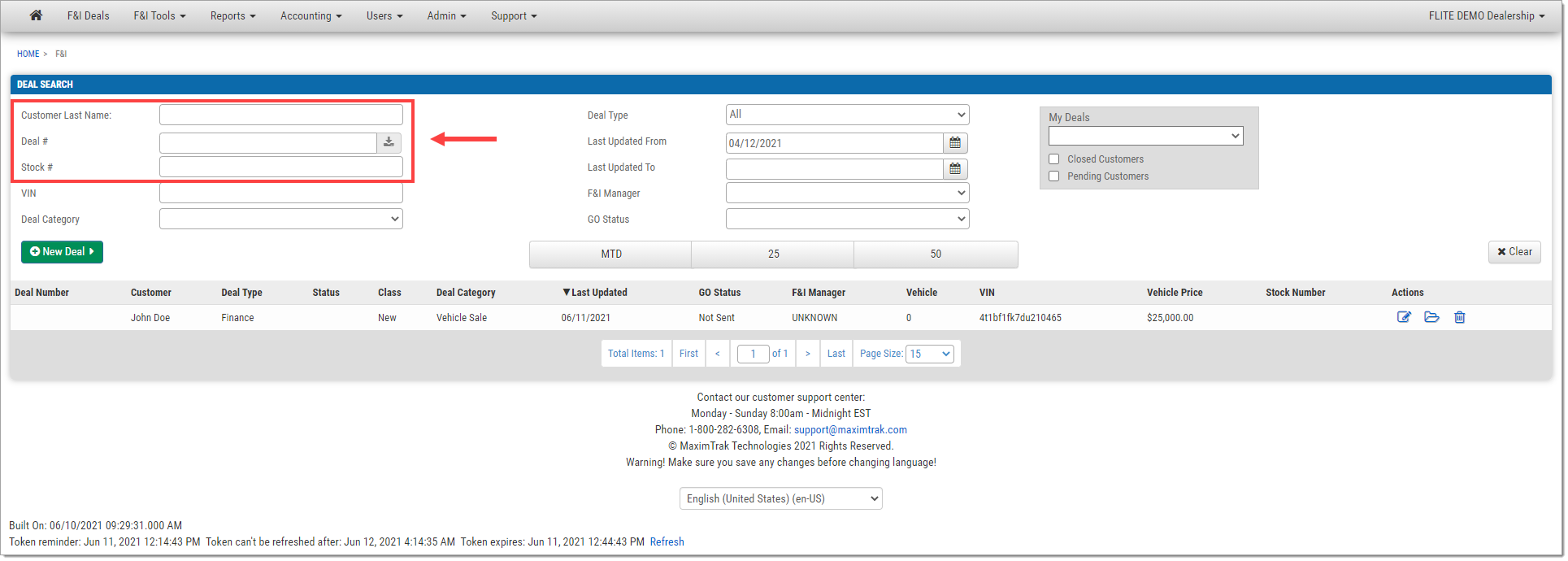
The F&I Deals page contains all the deals made within the Menu system. From this screen, the user can view and filter a list of recent deals, search for deals, create a new deal from scratch or from a DMS import, or print documents related to a deal.
Searching for Deals
To locate an existing deal, begin typing the customer’s last name, deal number, or stock number. The list of deals will dynamically update to reflect the search criteria.
Filtering Deals
The list of deals can be filtered by deal type, date range, and whether they are associated with the current user.
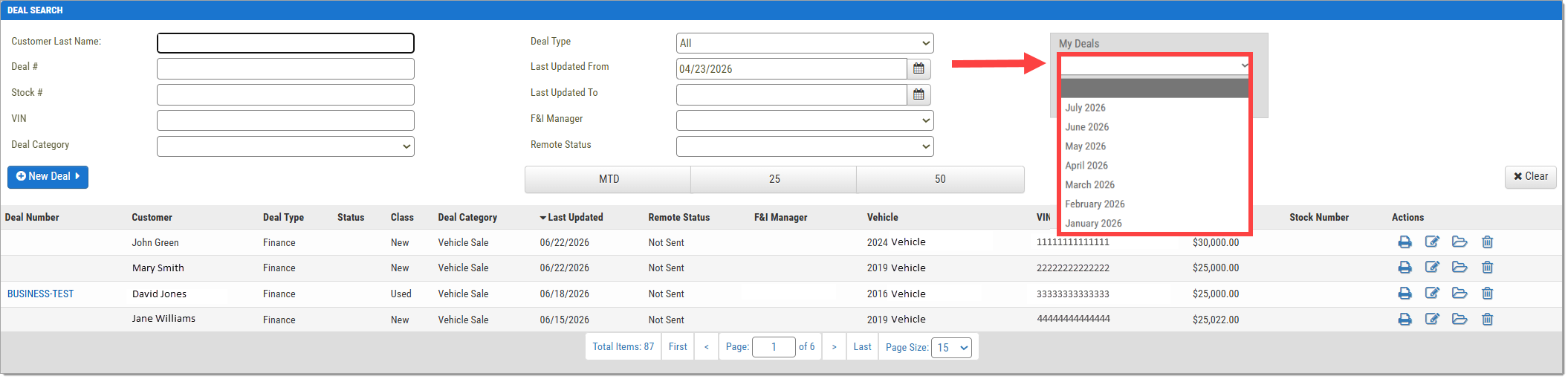
To view deals associated with the current user, use the ‘My Deals’ dropdown menu and select a month.
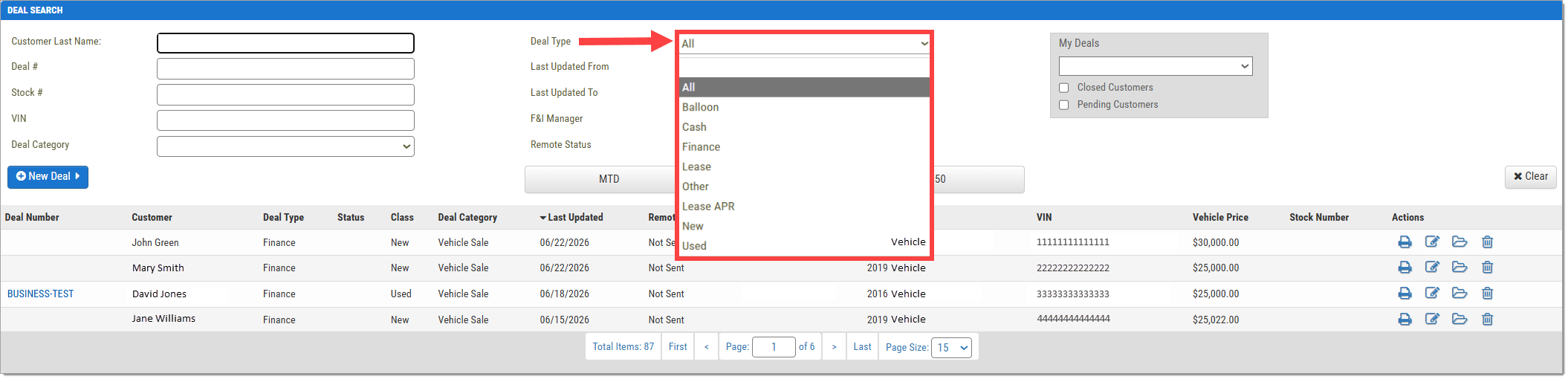
To filter the deals by type, click the ‘Deal Type’ dropdown menu and select which deal type you would like to include in the list.
To filter the details by date range, enter the earlier date into the ‘Last Updated From’ field and the later date into the ‘Last Updated To’ field. You can leave either field blank to include all deals updated before or after a certain date.
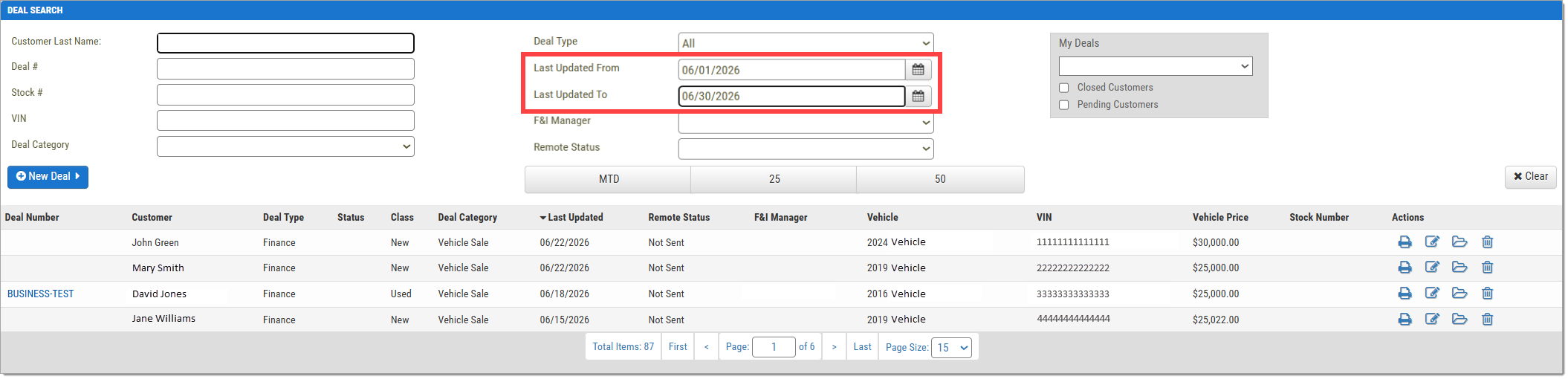
Creating a New Deal
For information on Creating a Deal in RouteOne Menu, click here to view our user guide.
Printing Deal-Related Documents
To print documents associated with a specific deal, locate the deal on the F&I Deals page. In the Actions column, click the printer icon for that deal.
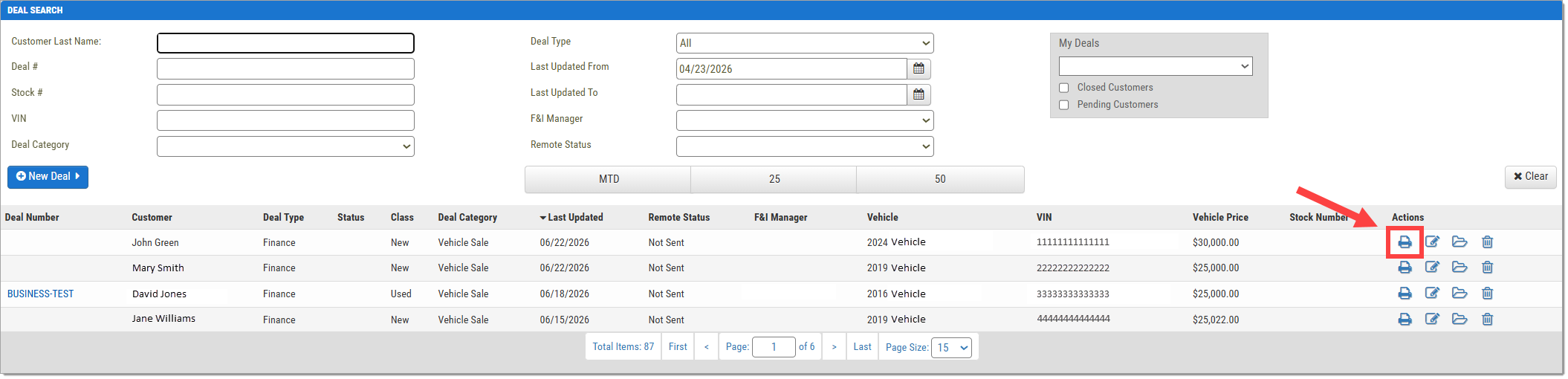
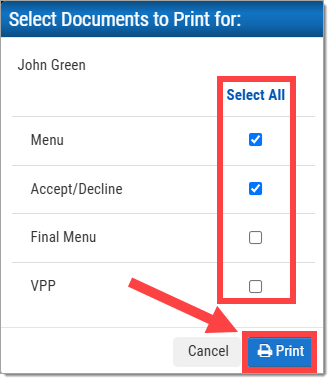
A window will display the documents available for printing. Select the checkbox next to each document you would like to print or click ‘Select All’ to select the checkboxes for all documents at once. Click Print.
ROUTEONE SUPPORT
Hours (EST)
Monday - Friday: 8:00 AM - 9:00 PM
Saturday: 9:00 AM - 9:00 PM
Can’t find what you need?
Try our search
