In This Guide:
Related Guides:
Access and Administration
Managing User Permissions Templates
A user permission template is a shortcut used to easily apply a set of permissions to a user all at once. You can have up to 20 templates active at a time.
To create and manage templates, hover over the ‘Admin’ tab and select ‘Permission Templates’ from the dropdown menu.
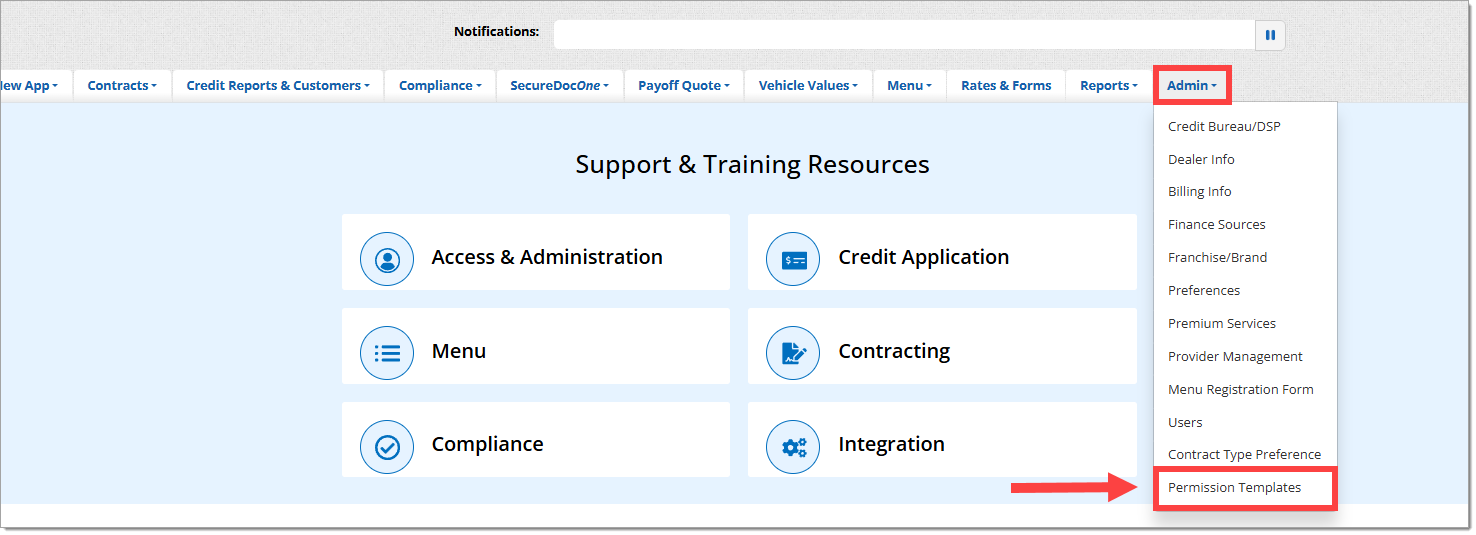
From this page, you can create new templates for your dealership or dealer group, edit existing templates, or delete templates.


Creating a New Template
To create a new template, click on the ‘Manage Permission Template’ dropdown menu and select the ‘Create New Template’ option.

Click the ‘Suggested Template Name’ dropdown menu to select from common template names or select the ‘Custom Name’ option to enter your own.
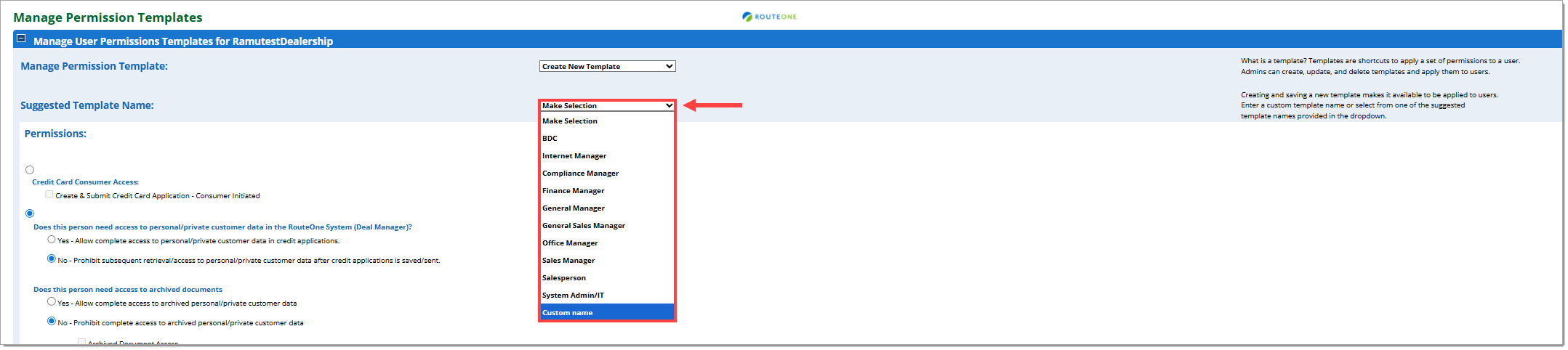
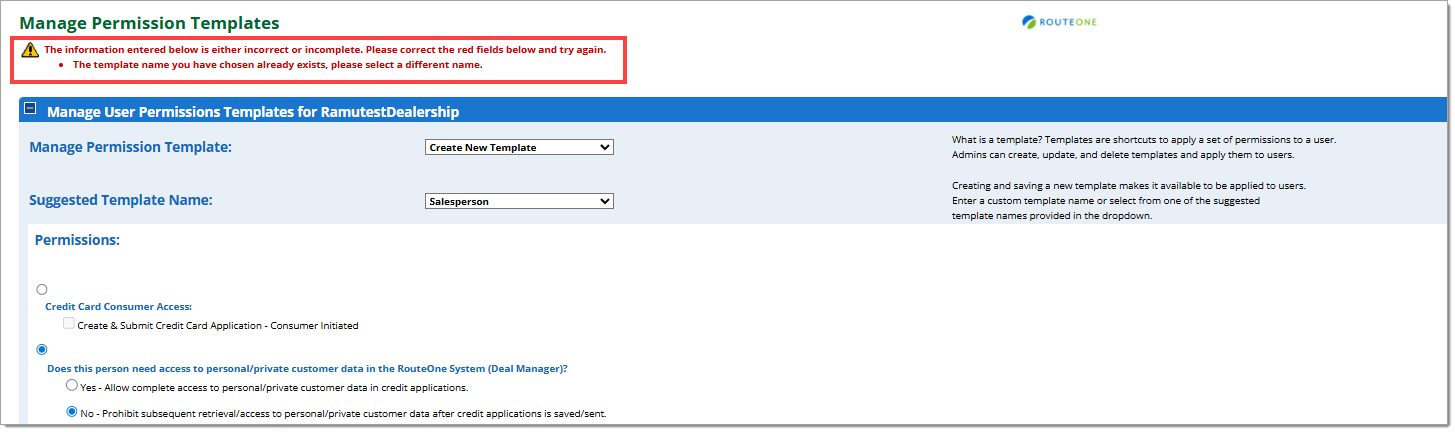
Two templates cannot have the same name. If a template already exists with the same name, an error will appear, directing you to change the name of the new template.
If you select a suggested name, the name will appear in the ‘Template Name’ field. If you select ‘Custom Name,’ enter the desired name in this field.

In the ‘Permissions’ section, select the permissions that should be associated with the new template.
For more details about RouteOne’s user permissions, click here to view our user guide.
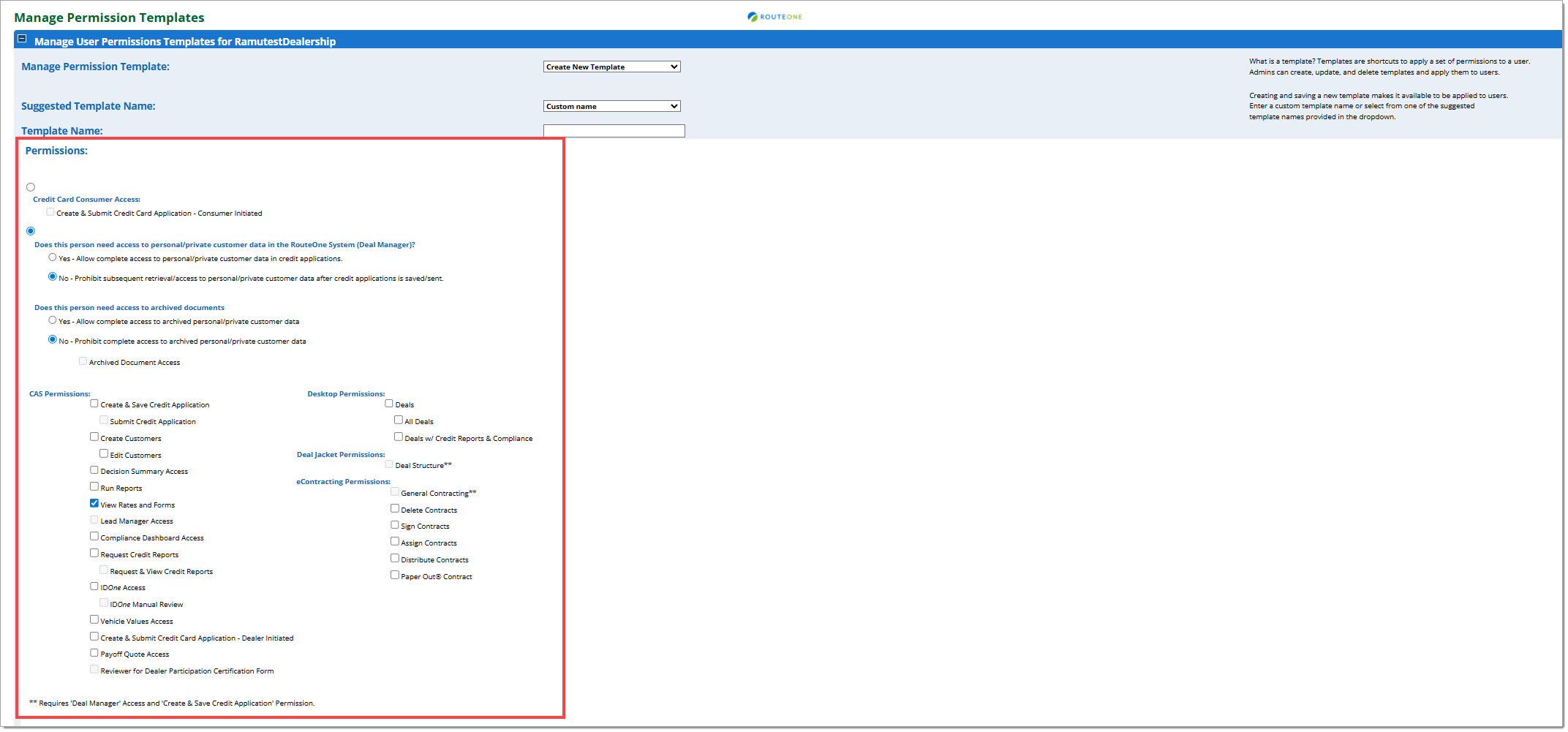
Once you have completed the fields and selected the appropriate permissions for the template, click ‘Save Information.’
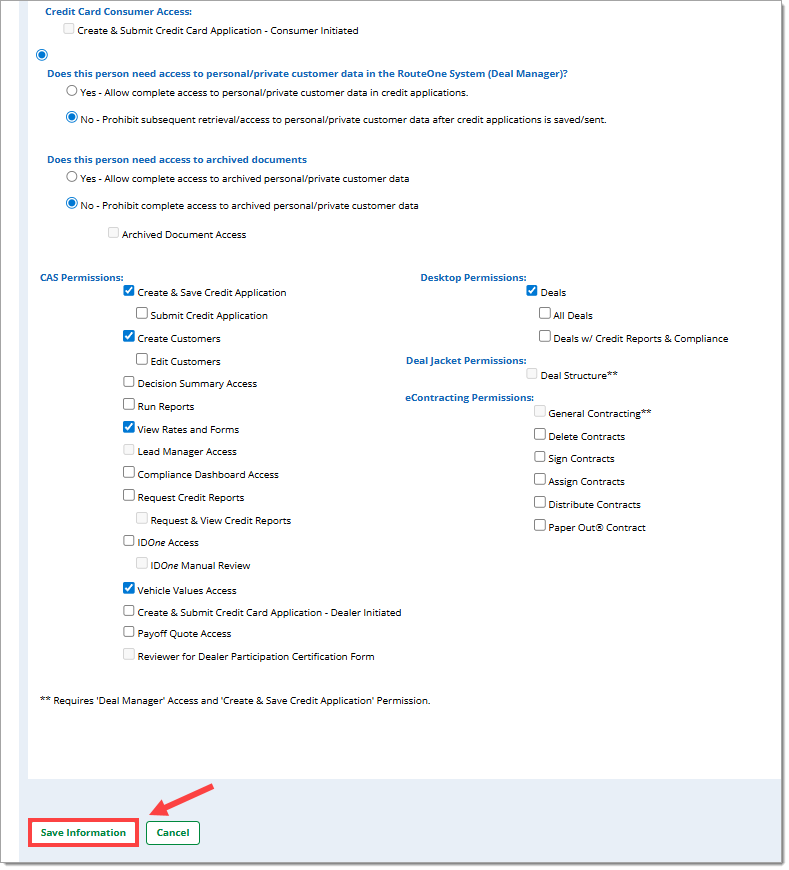
Once saved, the template will appear as an option when creating or editing a user. For more information on creating or editing a user, click here to view our User Information and Permissions user guide.
Editing an Existing Template
To edit an existing template, click the ‘Manage Permission Template’ dropdown menu and select the ‘Edit Existing Template’ option.

Click the ‘Select Permission Template’ dropdown menu and select the template you would like to edit.
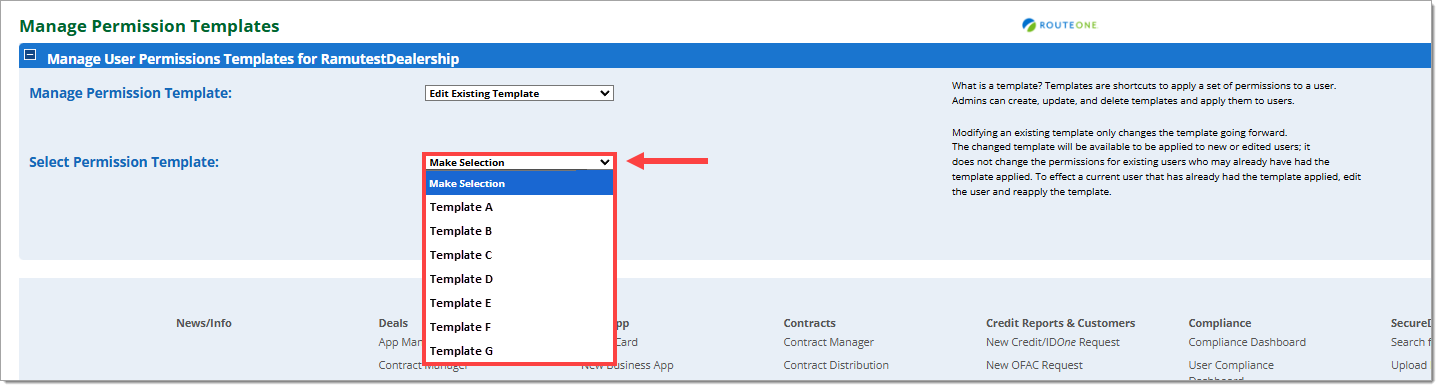
The ‘Permissions’ section will appear, pre-populated with the permissions currently associated with the template, allowing you to make adjustments as necessary.
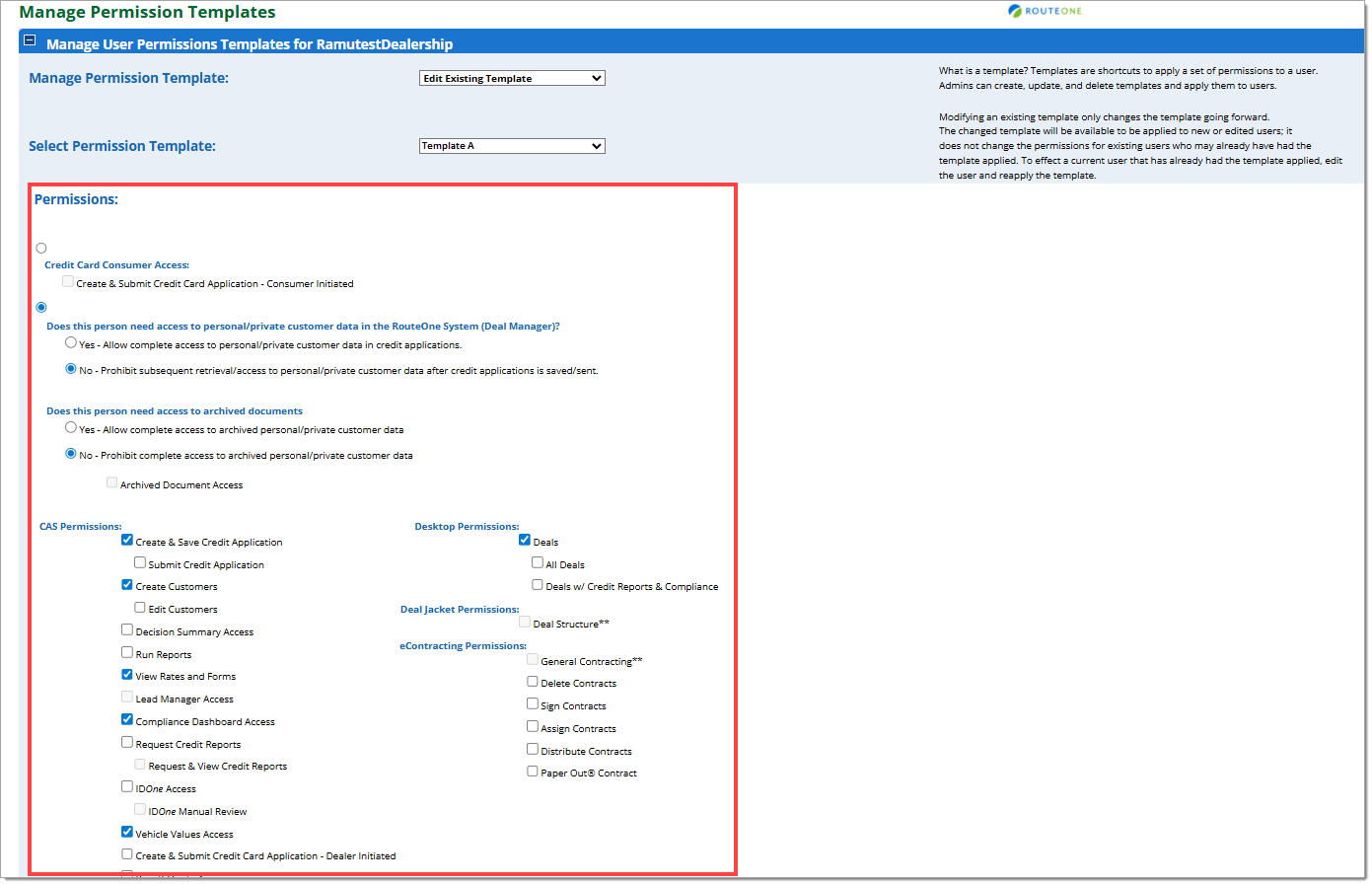
Once the appropriate changes have been made, click the ‘Save Information’ button to confirm. To discard the changes, click ‘Cancel.’
Changes made to the template will not be reflected on users currently associated with the template. To update the permissions of existing users, you must reapply the updated template to the user or update their permissions manually. For more information, click here to view our User Information and Permissions user guide.
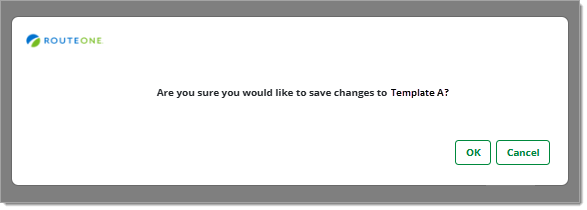
A confirmation pop-up will appear. Click ‘OK’ to finalize the changes, or ‘Cancel’ to return to the previous page.
Deleting a Template
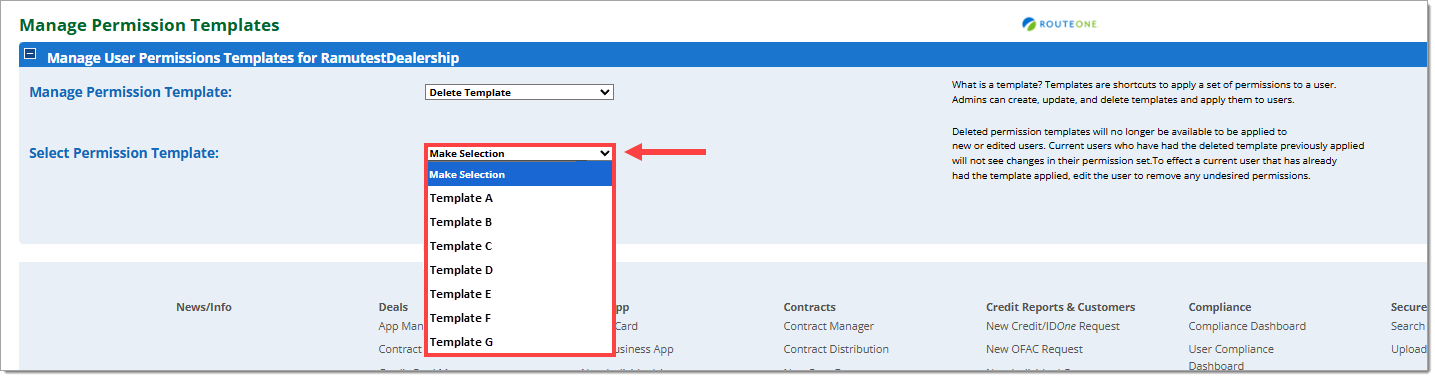
To delete an existing template, click the ‘Manage Permission Template’ dropdown menu and select the ‘Delete Template’ option.

Click the ‘Select Permission Template’ dropdown menu and select the template you would like to delete.
Deleting a template from this page will not affect the permissions of users to whom the template was previously applied. If changes are needed, you must apply a different template to the user or update their permissions manually. For more information, click here to view our User Information and Permissions user guide.
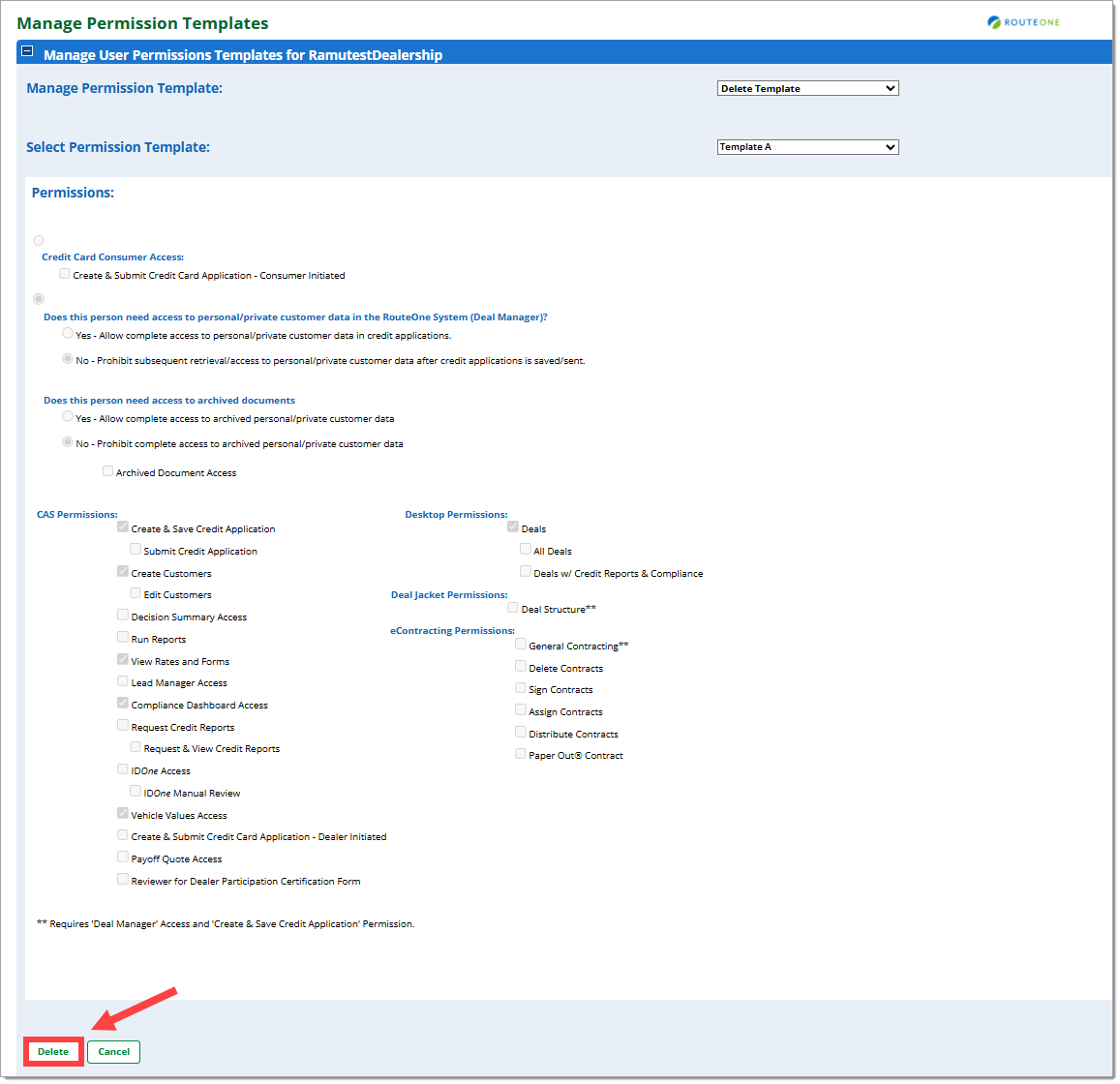
The permission template will appear on the page. Scroll down and click the ‘Delete’ button.
To select a different template to delete, click on the ‘Select Permission Template’ dropdown menu.
A confirmation pop-up will appear. Click ‘OK’ to delete the template you selected or click ‘Cancel’ to return to the previous page.
![The ‘Are you sure you would like to delete [the template]?’ pop-up.](https://routeone.com/sites/default/files/images/PermissionTemplates_US_17.0.png)
Applying a User Permission Template to a New or Existing User
ROUTEONE SUPPORT
Hours (EST)
Monday - Friday: 6:00am – Midnight
Saturday: 9am – 9pm
Can’t find what you need?
Try our search
